Calculations and BOM formulas
The Calculations section has three pages, plus the per item type Quantity tab inside the product catalog. To reach the Calculations pages, open Configuration in the app's left navigation; they are grouped under Calculations in the sidebar.
How the engine fits together
- The customer answers Storefront Questions (mount type, manufacturer, panel count, and so on).
- Solvera computes Calculated Values from those answers (total panels, row length, number of attachments, and many more).
- Each item type's Quantity formula uses those values to decide how many to include.
- Match criteria decide which specific product is chosen for each item type.
You can adjust any of these layers.
Storefront Questions Growth+
Open Calculations > Storefront Questions.
This page is a reference and override center for the inputs that come from your storefront questions (the questions themselves are managed elsewhere - see Where storefront questions are created below). It is organized by module tabs (Racking, Inverters, BOS, and any custom modules), and each tab shows two groups:
- System Inputs: the built in values that storefront questions feed, such as total panels, span, and mount type. Each one is shown as a card with its key, description, and default value or formula. You can add an override to any of these (described below) so the value changes under specific conditions.
- Custom Inputs: a read only list of the custom variables that come from your own storefront questions, showing each one's label, key, type, and scope. These are created elsewhere (see Where storefront questions are created below), so the list here is for reference.
A test calculator (currently for Racking) lets you enter sample values and see how the inputs resolve.
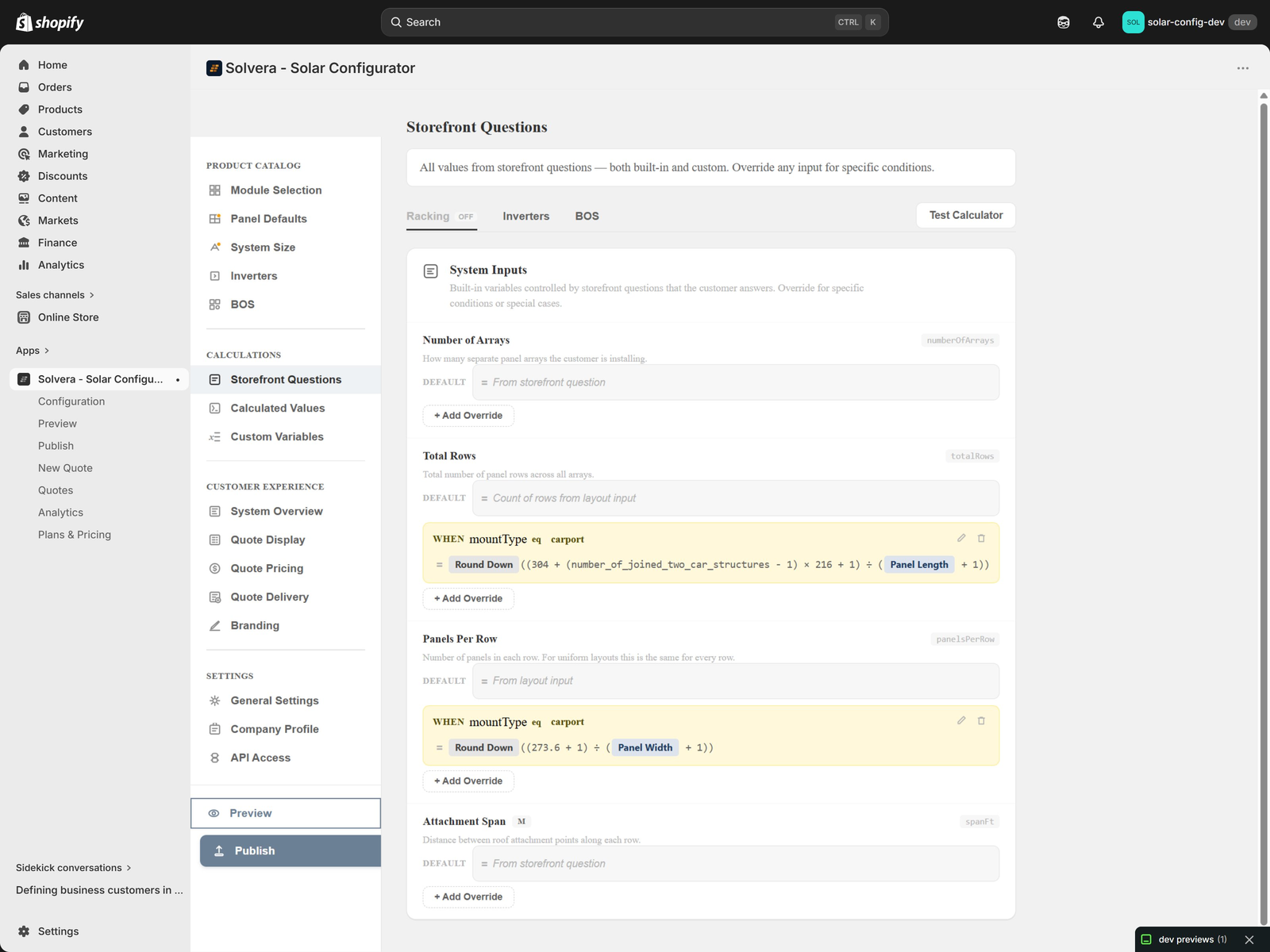
Overrides
An override changes a built in input under a condition you define. For example, you might force a different value when a particular mount type or manufacturer is selected. You build the override with the same chip based expression editor used for calculated values: choose a condition (a variable, an operator, and a value), then the formula or fixed value to use when that condition is met. Overrides are optional. Without one, the input uses its default.
Where storefront questions are created
The questions themselves live in two places, not on this page:
- Built in questions (mount type, manufacturer, roof type, and so on) are part of the engine. You do not create them, but you can change their wording, order, visibility, and images using content editing in Preview Professional, and their choices come from the products and properties in your catalog.
- Custom questions are created on each module's product catalog page, on its Storefront Questions tab. There you add a question, choose its type (for example a number input or a choice from a list), and set its options and default. It then appears in the configurator and shows up as a Custom Input on this page. Growth+
Calculated Values Growth+
Open Calculations > Calculated Values.
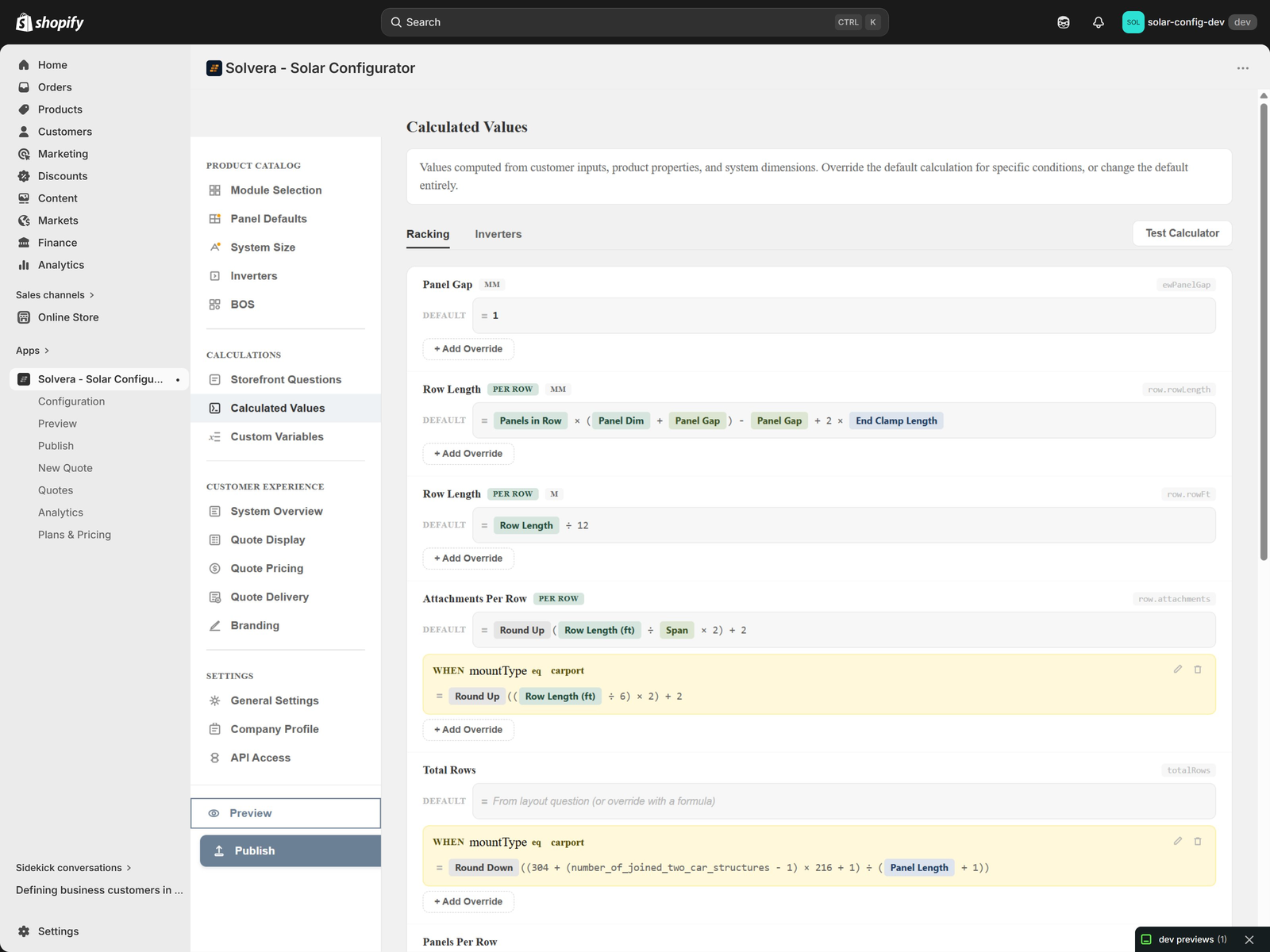
Solvera includes a large library of built in calculation variables, such as total panels, row length, number of attachments, pier count, microinverter quantity, and maximum panels per string. These are the values your quantity formulas use.
Each variable shows its default formula. You can override any variable's formula using the chip based expression editor, where variables appear as colored, atomic tokens and you insert them from a palette. A real time test calculator panel lets you plug in sample inputs and see the result immediately.
Custom Variables Growth+
Open Calculations > Custom Variables.
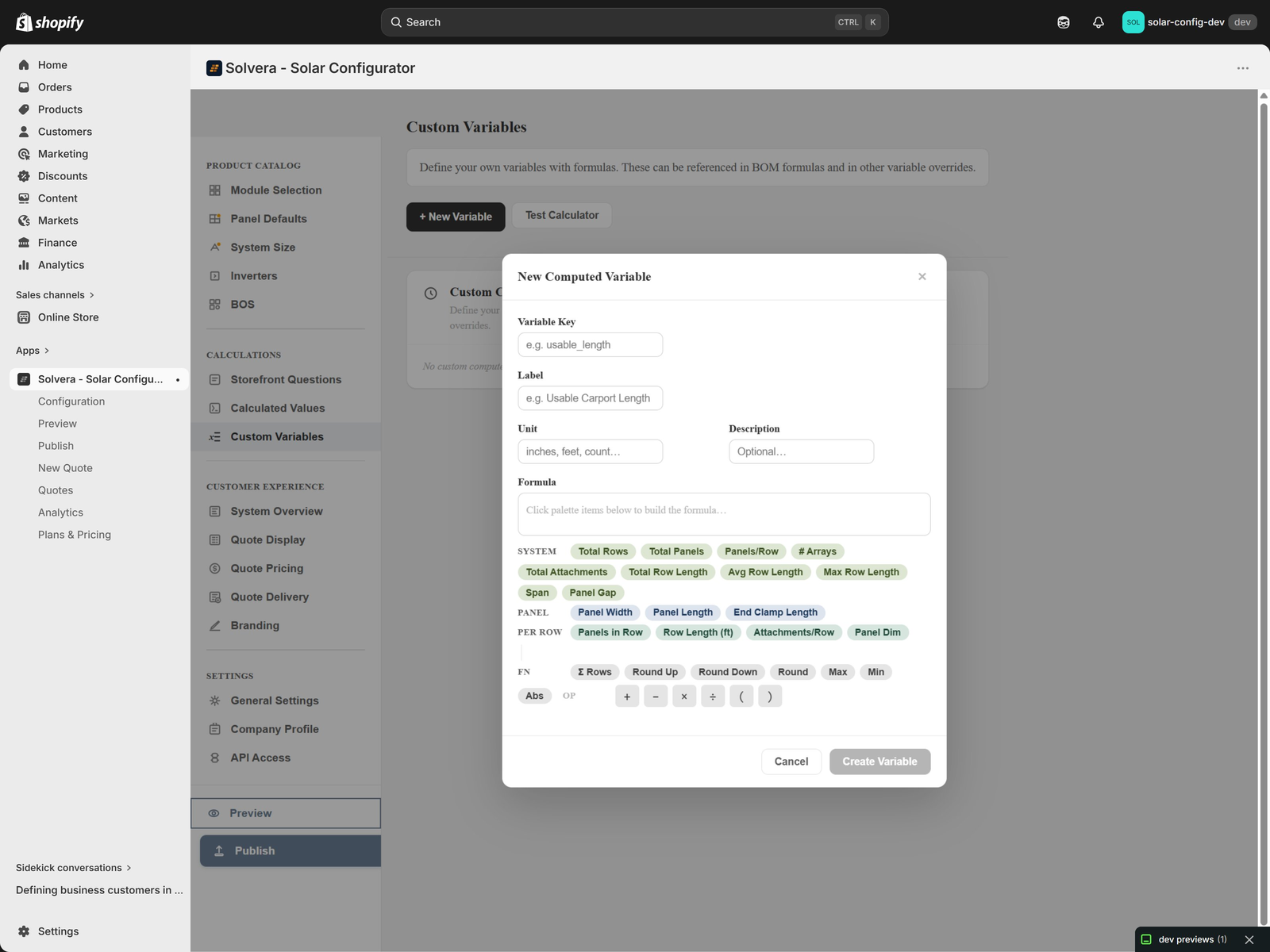
Create your own computed variables with full create, edit, and delete control. A custom variable can use any built in or other custom variable in its formula. Use these to capture business specific logic once and reuse it across many item type formulas.
BOM Quantity formulas (per item type)
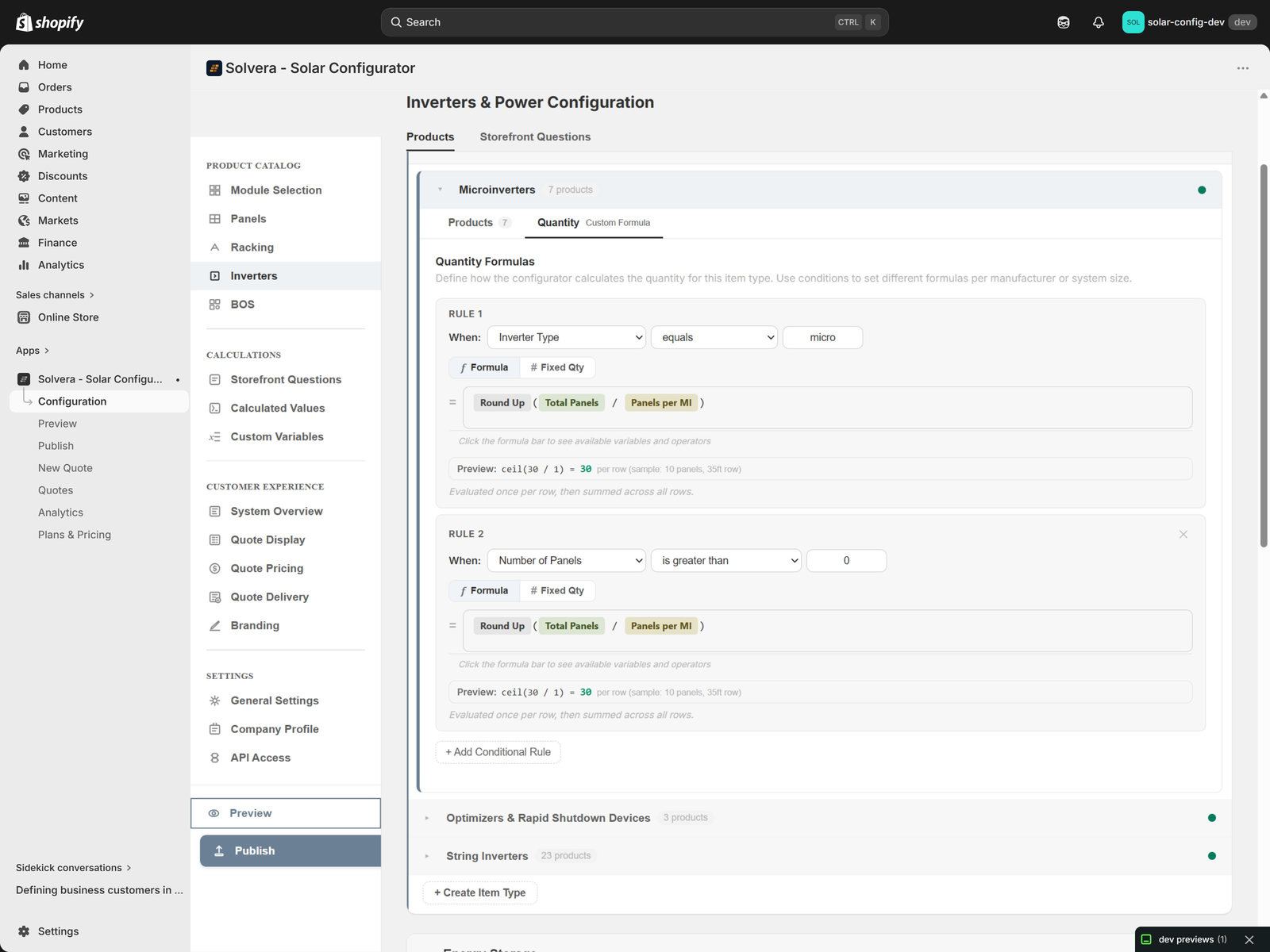
Each item type has a Quantity tab inside its product card (in the Racking, Inverters, BOS, or custom module pages). This is where you control how many of that item are added to the BOM.
Formula rules
An item type can have one or more formula rules. Rules are evaluated top to bottom and the first matching rule wins. A default rule with no condition acts as the fallback.
The available formula types cover real solar quantity logic:
- Fixed quantity: a constant number.
- Custom expression: any formula using calculated values and variables.
- Per row: computed for each panel row.
- Per attachment: computed per roof attachment point.
- Ratio: one item per N of something.
- Rail optimization: optimizes rail cuts to minimize waste, cost, or piece count.
- Pier count: ground mount pier quantity from spacing tables.
- Microinverter string packing: accurate microinverter count from the panel layout.
- Gender aware connector: automatic pair, male, or female resolution for MC4 connectors.
Conditional rules
Add conditions to a rule so it only applies in certain cases. For example, a deflector quantity might differ for the south row versus other rows. Conditions reference variables and use simple comparisons.
Per manufacturer overrides
Different suppliers package and count parts differently. You can override a formula for a specific manufacturer without changing the default. You can also:
- Exclude an item type for a manufacturer who does not sell it (an N/A flag).
- Force a property value for a specific manufacturer.
Pack sizes
If a product has a quantity per pack property, the default formula automatically buys whole packs (rounding up), so customers are quoted realistic order quantities.
Match Criteria Editor
For each item type you choose which customer selections participate in matching the right product. For example, rails might match on manufacturer, profile, and color, while a grounding kit matches on manufacturer only.
You also set the selection mode per item type:
- Auto select: Solvera picks the product automatically based on the customer's earlier answers.
- Customer picks: the customer sees a product grid and chooses, and their choice flows into the BOM.
Built in solar engineering
Several calculations are built into the engine and require no setup beyond adding the right product properties:
- Rail cut optimization: chooses rail lengths to minimize waste, cost, or piece count, with a preferred rail length tiebreaker.
- Microinverter string packing: computes microinverter counts from the actual panel layout, including mid row transitions.
- Wire gauge auto selection: selects PV wire gauge from the panel current using a code compliant ampacity calculation.
- MC4 connector resolution: automatically chooses a pair, or splits into male and female line items.
- Temperature corrected voltage filtering: filters microinverters for cold weather voltage compliance.
- Pier spacing tables: ground mount pier spacing from built in engineering data based on pipe size, wind speed, and snow load.
These give you accurate, professional quotes without building the logic yourself.
Recommended approach
- Launch with the defaults.
- Run a few real configurations and compare the BOM to what you would quote manually.
- Adjust only the item types where your products or suppliers differ from the defaults.
- Use per manufacturer overrides for supplier specific differences instead of changing the global default.