Customer experience and branding
To reach these pages, open Configuration in the app's left navigation. The pages covered here are grouped under Customer Experience, with the exception of Company Profile which lives under Settings. The Preview page is a top-level item in the app's left nav.
System Overview
Open Customer Experience > System Overview.
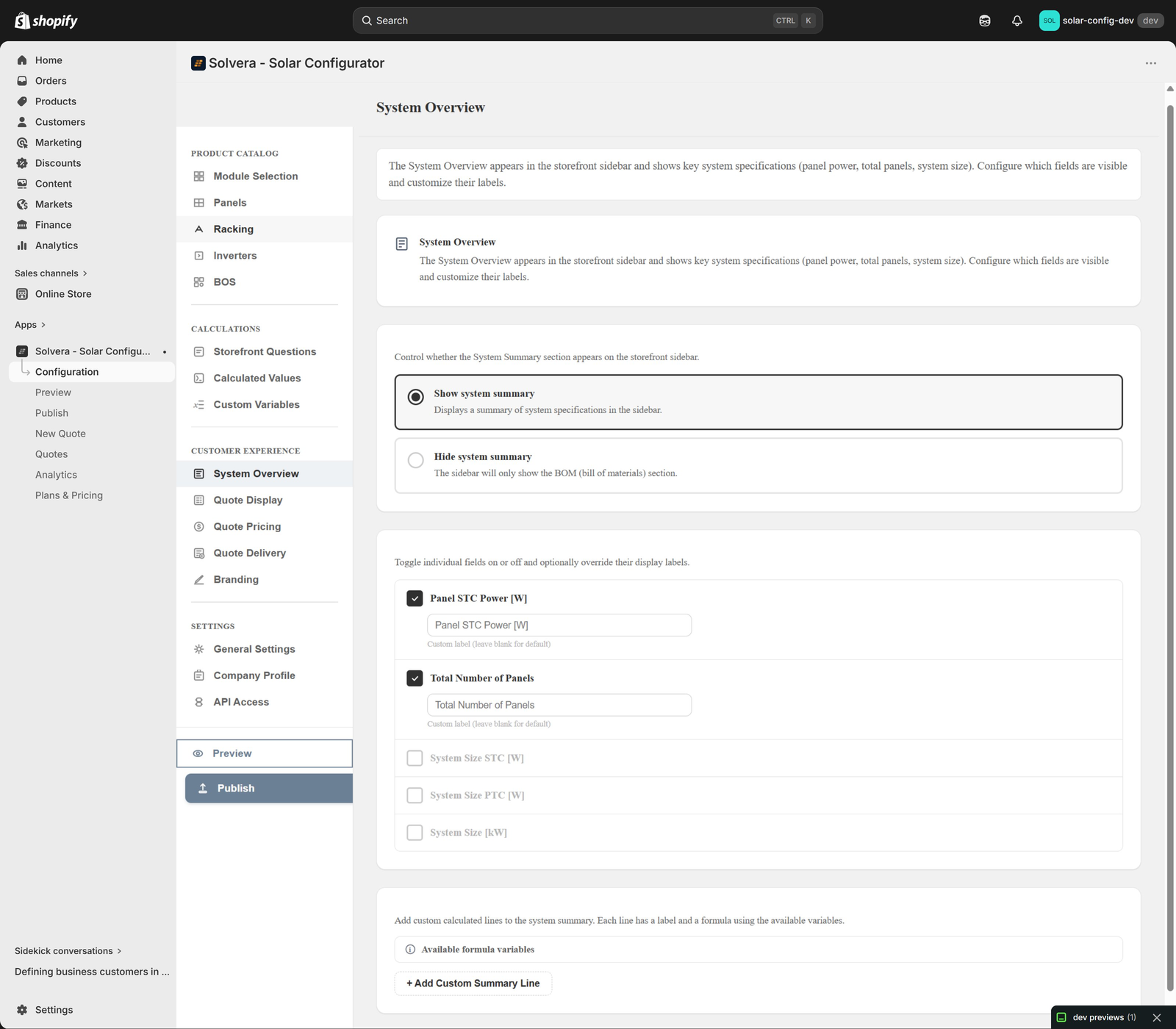
The System Overview is the summary block shown to the customer at the top of the storefront sidebar (panel power, total panels, system size). You can:
- Turn the summary section on or off.
- Enable or disable each built-in summary field (Panel STC Power, Total Panels, System Size in STC, PTC, and kW).
- Rename any field with a custom label.
- Add custom summary lines with your own formulas. Professional
Quote Display
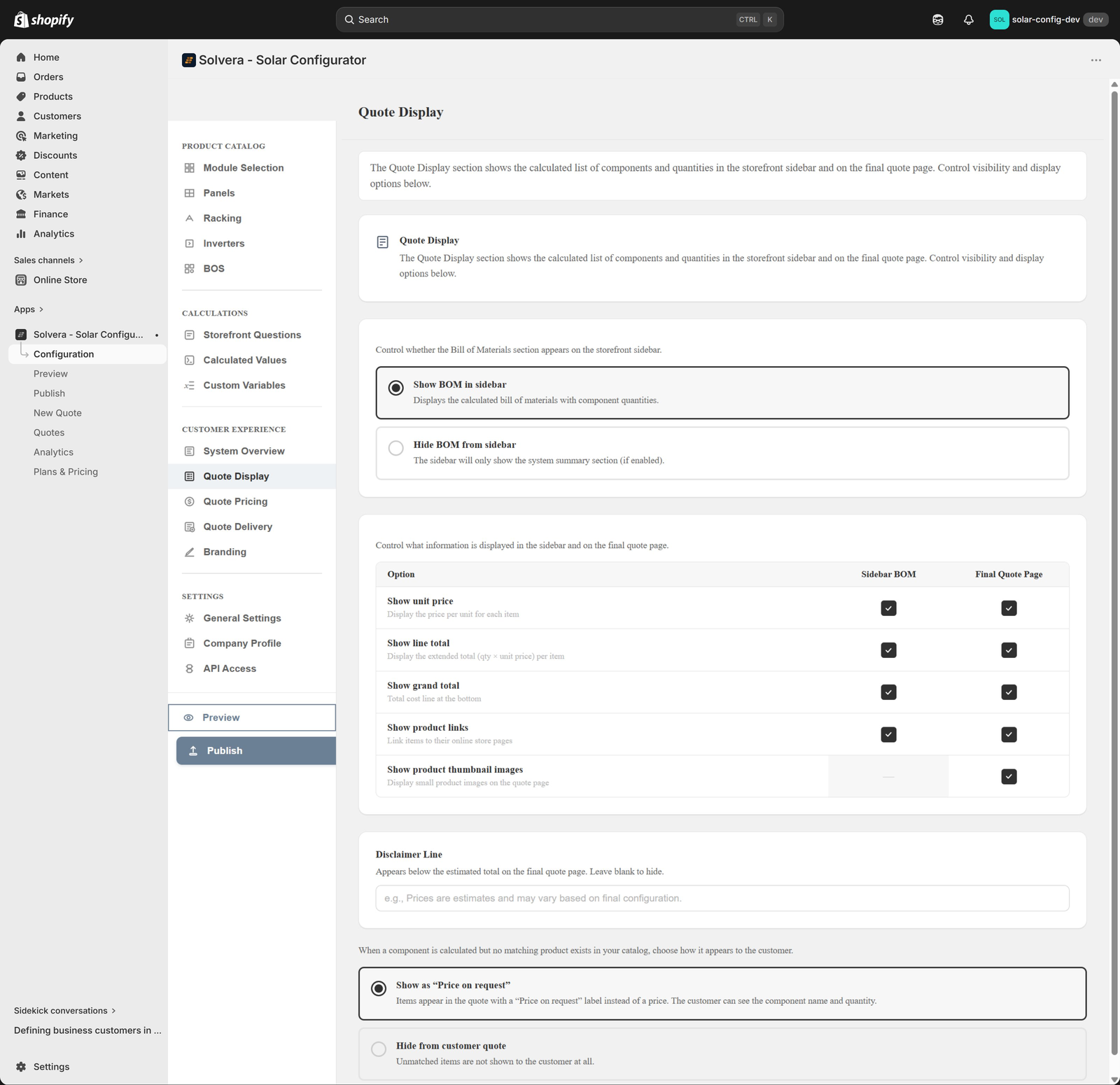
Open Quote Display under Customer Experience. This controls how the calculated bill of materials appears in two places: the storefront sidebar during the wizard, and the final quote page. Most options can be set separately for each location.
- Show or hide the BOM: a global toggle. Show the bill of materials in the sidebar, or hide it so the sidebar shows only the system summary.
- Display options table: when the BOM is shown, a table lets you turn each option on or off independently for the Sidebar BOM and the Final Quote Page:
- Show unit price Growth+ the price per unit for each item.
- Show line total Growth+ the extended total (quantity times unit price) per item.
- Show grand total: the total cost line at the bottom.
- Show product links: link each item to its online store page.
- Show product thumbnail images: small product images. Available on the final quote page only.
- Disclaimer line: optional text shown below the estimated total on the final quote page. Leave blank to hide it.
- Unmatched items: when a calculated component has no matching product in your catalog, choose how it appears. "Price on request" shows the line with a label instead of a price. "Hide from customer quote" suppresses the line entirely.
Quote Pricing Growth+
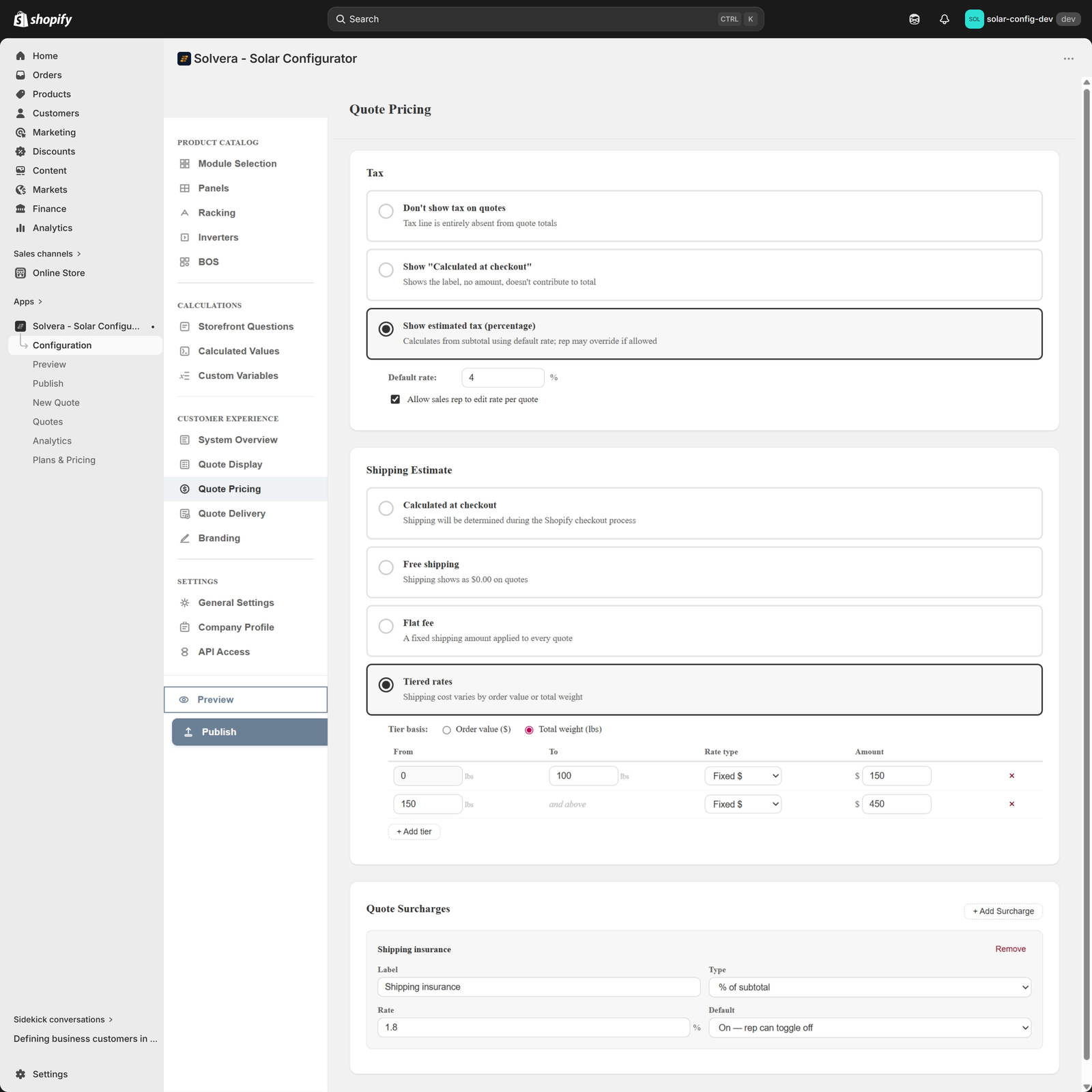
Open Quote Pricing under Customer Experience. Add tax, shipping, and surcharges to quotes.
- Tax: hidden, calculated at checkout, or shown as a percentage. Optionally make the rate editable by sales reps on a per-quote basis.
- Shipping: calculated at checkout, free, a flat fee, or tiered by weight or order value. Reps can always override with an actual freight quote on the quote itself.
- Surcharges: a repeatable list, each with a label, a type (percentage of subtotal or flat amount), a rate, and one of four default behaviors: always on, default on (rep can toggle off), default off (rep can toggle on), or always off.
When pricing is configured, the customer-facing quote shows a clear breakdown: subtotal, then each enabled surcharge, then shipping, then tax, then the estimated total.
Quote Delivery
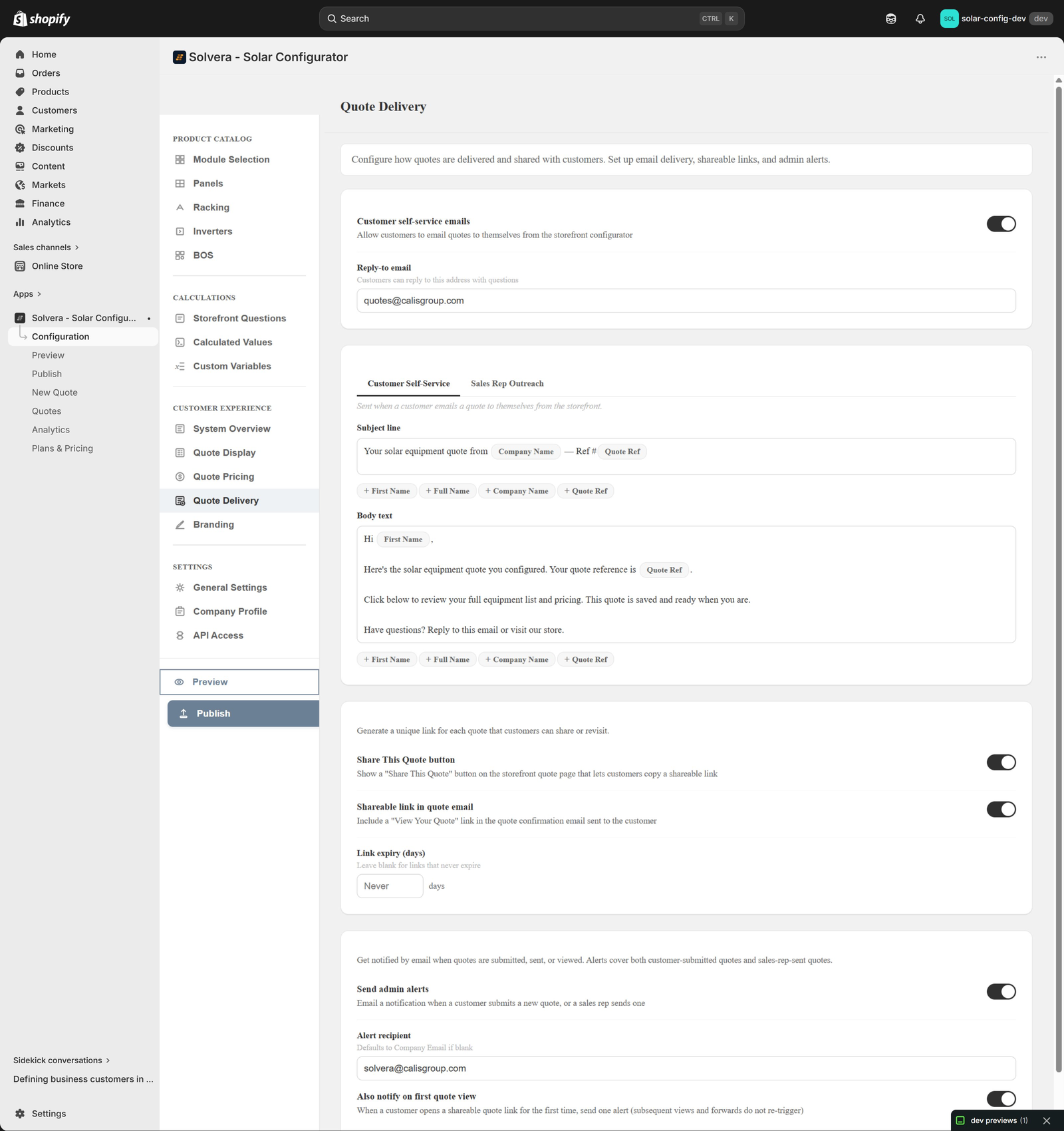
Open Quote Delivery under Customer Experience. This page controls how quotes are delivered, shared, and notified, across four areas.
Email delivery
Turn on Customer self-service emails to let customers email a quote to themselves from the storefront. The quote is sent to the customer's logged-in account email, so customers sign in (or create an account) before emailing a quote to themselves. Set a reply-to email so their replies reach you. Sending email requires an email provider key on the server. If email is on but the key is missing, the page shows a warning banner. Share links and add-to-cart do not require email.
Email templates
When customer emails are on (or you have Sales Mode), an Email Templates card appears with up to two tabs:
- Customer Self-Service: the email a customer receives when they email a quote to themselves.
- Sales Rep Outreach: the email a sales rep sends with a quote. This tab appears on Growth and above. Growth+
Each tab has a subject line and a body, edited in a rich editor where merge tags appear as chips you insert from a palette. Customer tags include the customer first name, full name, company name, and quote reference. The sales tab adds the rep name and also has a rep signature field. Every field has a "reset to default" link so you can revert individual changes without losing your other edits.
Shareable links
- Share This Quote button: show a button on the storefront quote page that lets customers copy a shareable link.
- Shareable link in quote email: include a "View Your Quote" link in the confirmation email.
- Link expiry (days): when either share option is on, set how many days a link stays valid. Leave blank for links that never expire.
Admin alerts
Turn on Send admin alerts to get an email when a customer submits a new quote or a sales rep sends one. Set an alert recipient (it defaults to your Company Email from Company Profile if left blank). The sub-option Also notify on first quote view sends one alert the first time a customer opens a shareable quote link; later views do not re-trigger it. Admin alerts also require the email provider key.
Company Profile
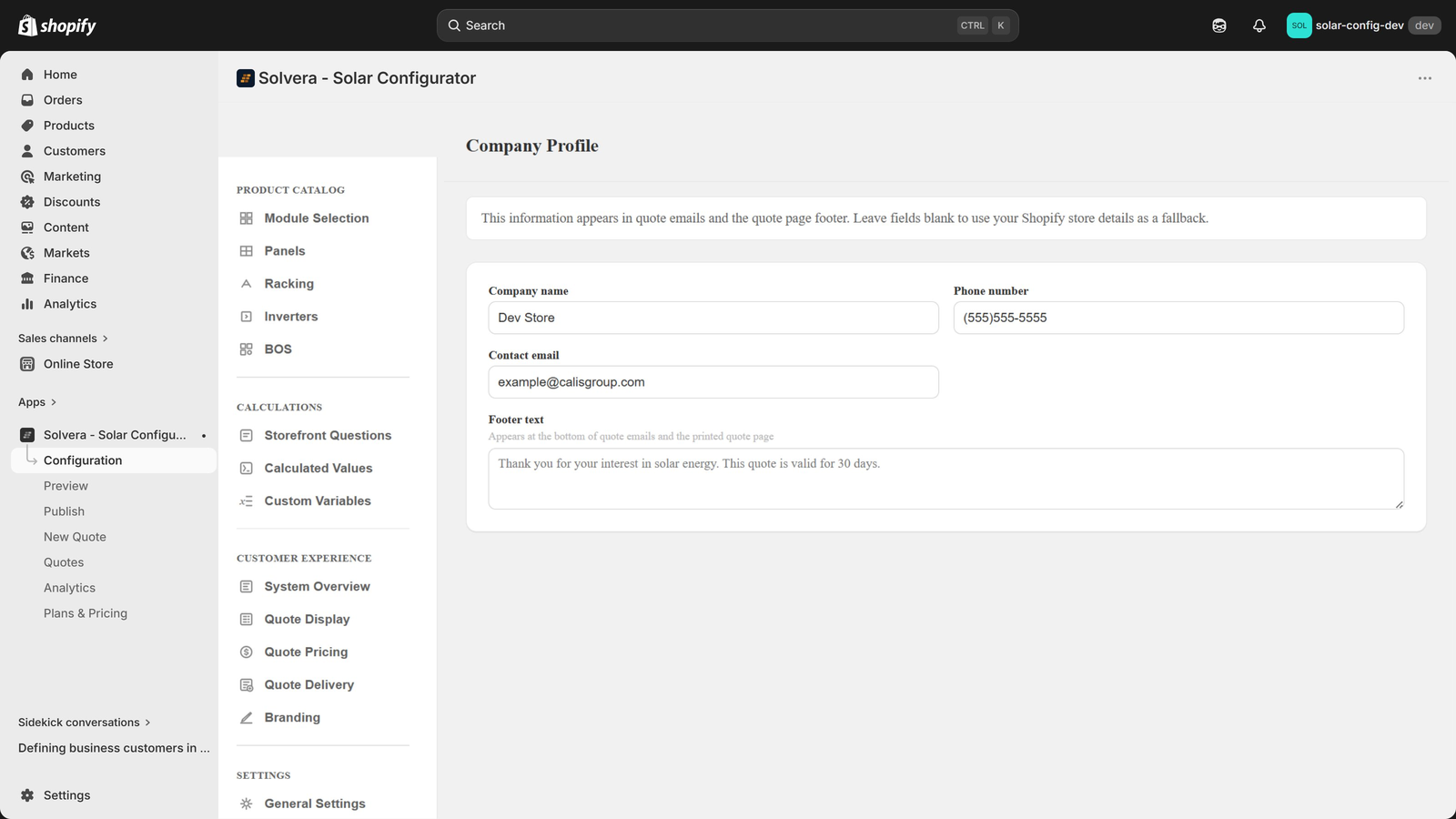
Open Settings > Company Profile.
Enter your company name, phone, email, and footer text. These appear in customer emails and at the bottom of quotes so every quote looks professional and on brand. Any field left blank falls back to your Shopify store details, so you only need to fill in fields where you want a quote-specific override.
Branding Professional
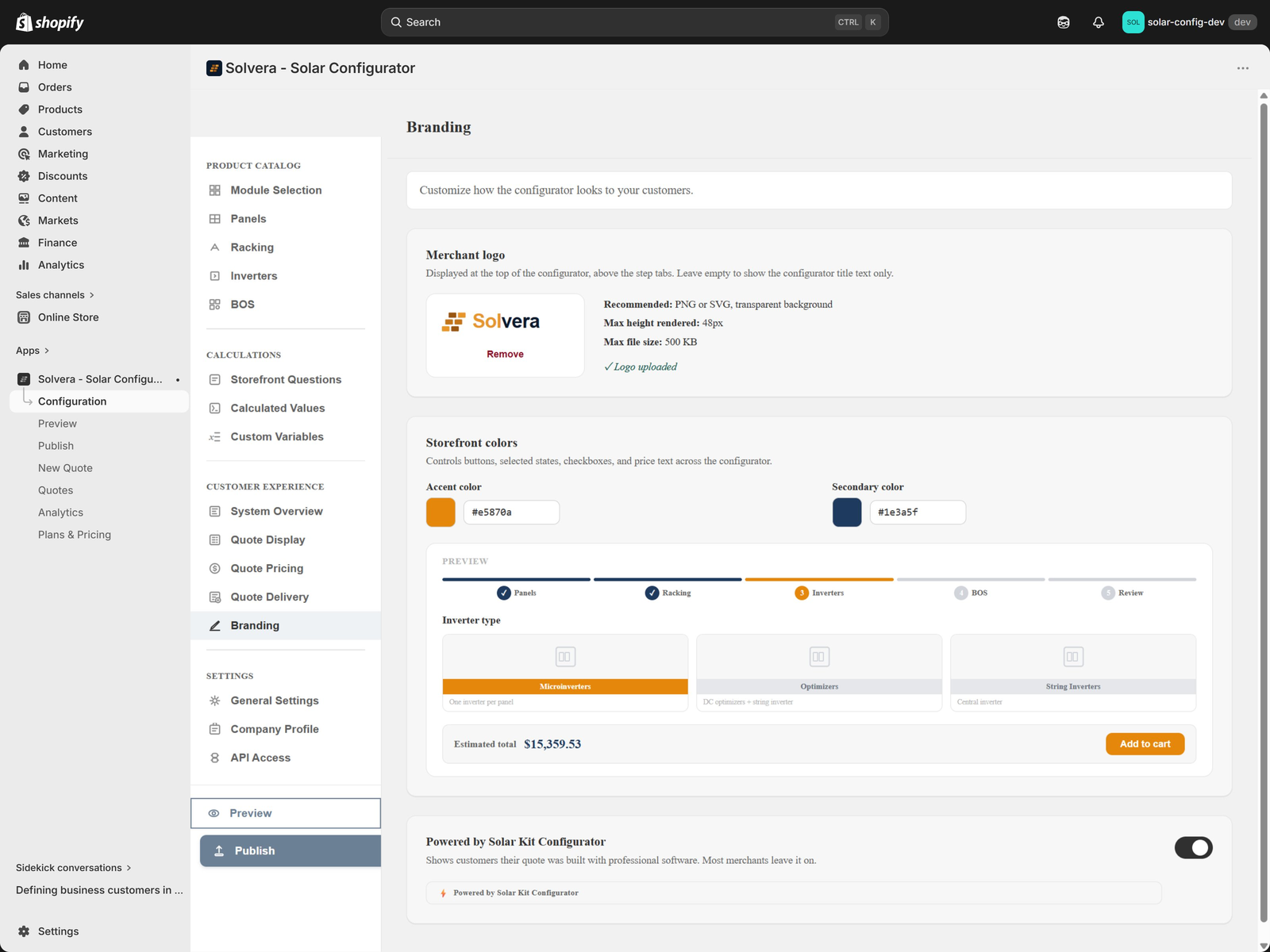
Open Branding under Customer Experience. Make the storefront and emails match your brand.
- Logo: upload a PNG or SVG (up to 500 KB). It appears at the top of the configurator and in customer emails.
- Colors: set an accent color and a secondary color with a color picker or hex input. A live preview strip shows a button, a selected card, price text, and a progress bar in your colors so you can check contrast before publishing.
- Powered by banner: show or hide the attribution banner at the bottom of the configurator.
Your branding flows into both the storefront wizard and the quote emails, so the entire experience is yours.
Preview
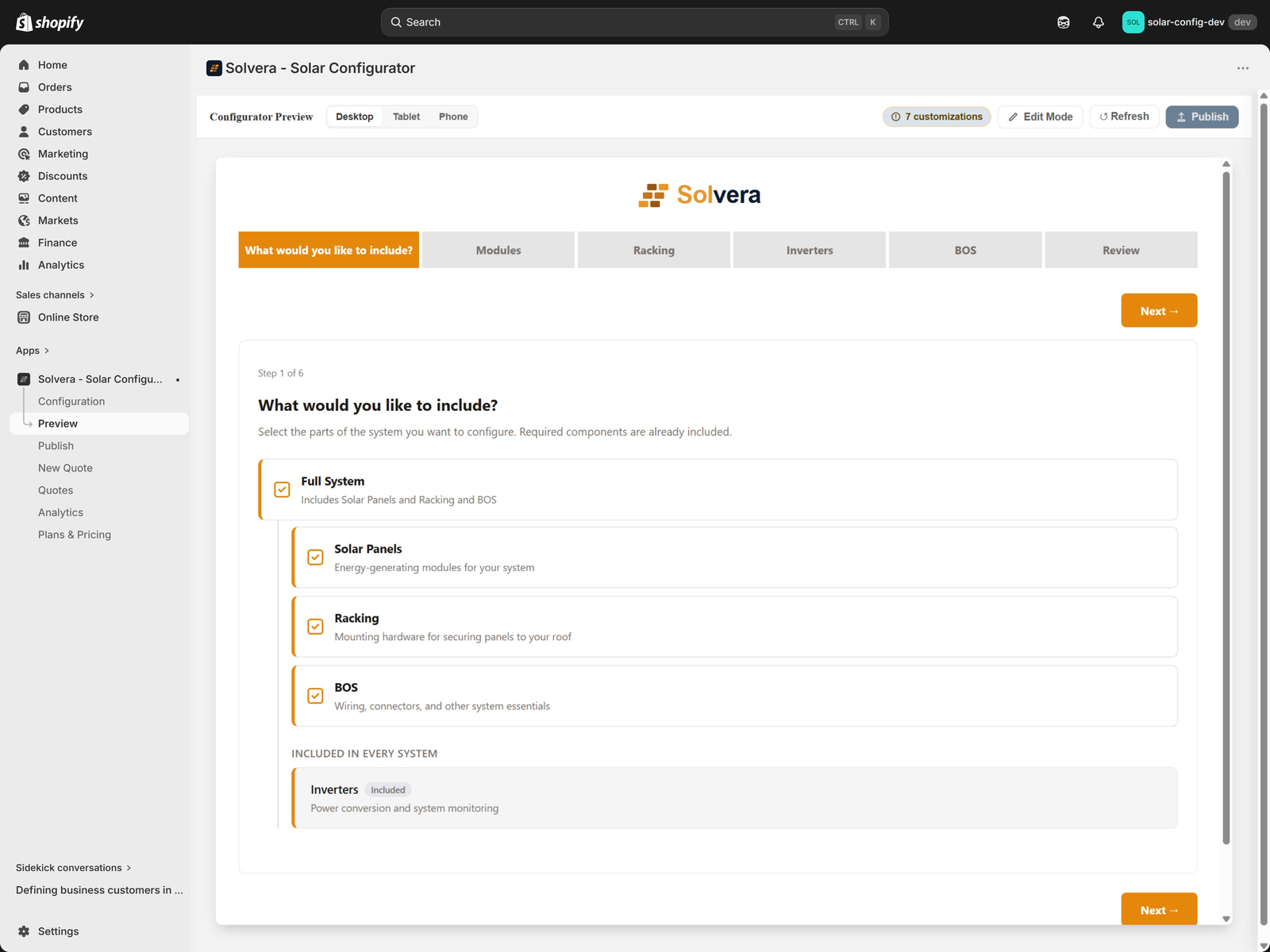
Open Preview from the app's left navigation (a top-level item, not nested under Configuration).
Preview renders the full configurator inside the admin against your current unpublished state, so you can test changes before customers see them. No publish is required.
- Switch between Desktop, Tablet, and Phone with the device toolbar.
- Walk through the entire wizard exactly as a customer would.
- Refresh to pick up the latest unpublished changes.
Content editing in Preview Professional
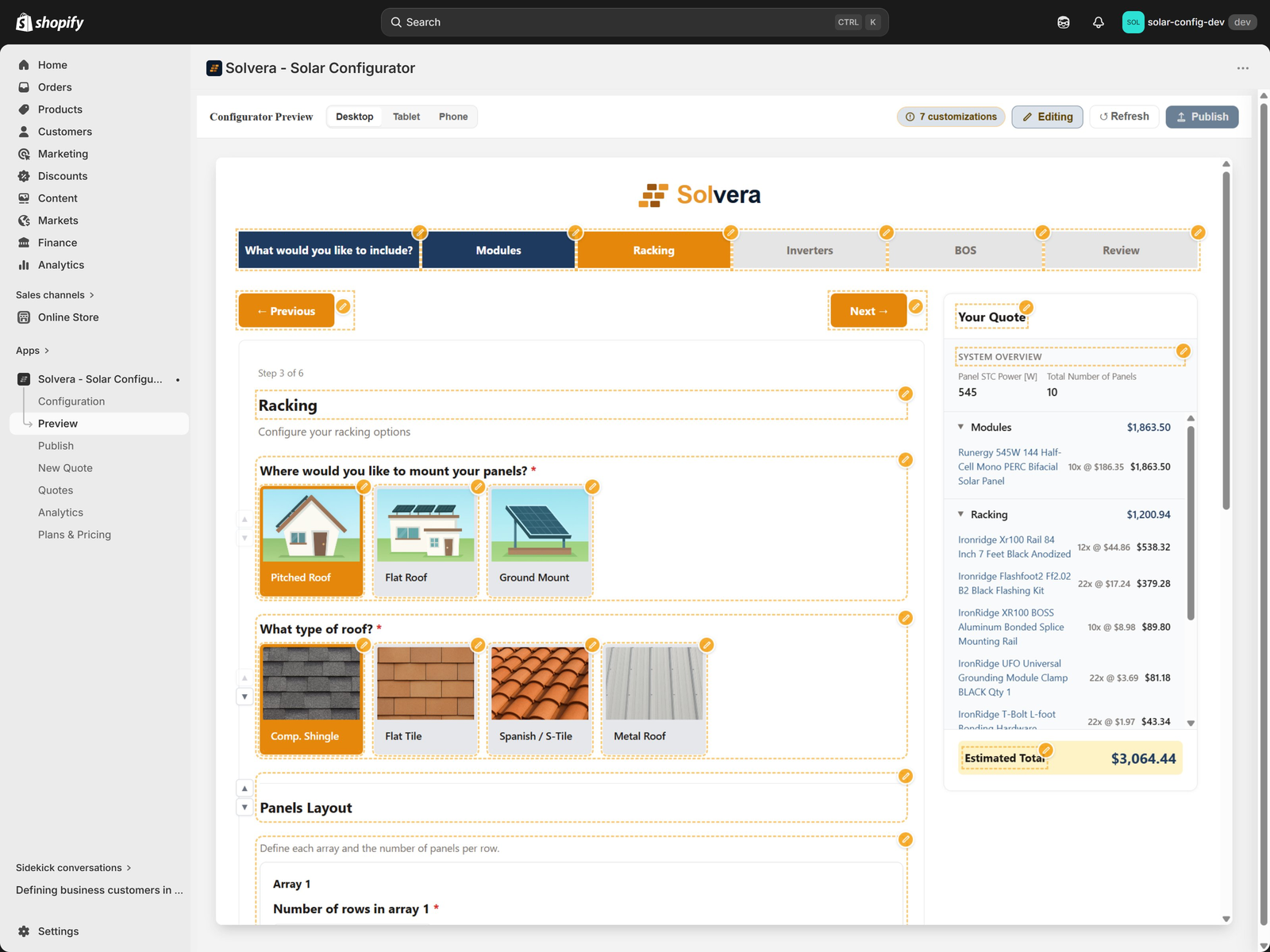
Inside Preview, Professional merchants can turn on Edit Mode to customize the storefront text and visuals without code.
- Inline text editing: click any label, hint, option, step title, image, or interface string (such as the Back and Next buttons) to edit it inline.
- Custom images for option cards: upload your own images to replace the defaults on mount type cards, roof type cards, and any other card-based option.
- Hide fields: any field you do not need can be hidden. Hidden fields appear dimmed in preview (so you know they exist) and are removed entirely from the customer view.
- Reorder questions within a step: use arrow buttons to change the order in which questions appear inside a step.
- Save bar: draft edits are batched so you can review and save them together rather than auto-saving each change.
- Overrides panel: a list of every customization you have made, grouped by step, with quick edit and reset actions for each one and a "Reset all" option.
This is how you localize, rephrase, or rebrand any visible string in the configurator. Edits are saved as overrides, so you can revert any one of them without affecting the others. Use Refresh to see how an edit reads in the actual flow, and Publish when you are ready to push the overrides live.
Putting it together
A typical setup pass through this section looks like:
- Set your Company Profile and (Professional) upload your logo and colors.
- Decide what shows in the BOM sidebar and the final quote, using the Quote Display matrix.
- Configure pricing if you are on Growth or above (tax, shipping, surcharges).
- Write your email templates and turn on the share and admin alert options you want.
- Preview the whole experience at all three device widths.
- Edit any text in Preview (Professional) to fit your audience.
- Publish when everything looks right.