Publishing and versions
How publishing works
The storefront configurator always reads the last published version of your configuration. This means:
- Customers never see half-finished edits.
- Your changes stay private until you publish.
- Each publish is a complete snapshot of products, formulas, branding, pricing, content, and quote settings.
Preview before you publish
Use Preview (in the sidebar, just above Publish) to test your current unpublished state inside the admin. Preview always reflects the latest edits, with no publish required. Switch between desktop, tablet, and phone, and walk through the full wizard as a customer would. See Customer experience and branding for details on Preview and inline content editing.
The Publish page
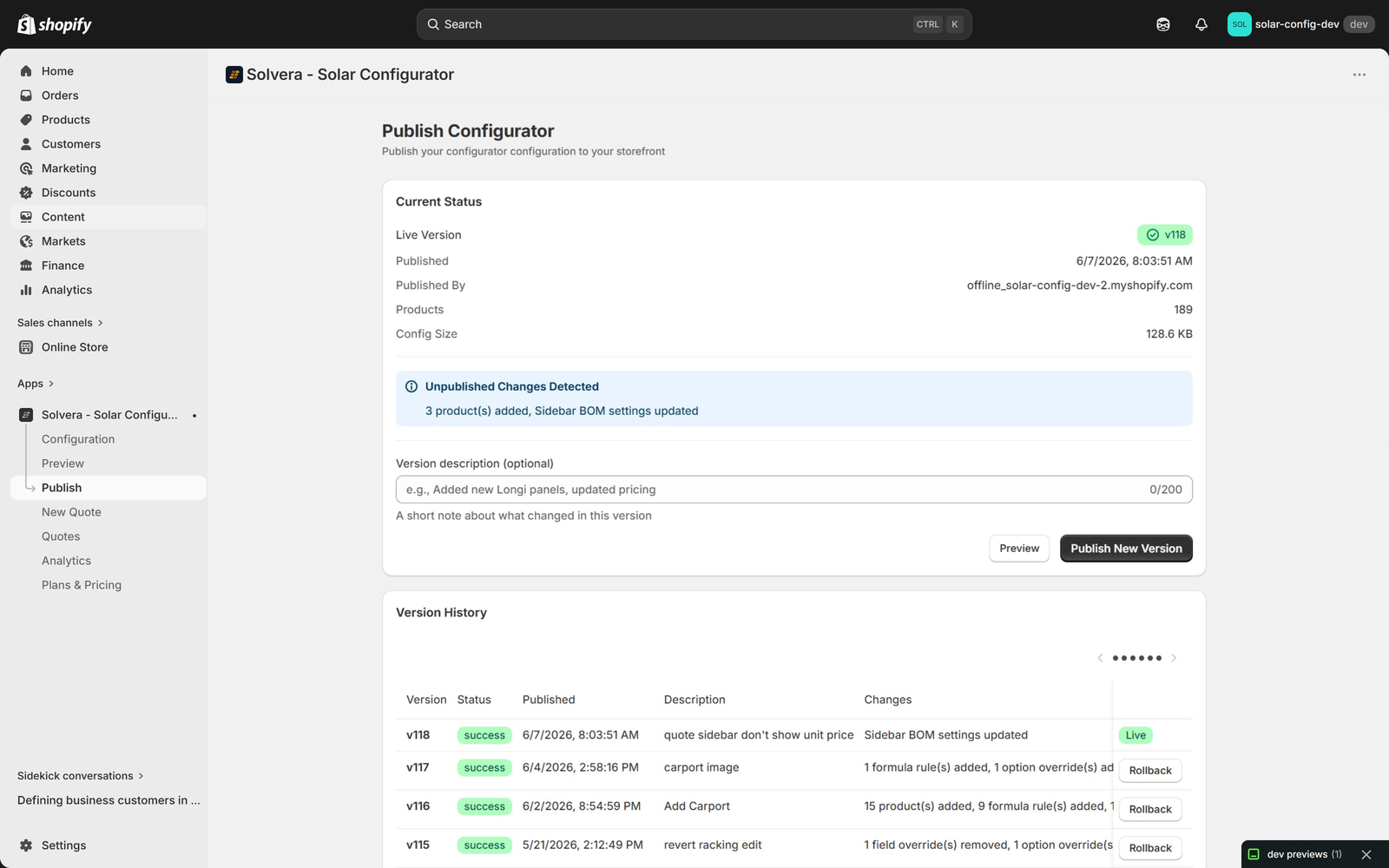
Open Publish from the app's left navigation. The page is organized into three sections from top to bottom:
Current Status
At-a-glance information about what is live on your storefront right now:
- Live Version number (with a green checkmark badge).
- Published timestamp.
- Published By (the shop that pushed the snapshot).
- Products count in the published configuration.
- Config Size (the size of the configuration snapshot).
Unpublished Changes Detected
Whenever your current configuration differs from the last published version, an Unpublished Changes Detected banner appears with a short summary of what changed (for example "3 product(s) added, Sidebar BOM settings updated"). This tells you that you have edits waiting to go live.
Publishing a new version
- Optionally type a Version description in the input (up to 200 characters). This becomes the row description in version history, so you can find specific versions later by what you changed (for example "Added new Longi panels, updated pricing").
- Click Preview if you want to spot-check the unpublished state one more time, or click Publish New Version to ship it.
Solvera captures a snapshot of every configuration setting and serves it to the storefront. The new version becomes the live one immediately and appears at the top of the version history.
Validation
Before publishing, Solvera checks your configuration and surfaces any issues. There are two kinds:
- Errors: something is missing or invalid that would break the storefront (for example a required setting is blank). Errors block publishing until fixed.
- Warnings: something works but might not be what you intend (for example email is enabled but no email provider is configured). Warnings are surfaced so you can address them but do not block publishing.
Clear errors before publishing and review warnings so you ship intentionally.
Version history
Every published version is listed in the Version History table with:
- Version number (v118, v117, and so on, incrementing on each publish).
- Status badge (success, failed).
- Published timestamp with the date and time.
- Description column showing the optional note you typed when publishing (for example "Add Carport", "carport image", "revert racking edit"). Useful for finding specific versions later by what they did.
- Changes column with an auto-generated human-readable summary of what differed from the previous version (for example "1 formula rule(s) added, 1 option override(s) added", "15 product(s) added, 9 formula rule(s) added").
- A Live badge on the version currently serving the storefront.
Older versions are paginated so the table stays compact even with hundreds of publishes.
Rollback
If a published version causes a problem, click Rollback on any earlier version row. The selected version becomes live immediately. This gives you a safety net for every change.
The Rollback button appears on every non-active version in the history. The currently-live version shows the Live badge instead of a Rollback button (you cannot roll back to the version you are already on).
Recommended workflow
- Make your edits in the admin.
- Open Preview and walk through the configurator end to end.
- Return to Publish and review the Unpublished Changes Detected banner.
- Resolve any validation errors and review warnings.
- Add a short Version description (optional but recommended; it pays for itself the first time you need to find a specific version).
- Click Publish New Version.
- Confirm the live storefront looks right.
If anything is off, roll back to the previous version while you investigate.