Product catalog
How the catalog is structured
Solvera organizes your products into a hierarchy:
- Modules are the top level parts of a solar system: Solar Panels, Racking, Inverters, and BOS (balance of system). You can also create custom modules.
- Item types are the specific product categories inside a module. For example, Racking contains rails, splices, mid clamps, roof attachments, and more. Inverters contains microinverters, string inverters, batteries, monitoring, and accessories.
- Products are your actual Shopify products, added into item type tables with property columns.
You configure what you sell, not how the configurator works. The solar engineering logic is built in.
Module Selection
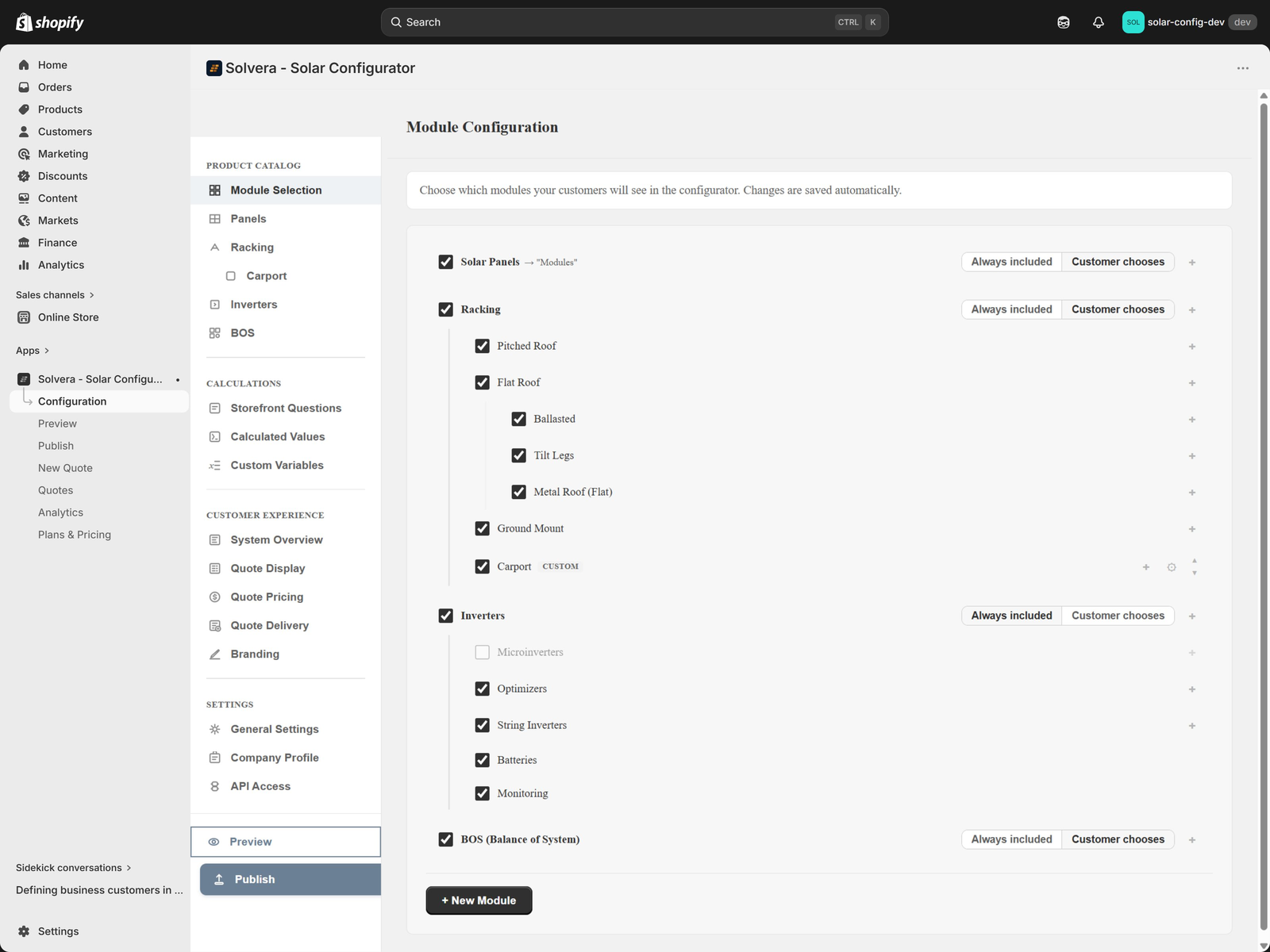
In the app's left navigation, open Configuration. The configuration area has its own sidebar grouped into Product Catalog, Calculations, Customer Experience, and Settings. Under Product Catalog, click Module Selection. (The page itself is titled Module Configuration.)
- Toggle each module on or off.
- Expand a module to see its sub modules. Racking, for example, has Pitched Roof, Flat Roof, and Ground Mount, with deeper levels such as Ballasted, Tilt Legs, and Metal Roof under Flat Roof.
- Set the selection behavior for each top level module with the inline pill toggle:
- Always included: always part of every configuration.
- Customer chooses: the customer opts in using a "Choose Components" step.
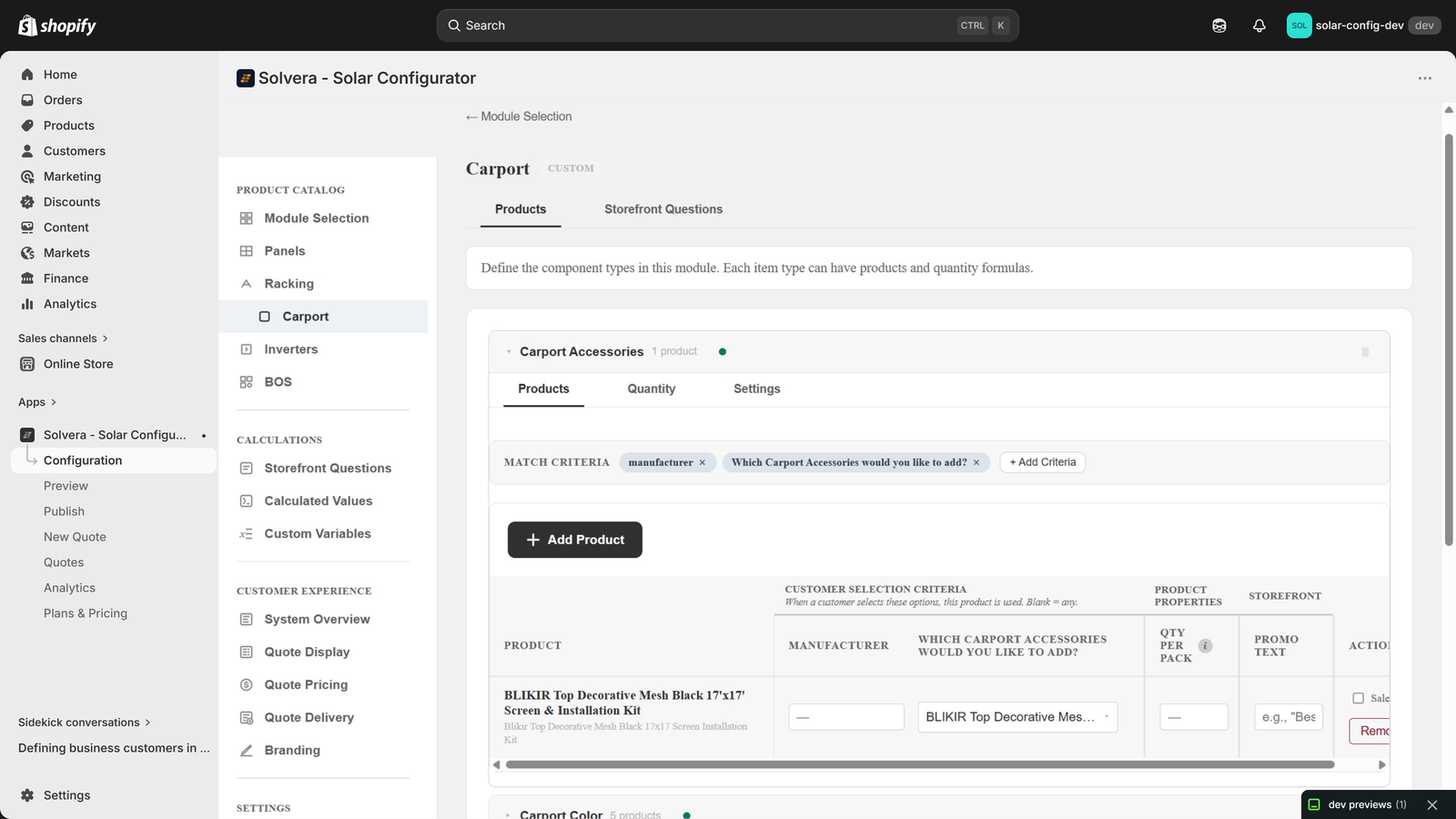
- Create a custom module of your own Growth+. A custom module can be a new top level module (for example Electrical Panel) that becomes its own step in the wizard, or a sub-module under an existing module such as Racking (for example Carport) that becomes an extra option inside that module. See Custom item types and custom modules below.
Panel Defaults and System Size (when a module is not included)
Two modules need a fallback configuration when you turn them off, because other parts of the system still depend on them. You set these up in the admin, and they drive the matching fallback steps customers see on the storefront (described in Customer storefront walkthrough).
These settings live on the same pages as the modules they relate to. When a module is turned off, its sidebar item is renamed and shows only the fallback settings. When a module is set to "Customer chooses", the same settings appear as an extra section on the module's normal page, so they apply when a customer opts out.
Panel Defaults (when Solar Panels is off)
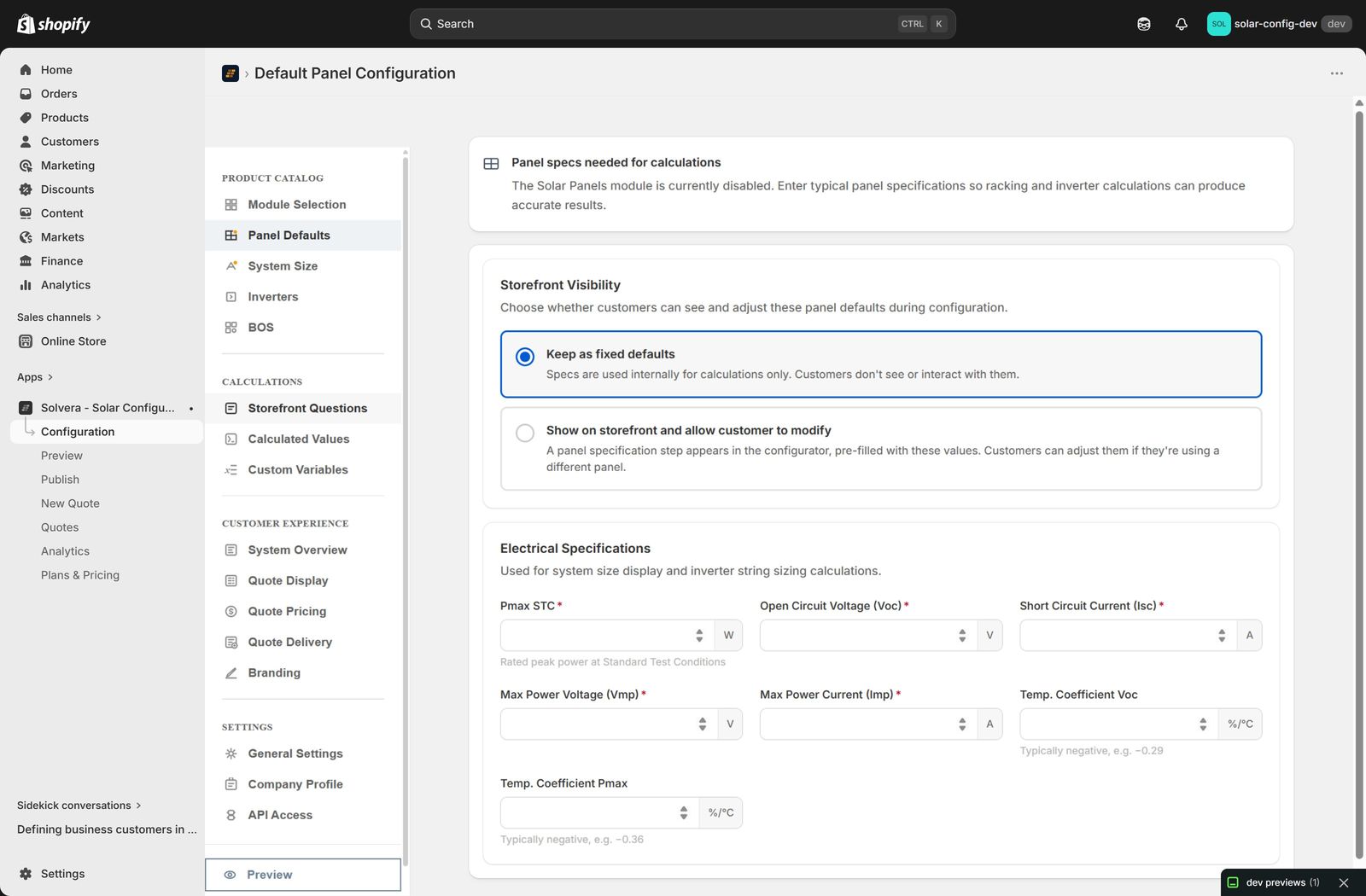
When Solar Panels is turned off, the Panels item in the Product Catalog sidebar is renamed Panel Defaults. Open it to enter the panel specifications that your racking and inverter calculations still need.
The fields shown depend on which other modules are active:
- Wattage (Pmax STC): the panel power rating, used to calculate system size. Shown when Racking or Inverters is active.
- Physical dimensions: module width, module length, and frame depth, used by racking layout calculations. Shown when Racking is active.
- Electrical values: open circuit voltage (Voc), short circuit current (Isc), voltage at max power (Vmp), and current at max power (Imp), used by inverter sizing. Shown when Inverters is active.
- Make visible to customers (storefront visibility toggle): when on, customers see a Default Panel step where they can adjust these values; when off, your values are applied silently in the background.
Changes save automatically as you type.
System Size (when Racking is off)
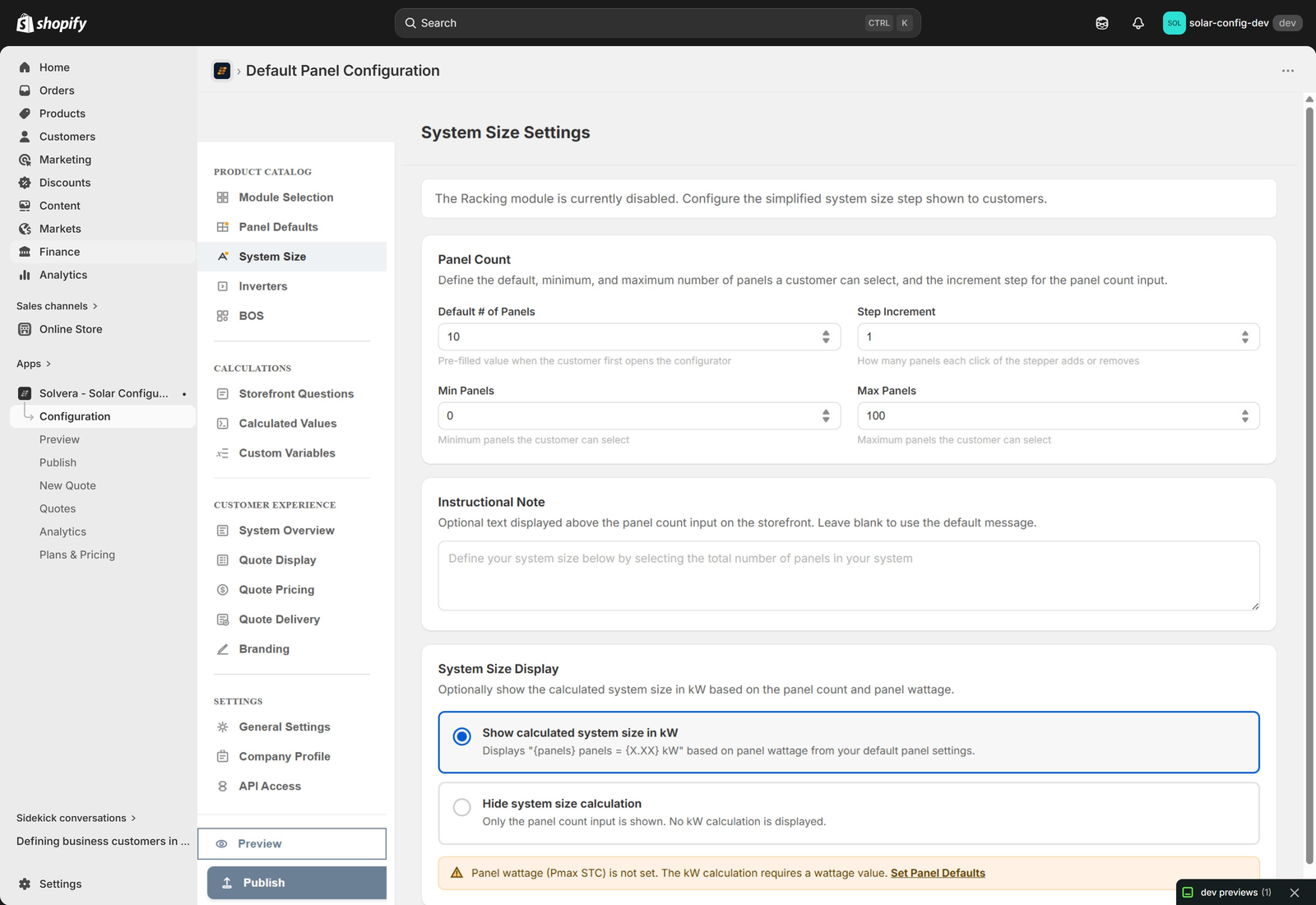
When Racking is turned off, the Racking item in the Product Catalog sidebar is renamed System Size. Because there is no roof layout to derive the panel count from, you define how the customer chooses the number of panels:
- Default number of panels: the starting count (10 by default).
- Minimum and maximum panels: the allowed range.
- Step increment: how much the count changes with each step of the stepper.
- Instructional note: an optional message shown above the input to guide the customer.
- Show calculated system size in kW: when on, the storefront shows the system size in kW as the customer changes the count. This needs a panel wattage to be available; if none is set, the admin shows a caution note.
Changes save automatically as you change them.
The built in item types
Solvera ships with a complete set of solar item types so you can model real systems out of the box.
- Solar Panels: your panel products with filterable attributes (wattage, manufacturer, color).
- Racking: 21 item types across groups such as Rails and Splicing, Clamps, Grounding, Roof Attachments, Flat Roof Ballasted, Flat Roof Tilt Legs, and Ground Mount.
- Inverters: 17 item types including microinverters, optimizers and rapid shutdown, string inverters, batteries, monitoring devices, and microinverter accessories.
- BOS: 9 item types across Wiring, Connectors, Wire Management, Grounding, and Safety and Compliance.
You do not have to use every item type. Add products only to the ones you sell.
Working with product tables
Each item type has a product table. To add products:
- Open a module page (for example Racking).
- Expand the item type section you want.
- Use the add product control to pull in Shopify products.
- Fill in the property columns.
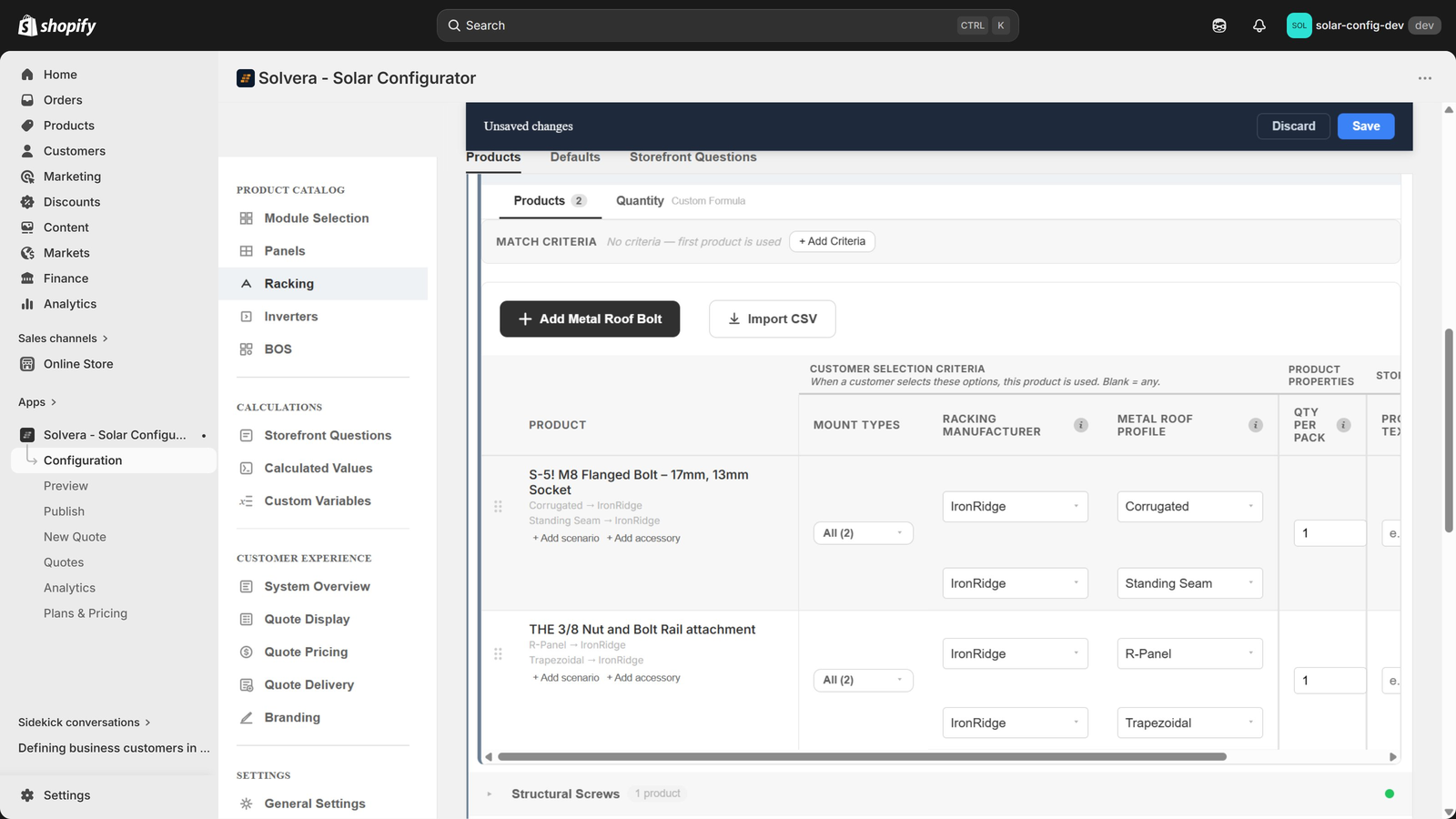
The columns are visually grouped under header bands to make the table easy to read:
- Customer Selection Criteria: the properties the customer chooses, such as manufacturer, profile, and color. These drive product matching.
- Product Properties: technical attributes used in calculations, such as length or wattage.
- Storefront: fields that surface on the storefront, such as promotional text.
Products and Quantity tabs
Each item type card has sub tabs:
- Products: the daily workflow of adding products and filling in properties.
- Quantity: the BOM formula that decides how many of this item to include. See Calculations and BOM formulas.
- Settings (where applicable): the product selection mode (auto select or customer picks).
Multi scenario products
A single product often fits several customer selection paths. Rather than duplicating the product row, you can give one product multiple scenarios.
For example, one rail might match both "Comp Shingle, FlashFoot, IronRidge" and "Tile, FlashFoot Tile, IronRidge". You add both scenarios to the same product, and the engine matches it in either path. A gray subtitle under the product name summarizes each scenario, so the table stays readable.
Coverage reporting
Solvera continuously checks whether you have products for every customer selection combination. Each item type section header shows a colored status dot:
- Green: complete coverage.
- Yellow: some combinations are missing.
- Red: no products yet.
Open the item type to see a coverage banner that lists exactly which combinations are missing per manufacturer, so you know what to add.
Promotional text Growth+
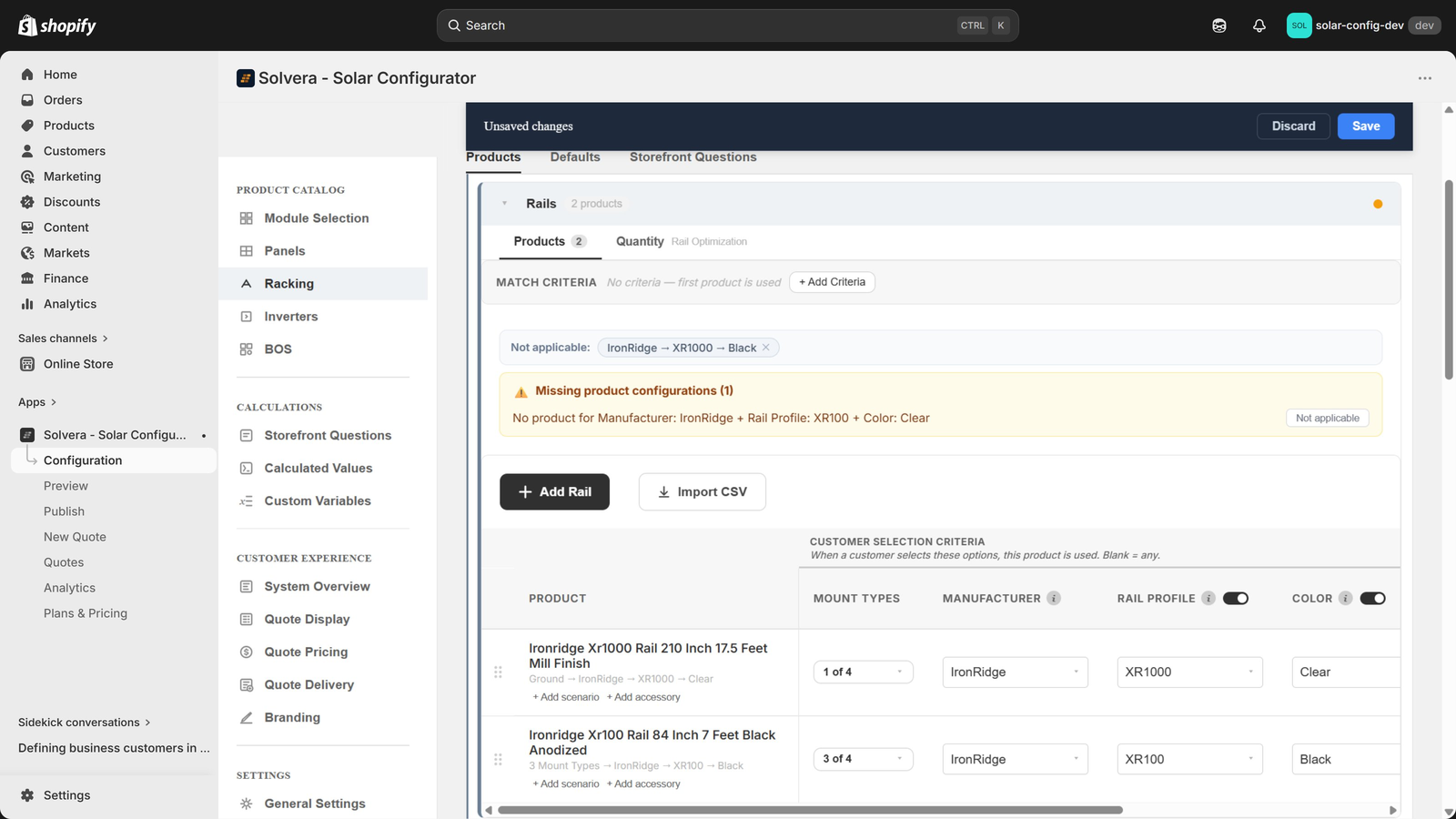
Add promotional text to any product. It appears as a badge on the storefront product card and on the quote BOM table, so you can highlight a sale, a warranty, a best seller, or a fast shipping note. Promotional text is display only and never affects matching or quantities.
Sales only products
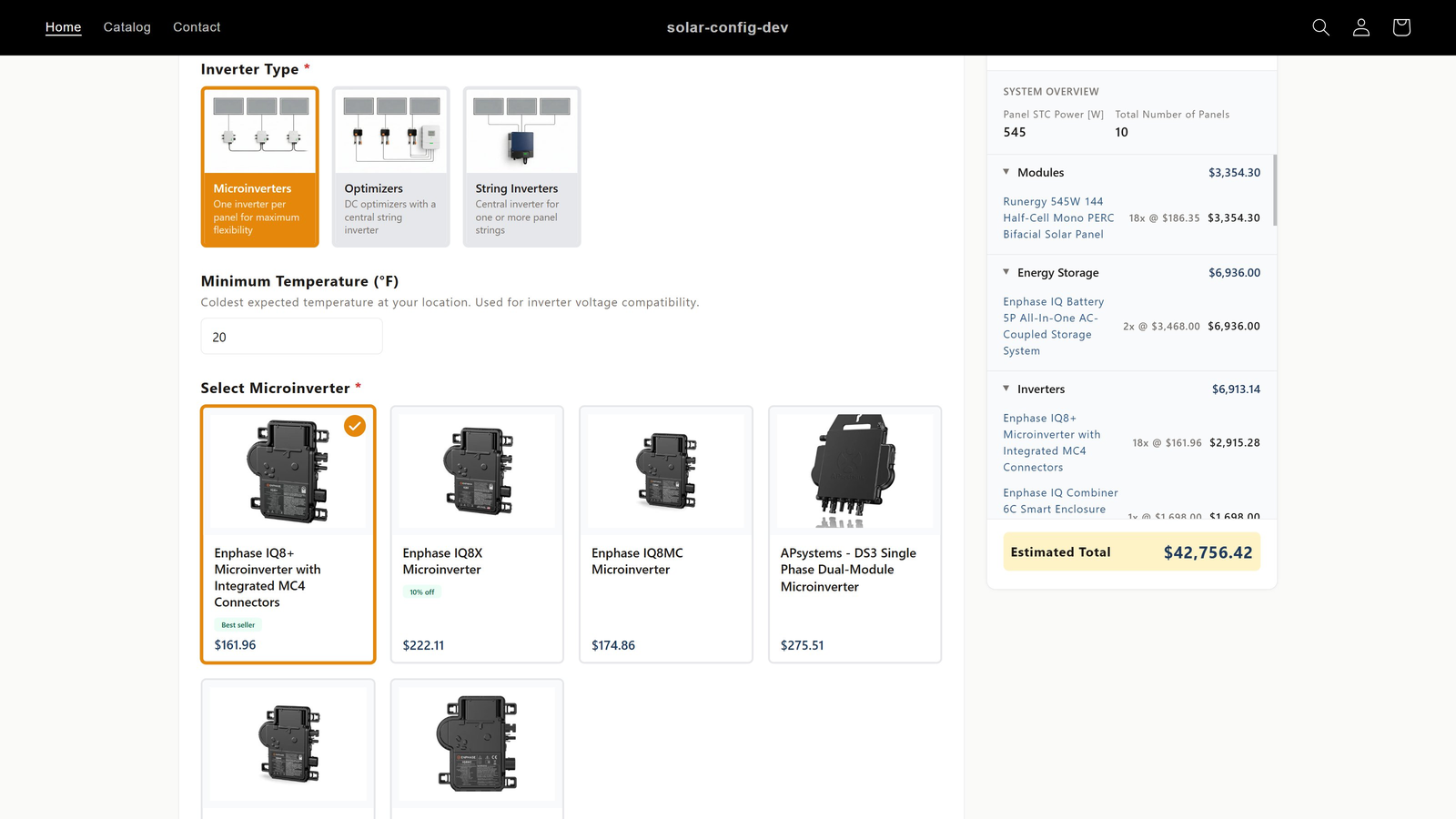
Tick the Sales Only checkbox in the product table to hide a product from customers while keeping it available to your sales reps in Sales Mode. Sales only products are filtered out of the public storefront and out of the coverage checks for the public flow, but reps can still add them to quotes.
Per product accessories
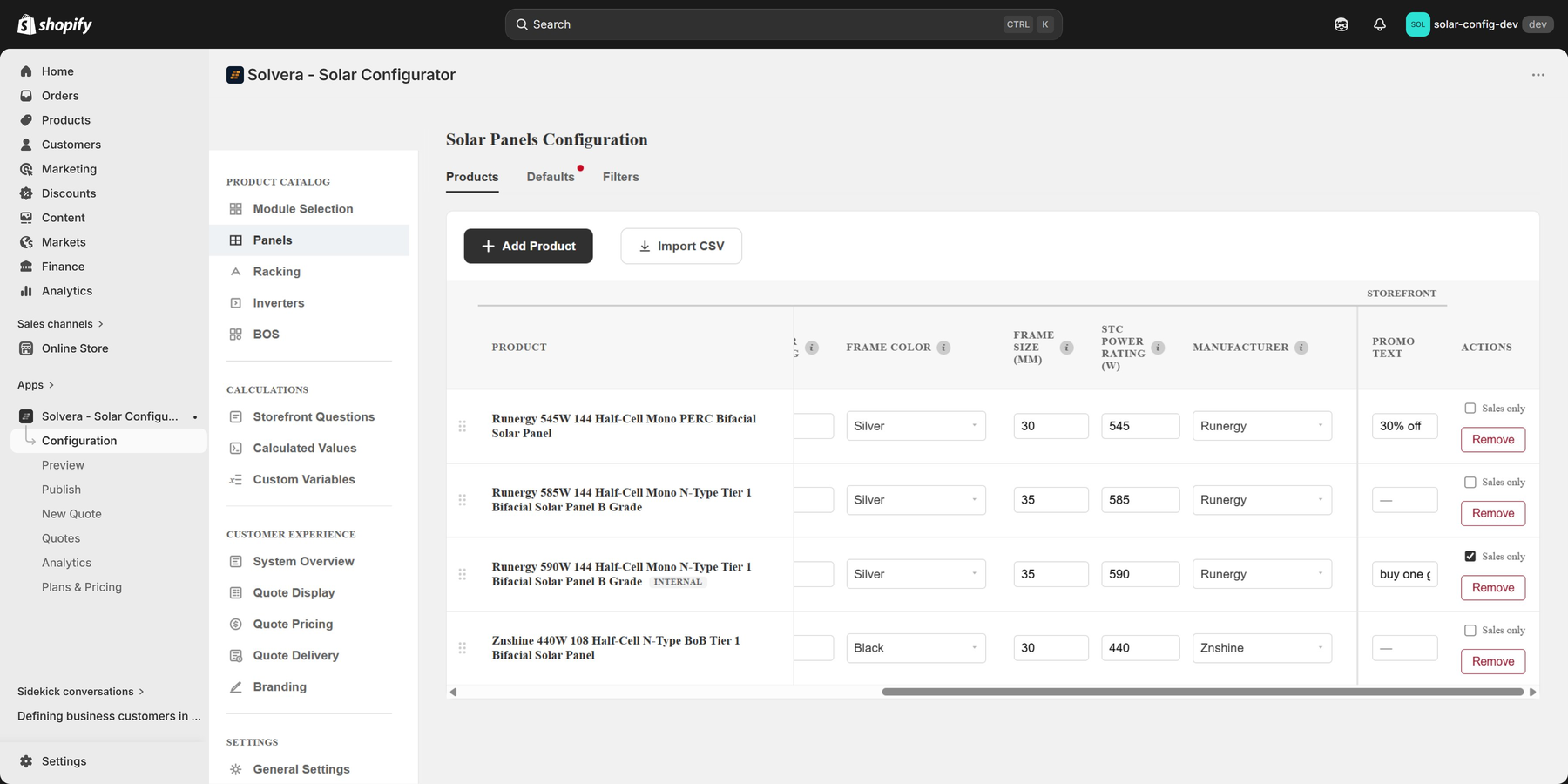
Any product can carry accessories: products that are always sold together with the parent. For example, a microinverter might always include a specific cable. Accessories appear as indented sub rows under the parent product. Each accessory has its own quantity formula and an optional condition that limits when it is added.
You can also use a parent condition to restrict an accessory or sub product to specific parent SKUs.
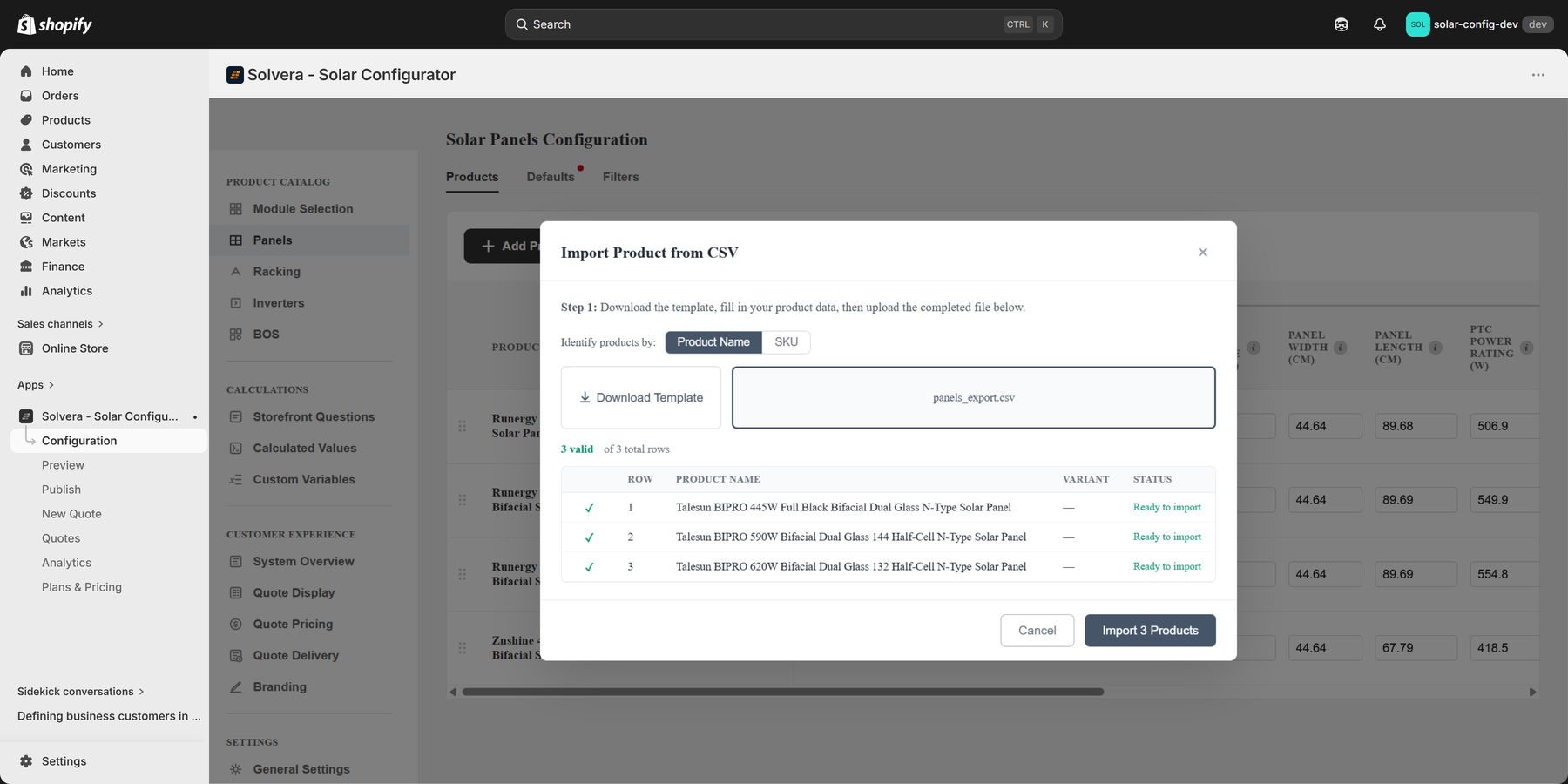
Bulk CSV import Growth+
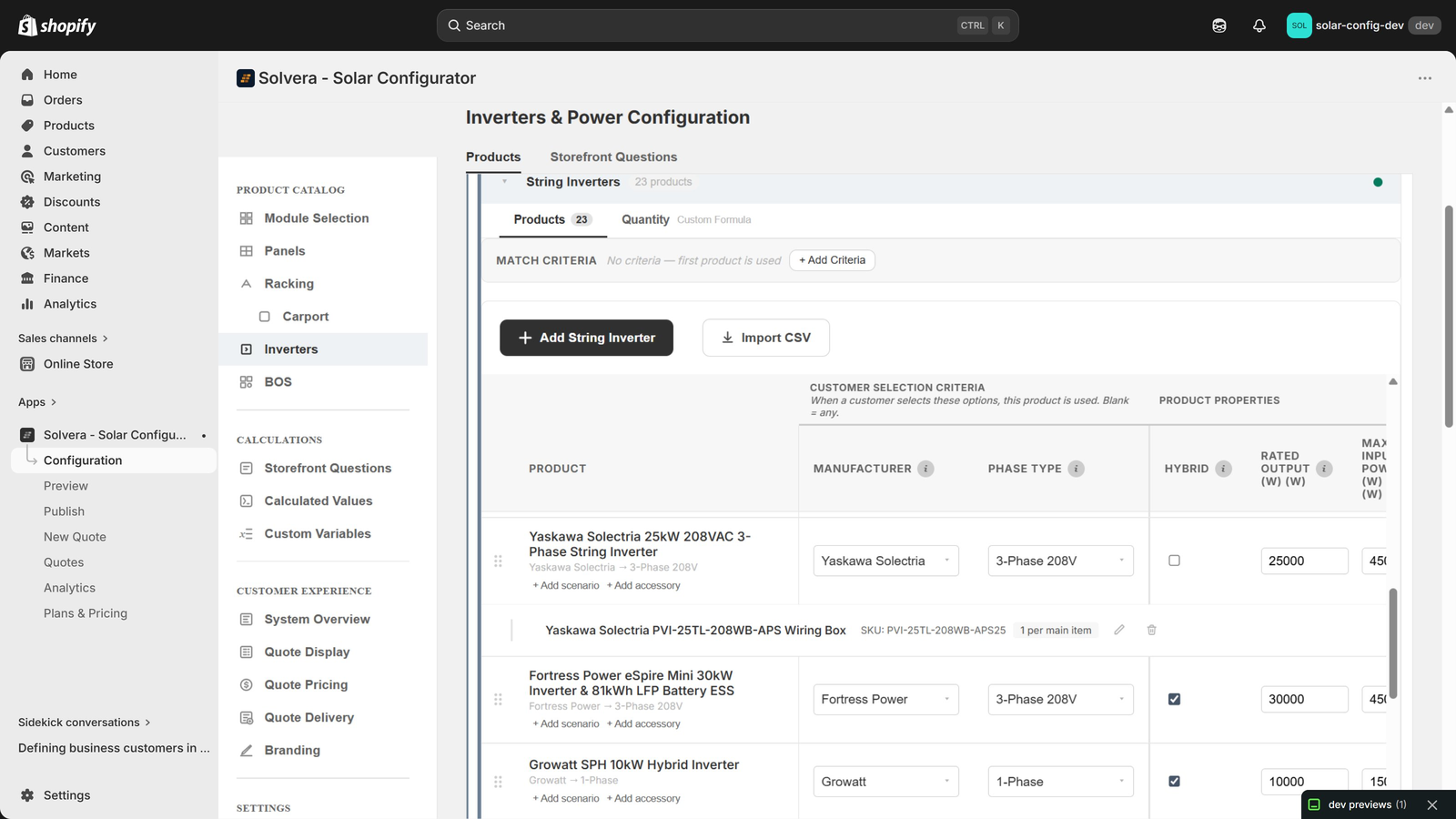
Import products in bulk with a CSV file.
- Open a module product page.
- Use the import control to download a template.
- The template includes a hints row that explains each column's accepted values.
- Fill it in and upload.
Solvera resolves your Shopify product IDs automatically by matching on title (and falling back to handle and SKU), so you do not have to look up internal IDs.
Custom item types and custom modules Growth+
You can extend the catalog three ways:
- Custom item types: add your own item categories inside a module, with your own property schema, quantity formula, and match criteria.
- Custom top level modules: add an entirely new module (for example Electrical Panel), each with its own storefront questions and product item types. A top level custom module becomes its own step in the wizard.
- Custom racking sub-modules: add a sub-module under the built in Racking module (for example Carport). Rather than a separate step, it appears as an extra mount type option inside the Racking step. See Custom racking sub-modules below.
Custom modules and item types behave exactly like built in ones across the admin, the storefront, the BOM, and version snapshots. Custom top level modules and custom racking sub-modules both count toward your plan's custom module limit.
Custom racking sub-modules (mount type options)
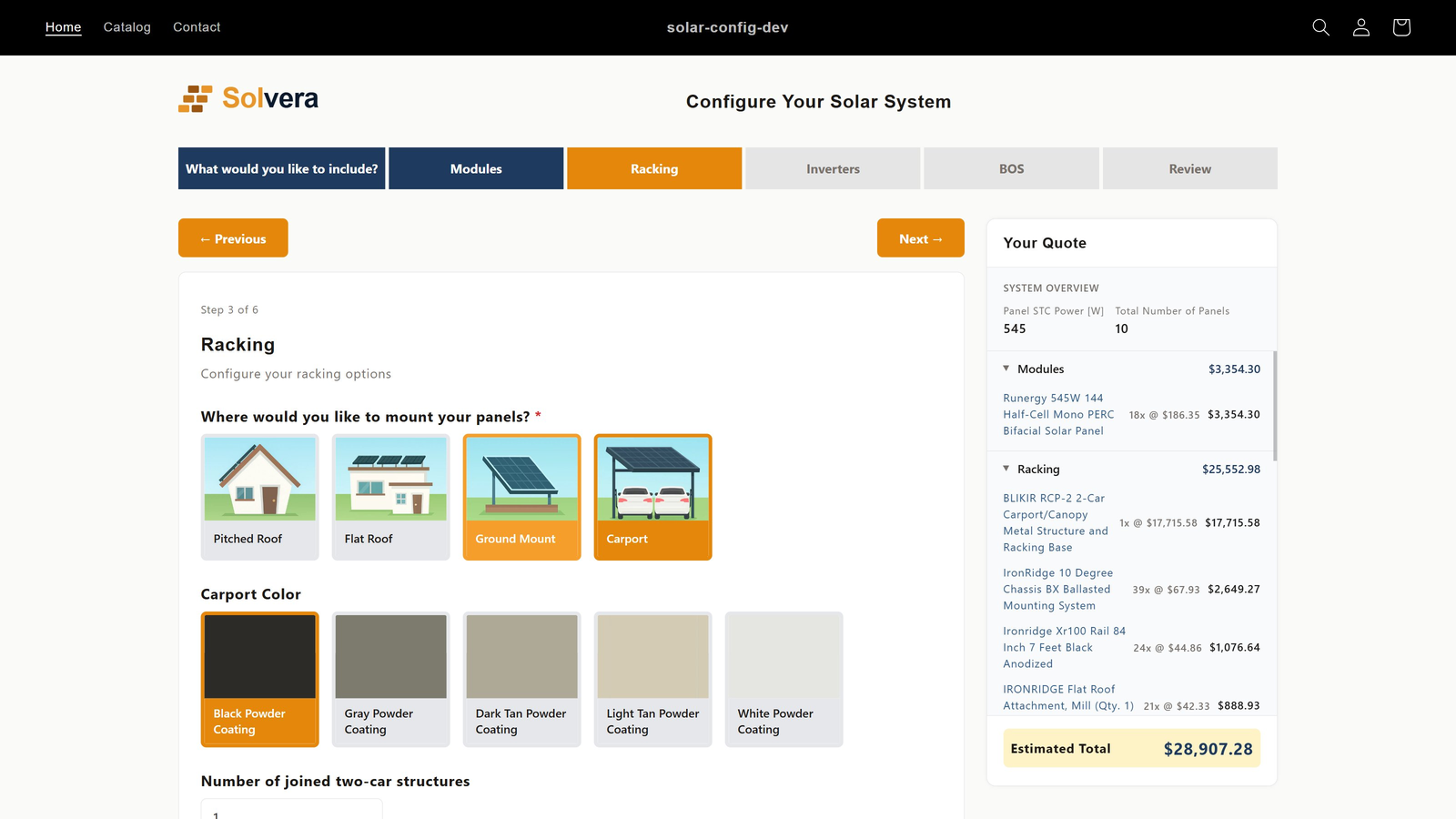
Some solar mounting systems do not fit the built in Pitched Roof, Flat Roof, and Ground Mount categories. A common example is a carport. You can model these as a custom sub-module under Racking, and it appears to the customer as a fourth mount type card alongside the built in three.
How to set one up
- Add the sub-module. On the Module Selection page, add a sub-module under Racking. It gets its own name (for example Carport) and a nav link indented under Racking.
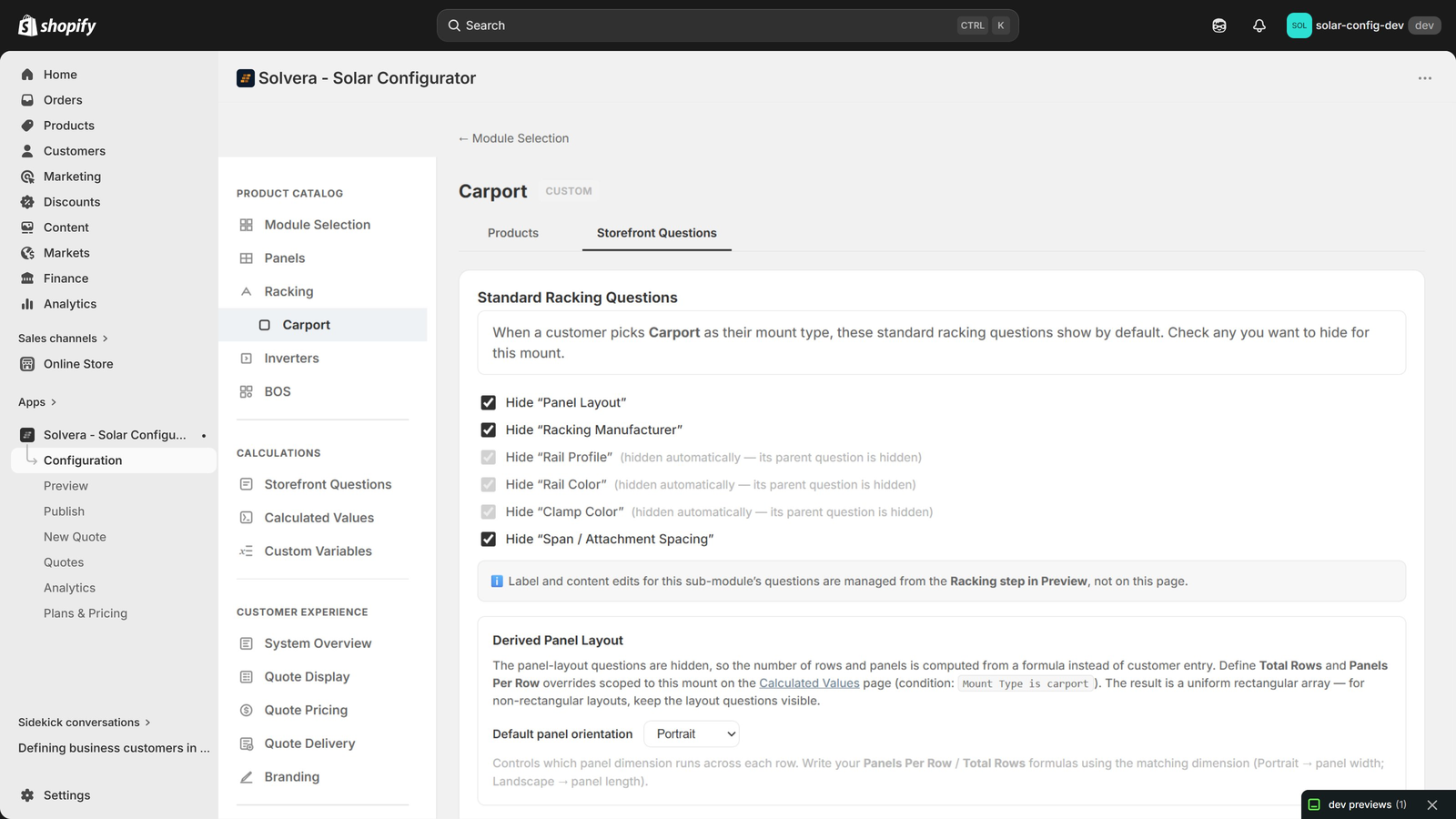
- Configure it. Open its page from the sidebar (it uses the same editor as custom modules). On the Products tab, create the custom item types for the sub-module's specific parts and add products with their match criteria, quantity formula, and selection mode. On the Storefront Questions tab, add any questions unique to this mount.
- Reuse shared parts. Shared racking parts such as rails and clamps that also apply to this mount are tagged with the sub-module on the normal Racking product tables, so they flow into the bill of materials when the customer chooses this mount.
- Hide standard questions if needed. On the Storefront Questions tab there is a "Standard Racking Questions" panel. Use it to hide any standard racking questions (such as rail color or span) that do not apply to this mount. Hiding a question that others depend on hides the dependents automatically.
- Publish. The new mount card then appears on the storefront. Use Preview to test it against unpublished changes first.
When a customer selects this mount, they see the standard racking flow (with any questions you hid removed) plus the sub-module's own questions and product grids. Selected products flow into the bill of materials grouped under the Racking category.
Measurement system
The measurement system (Imperial or Metric) is set in Settings > General Settings and cascades through all unit labels and dropdown values in the catalog, including engineering values like pipe sizes shown in inches or centimeters.