Customer storefront walkthrough
Where it appears
The configurator runs wherever you added the Solar Configurator theme app block, usually on a dedicated page such as "Design Your Solar System". The page shows a progress bar across the top and the wizard below it. On wider screens a live bill of materials sidebar appears on the right.
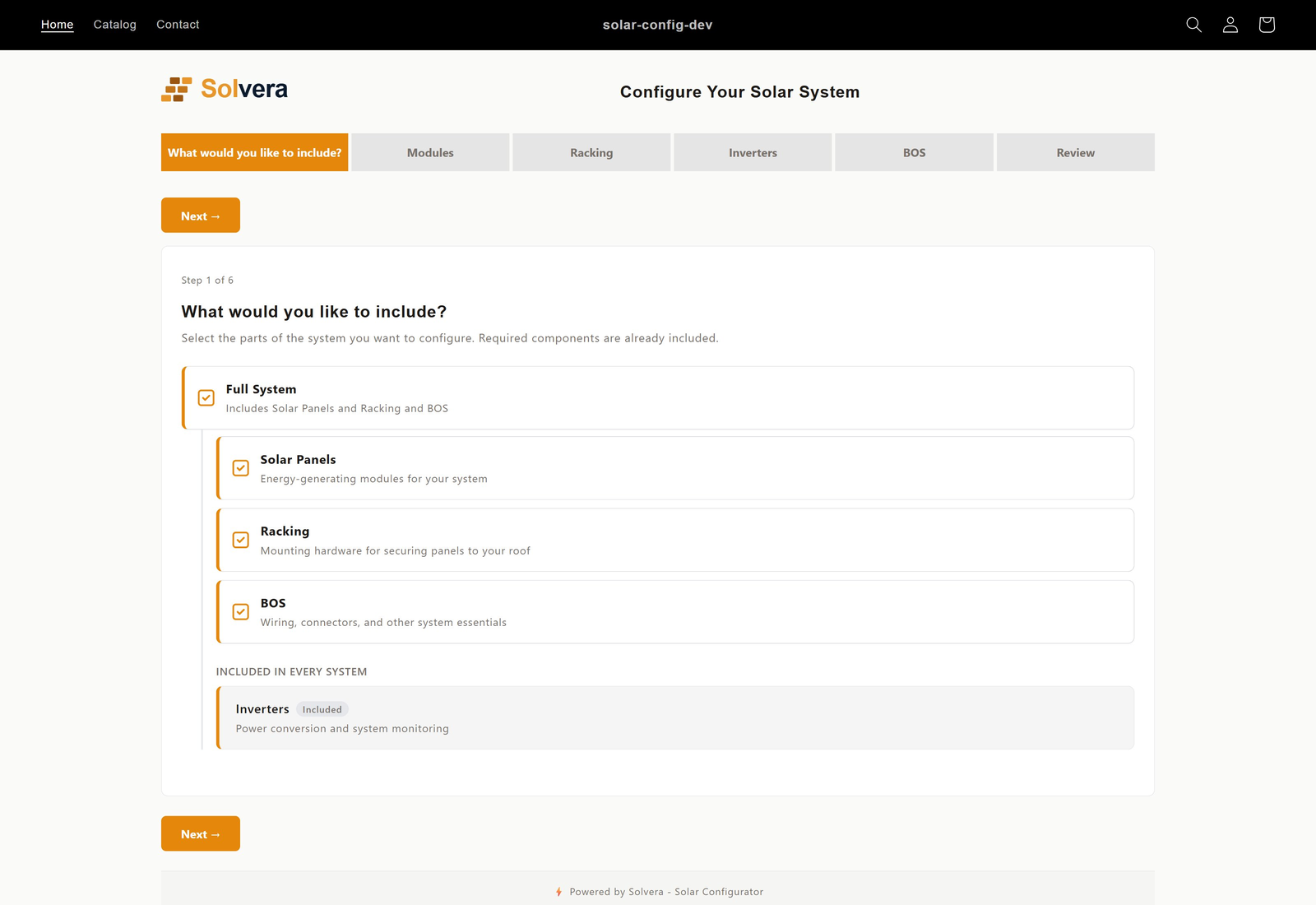
Step: Choose Components
If you set one or more modules to "Customer chooses", the wizard opens with a component selection screen. The customer sees:
- A "Full System" parent option when more than one module is selectable.
- Selectable modules (for example Solar Panels and Racking) with checkboxes.
- Always included modules (for example Inverters) marked with an "Included" badge.
If all your modules are "Always included", this step does not appear and the customer starts directly with the first module.
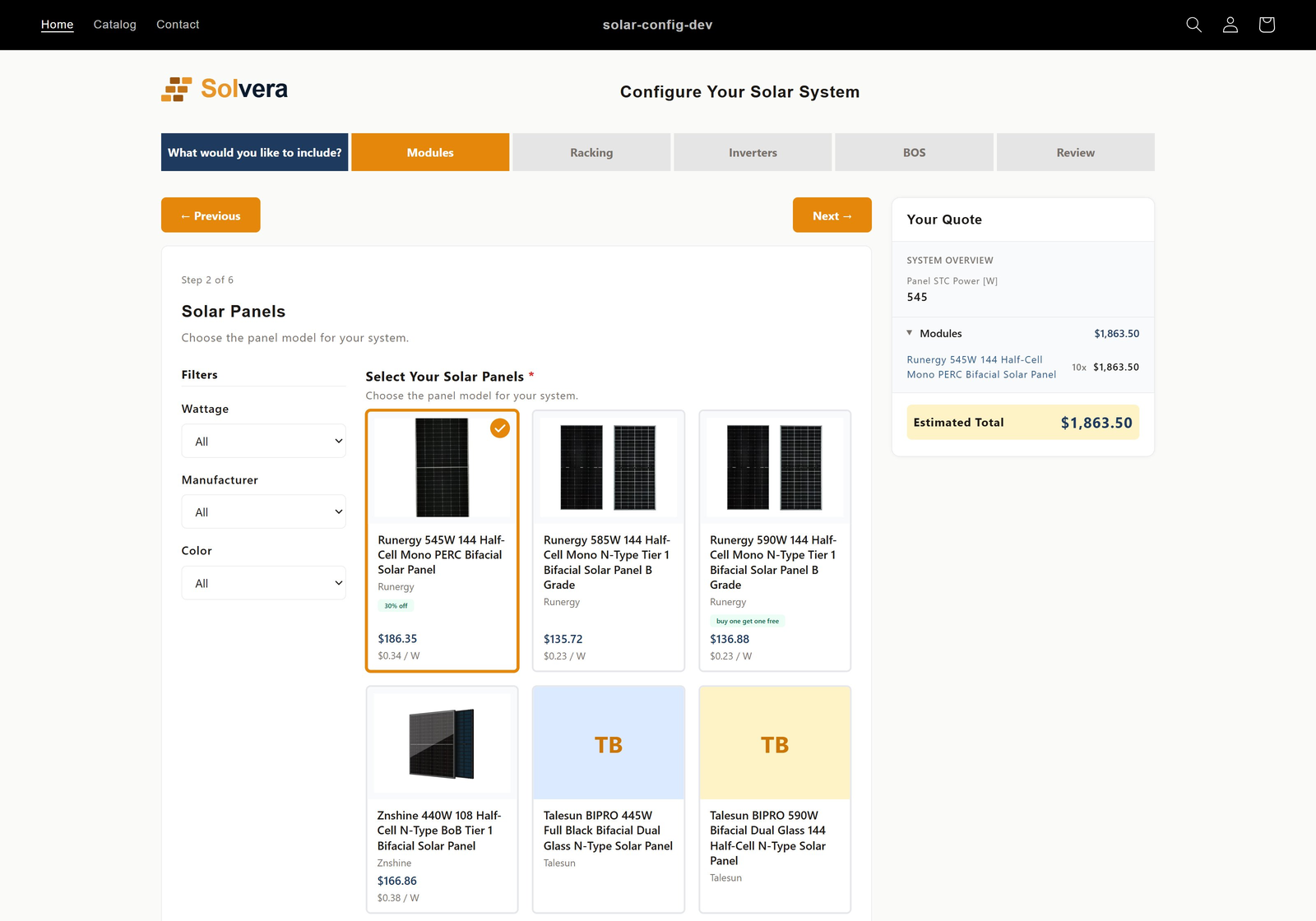
Step: Solar Panels
- A filterable product grid shows your panels with live images, prices, and availability pulled from Shopify.
- Cascading filters (wattage, manufacturer, color, plus any custom filters you defined) narrow the list.
- The customer selects a panel, then sets the number of arrays and rows, and the panels per row with orientation (portrait or landscape).
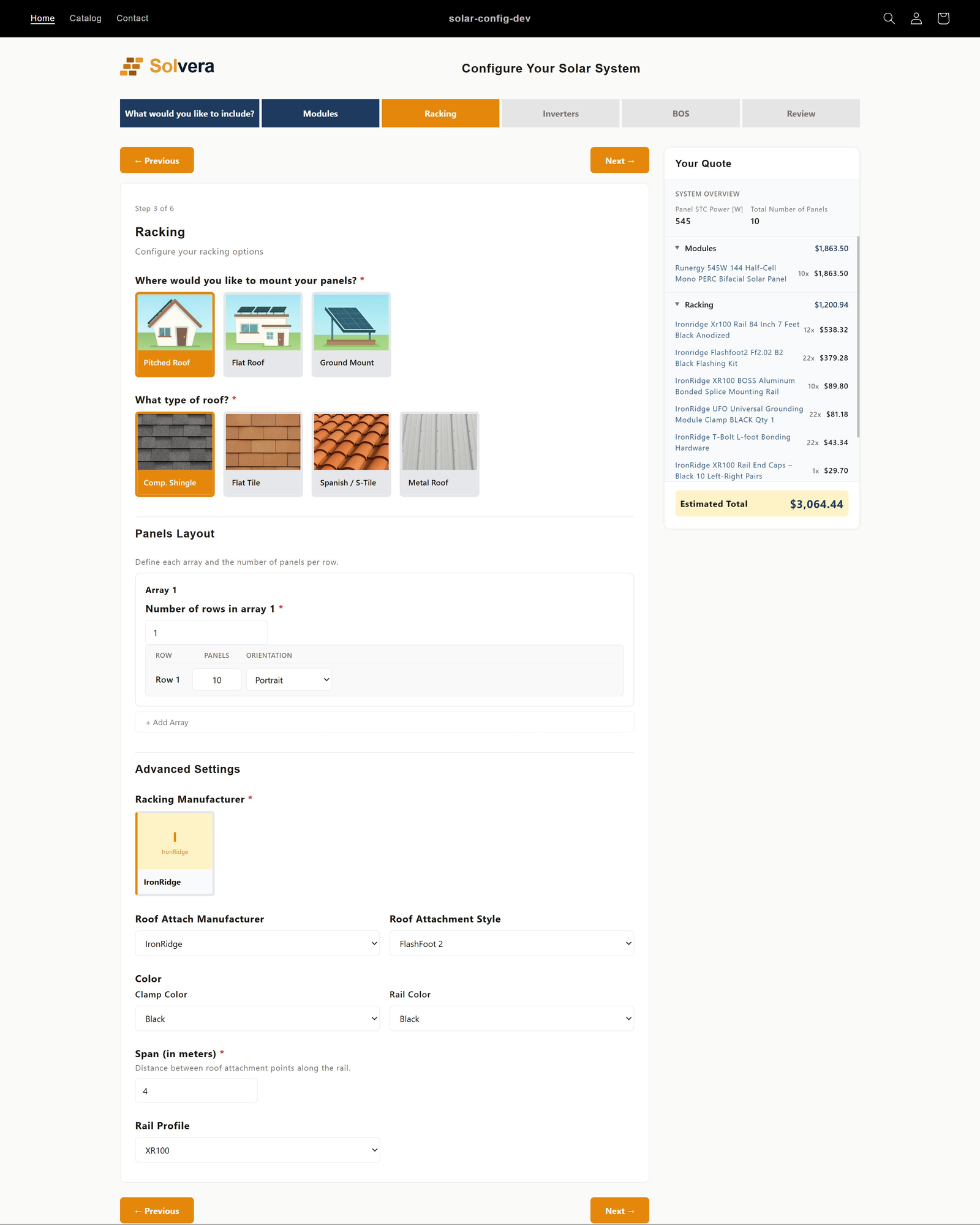
Step: Racking
- The customer picks a mount type (pitched roof, flat roof, or ground mount) using image cards. If you have added a custom racking sub-module (for example Carport), it appears here as an additional mount type card.
- Follow up questions appear based on the choice:
- Pitched roof: roof type, metal profile, roof attachment.
- Flat roof: ballasted, tilt legs, or metal roof subtype.
- Ground mount: architecture family, pile or pole details, wind and snow load, tilt angle.
- A custom mount: the standard racking questions (minus any you chose to hide) plus the sub-module's own questions.
- Manufacturer, rail profile, rail color, and clamp color selections cascade so only compatible options appear.
- For ground mounts, pier spacing is calculated automatically from engineering tables and shown to the customer.
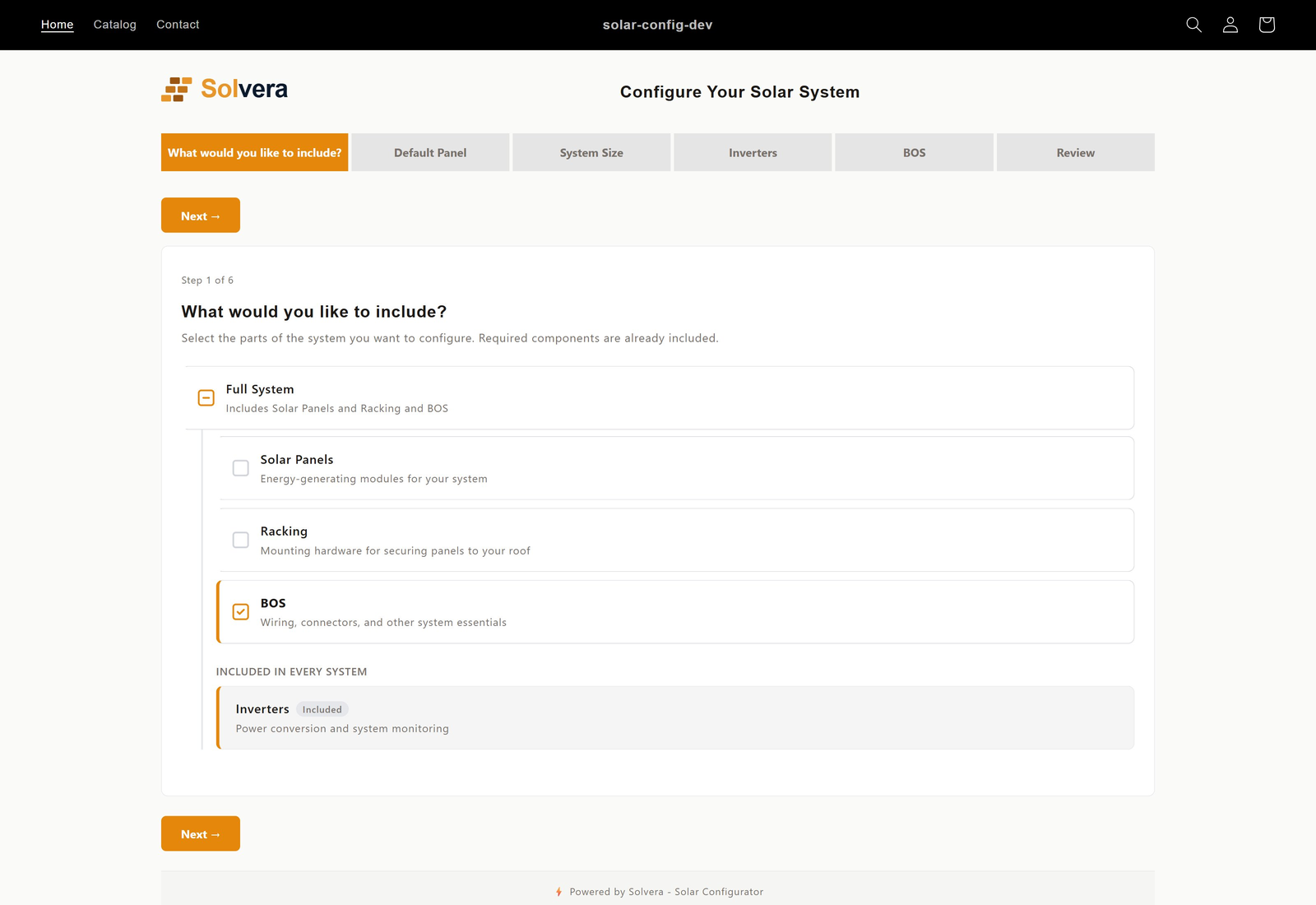
When Solar Panels or Racking are not included
Not every store sells panels and racking. The configurator adapts when one of these modules is turned off, or is set to "Customer chooses" and the customer opts out. In place of the normal step, it shows a lightweight fallback so the bill of materials still has the information it needs.
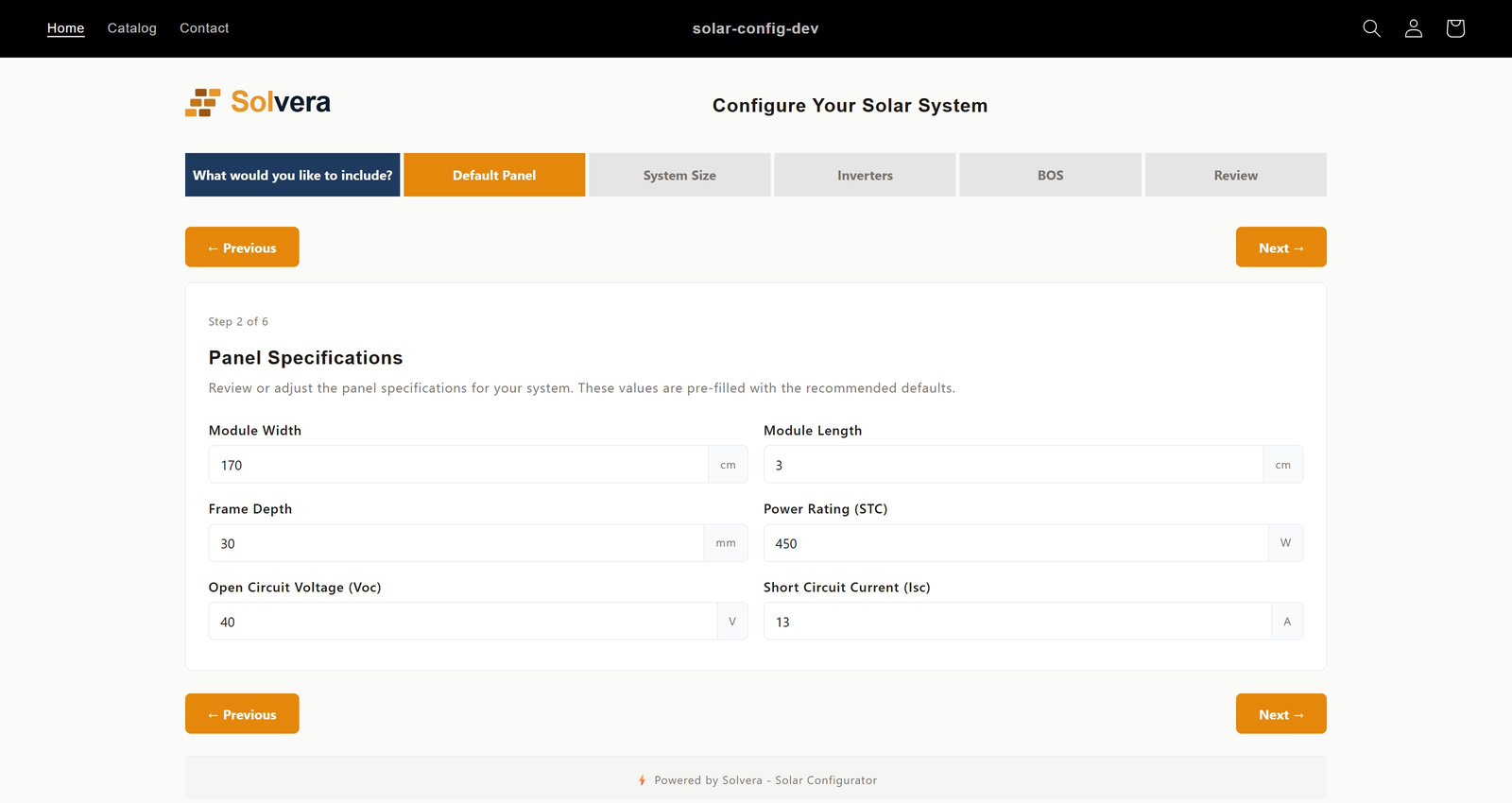
Default Panel step (when Solar Panels is not included)
The racking and inverter calculations still need basic panel specifications. When you do not sell panels, you enter default panel values once in the admin. Then on the storefront:
- If you make those defaults visible to customers, the wizard shows a Default Panel step with editable fields (such as module dimensions, power rating, and electrical characteristics), pre-filled with your defaults. The customer can adjust them.
- If you keep the defaults hidden, no step appears and your values are used silently in the background.
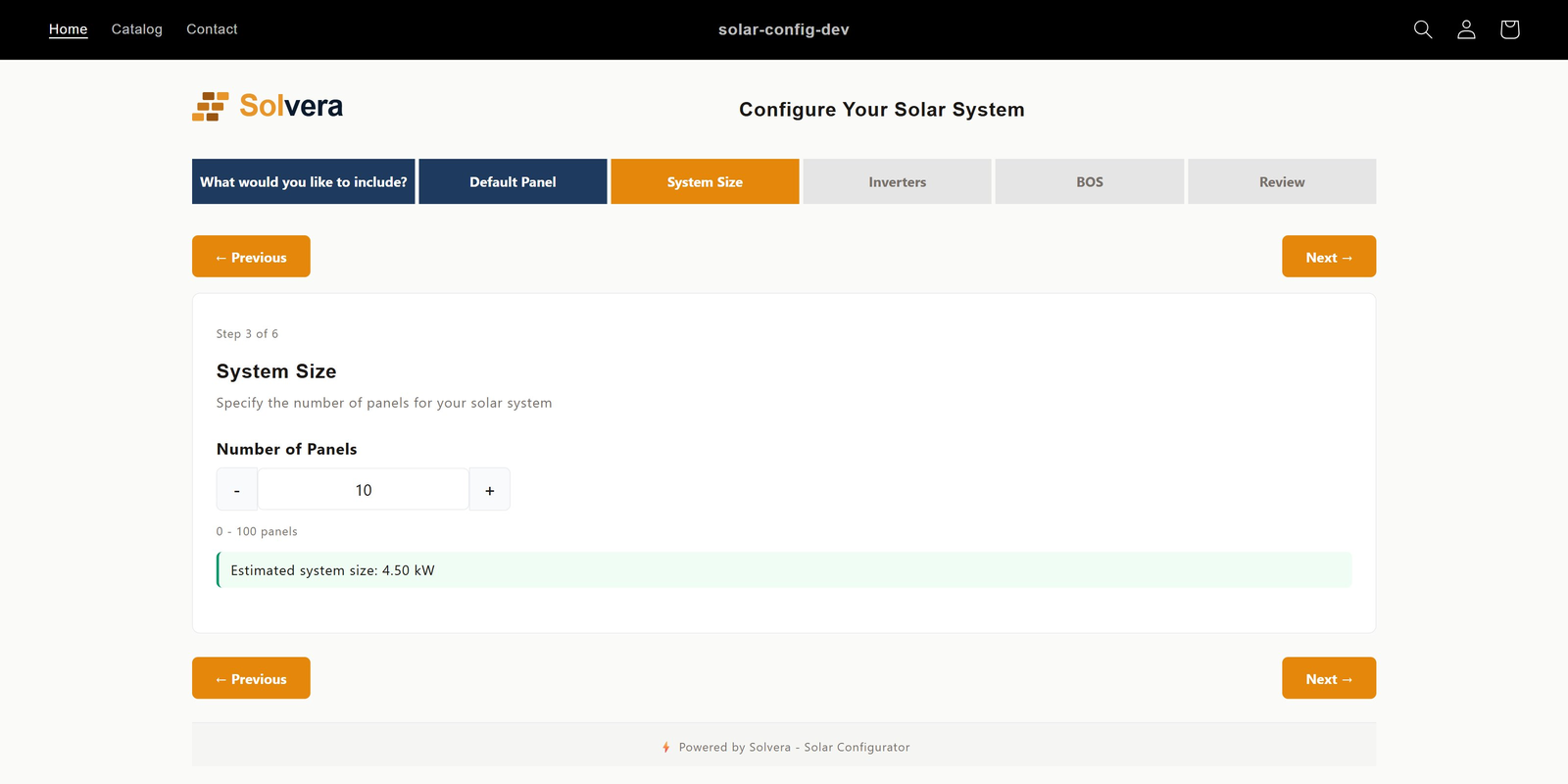
System Size step (when Racking is not included)
When you do not sell racking, there is no roof layout to derive the panel count from, so the wizard shows a System Size step instead. The customer sets the number of panels with a stepper, within the minimum, maximum, and increment you configured. You can add an instructional note, and optionally show the calculated system size in kW as the customer changes the count.
Step: Inverters
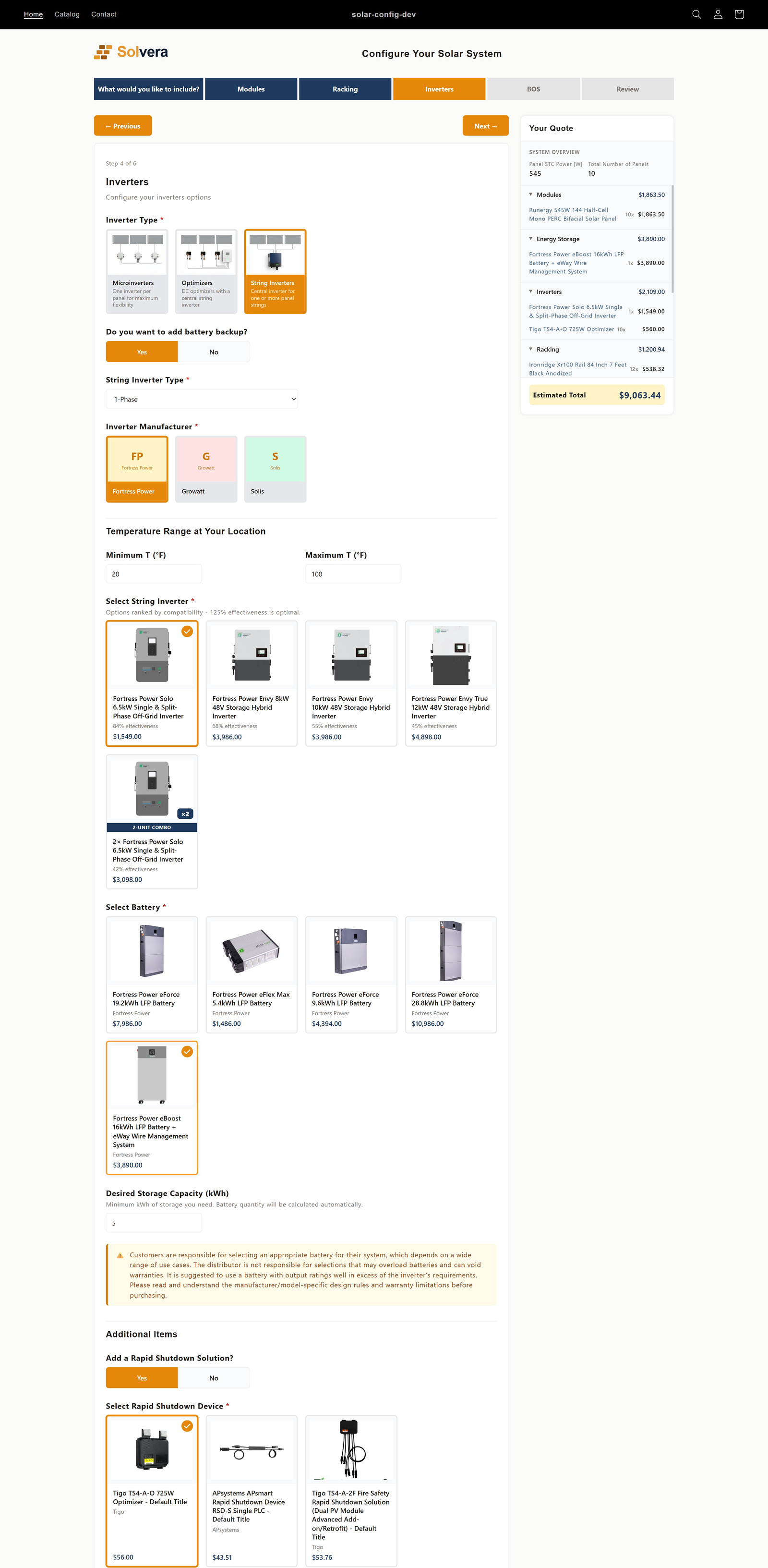
- The customer chooses an inverter type: microinverters, optimizers (DC optimizers with a central string inverter), or string inverter.
- For microinverters, the list is filtered for cold weather voltage compliance, and the customer can add an optional battery.
- For string inverters, the customer answers battery yes or no and phase type, and the system suggests correctly sized inverters, including stacked "2-Unit Combo" options when appropriate. On the string inverter path the customer can also add a rapid shutdown solution.
- Battery options are filtered for compatibility, and a monitoring device can be added.
Step: Balance of System (BOS)
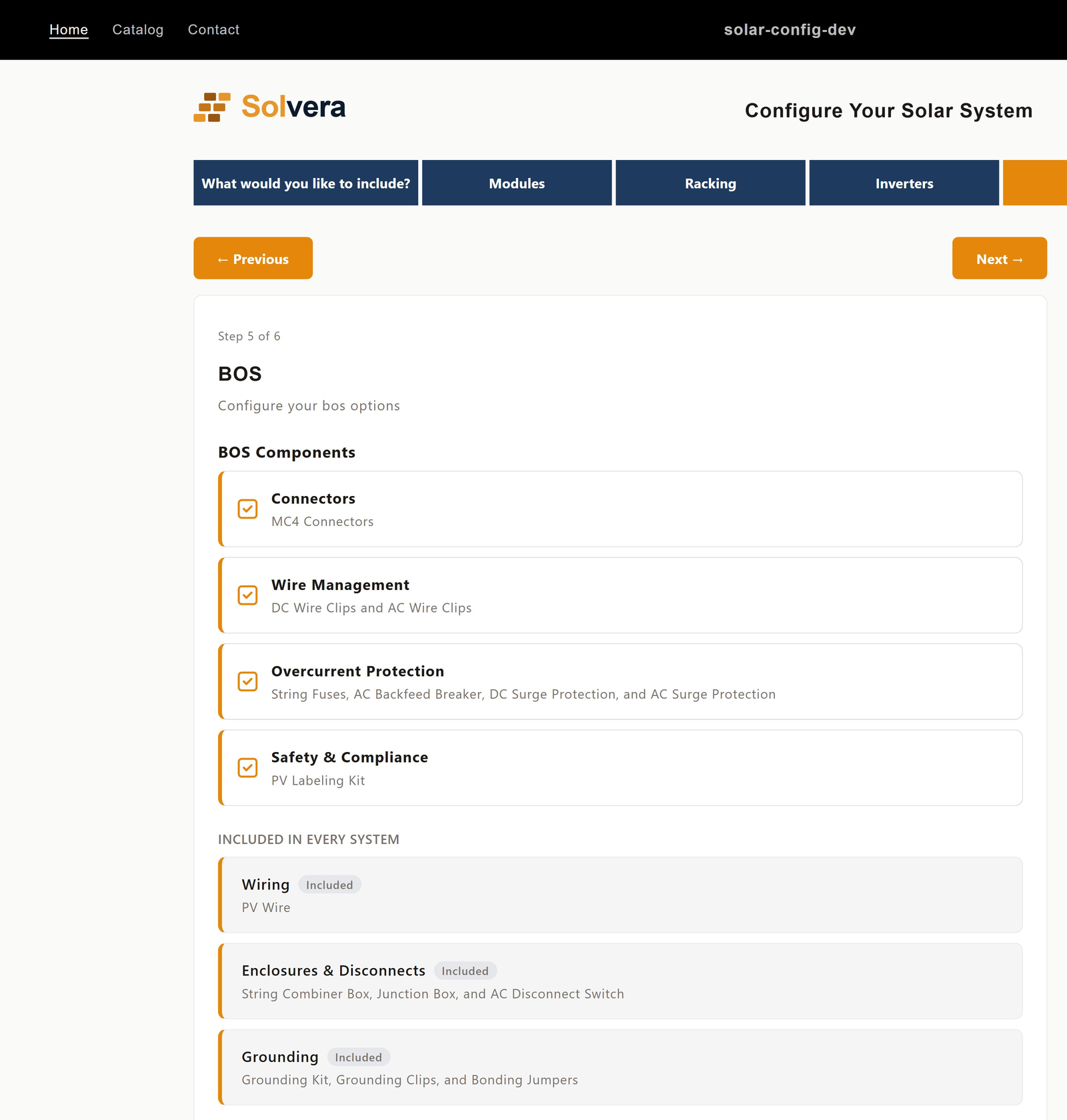
- Categories you marked as "always included" appear as included cards.
- Categories you marked as "customer chooses" appear as checkboxes the customer can toggle.
- Wiring, connectors, and grounding are resolved automatically based on the system the customer configured.
Step: Custom modules
If you added a custom top level module (for example Electrical Panel), it appears as its own step in the wizard, positioned according to the order you set. The customer answers its questions and selects from its product grids just like a built in module. Custom racking sub-modules (such as Carport) are different: they appear as a mount type option inside the Racking step rather than as a separate step.
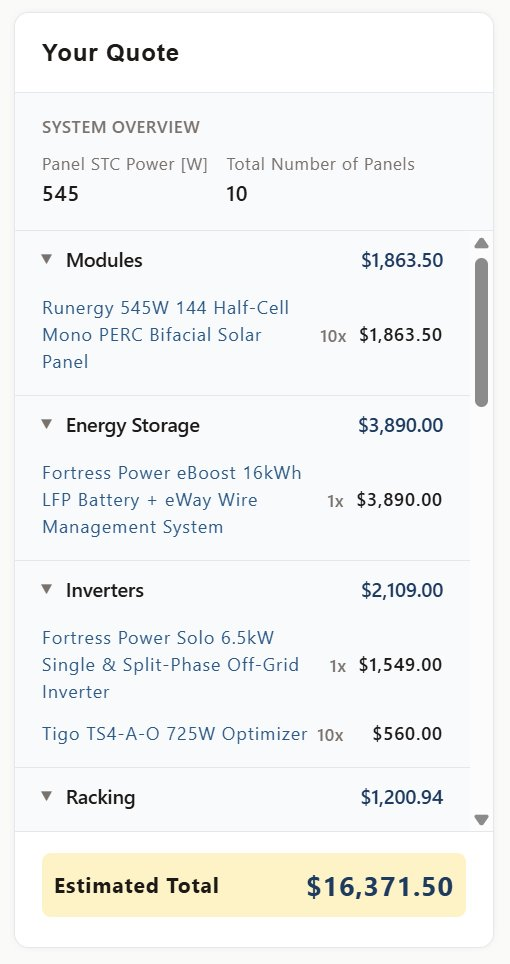
The live BOM sidebar
Throughout the wizard, the sidebar builds the bill of materials in real time:
- Categories appear as the customer reaches each step.
- Quantities update instantly on every selection.
- Items are grouped by category with subtotals.
- You control what shows here from Quote Display.
The quote page
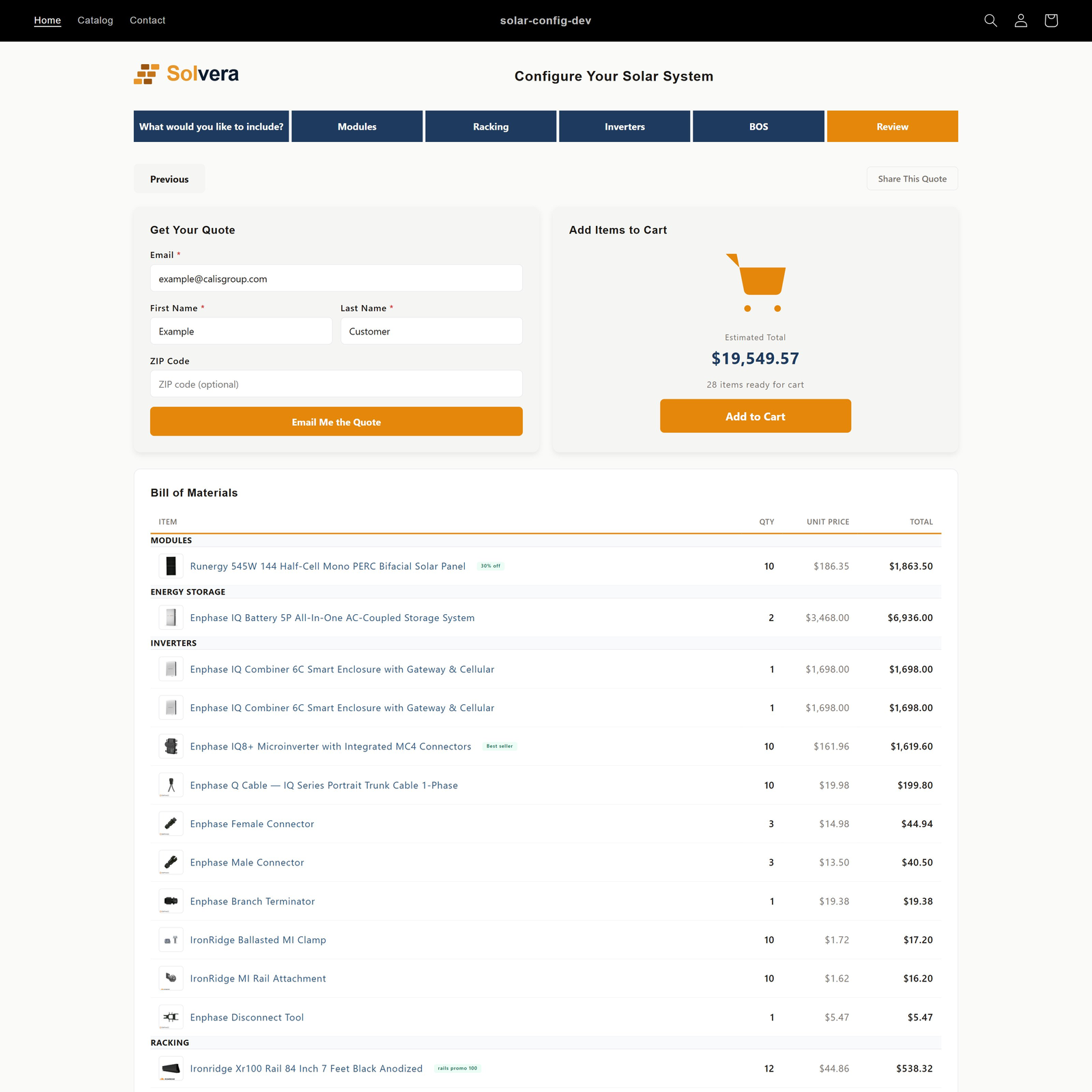
The final step is a full page quote:
- A grouped bill of materials table with category subtotals.
- Promotional badges on any flagged items.
- A pricing breakdown (subtotal, surcharges, shipping, tax, estimated total) when pricing is configured.
- Up to three actions (the email and share options appear based on your Quote Delivery settings):
- Email your quote (card): a logged-in customer clicks Email my quote and the quote is sent to their customer-account email, no fields to fill in. A logged-out visitor sees Log in to email your quote; clicking it saves the quote, shows a saved quote link, and routes through the store's native login or signup.
- Add Items to Cart (card): shows the estimated total and item count, with an Add to Cart button that pushes the whole system to the Shopify cart for normal checkout.
- Share (button at the top of the page): copy a link or send the quote by email or WhatsApp.
Branding
If you are on the Professional plan and have applied branding, the customer sees your logo at the top of the configurator and your accent and secondary colors throughout. The confirmation email uses the same branding. Professional