Quotes and Sales Mode
The customer quote page
When a customer finishes the wizard, they reach a full-page quote that replaces the step layout. It includes:
- A grouped Bill of Materials table with category subtotals (Modules, Energy Storage, Inverters, Racking, BOS).
- Promotional badges next to any flagged line items.
- An estimated total prominently displayed in the Add to Cart card.
- A pricing breakdown row (subtotal, surcharges, shipping, tax) when pricing is configured.
- Up to three actions: an Email your quote card, an Add Items to Cart card, and a Share This Quote button at the top of the page. The email and share options appear based on your Quote Delivery settings.
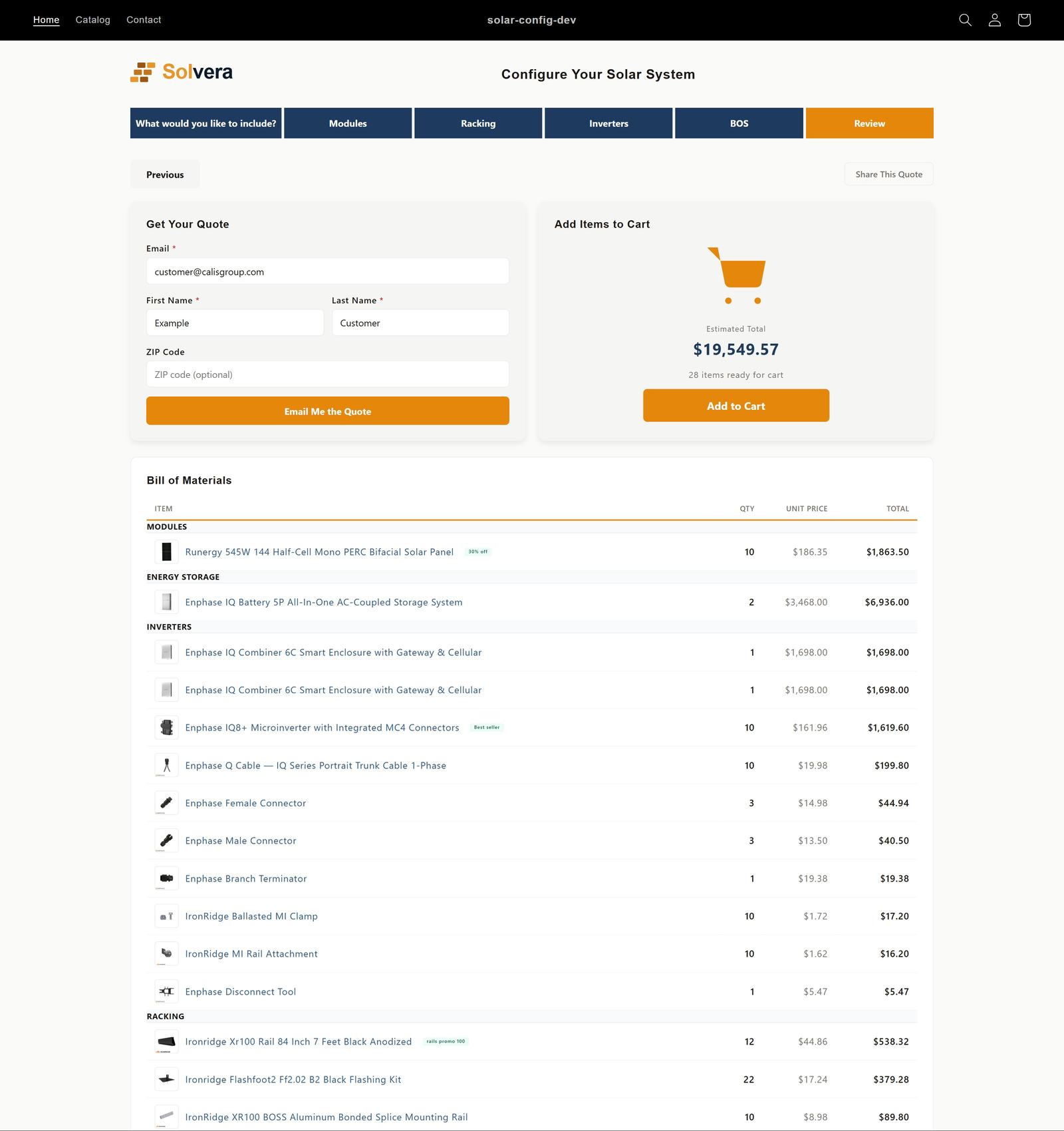
Email your quote
The quote page shows an Email your quote card. Logged-in customers click Email my quote and the quote is sent to the email on their customer account. Logged-out visitors see Log in to email your quote; clicking it saves the quote, shows a saved quote link, and routes through the store's native login or signup. No contact details are entered in the widget. The confirmation email includes the full BOM and a link back to the quote, and uses your company profile, branding, and the templates configured in Quote Delivery.
Share Quote
The customer generates a shareable link to the quote and can copy it, send it by email, or send it on WhatsApp. Anyone who opens the link sees the same BOM and can take action on it. Links can have an optional expiry configured in Quote Delivery.
Add to Cart
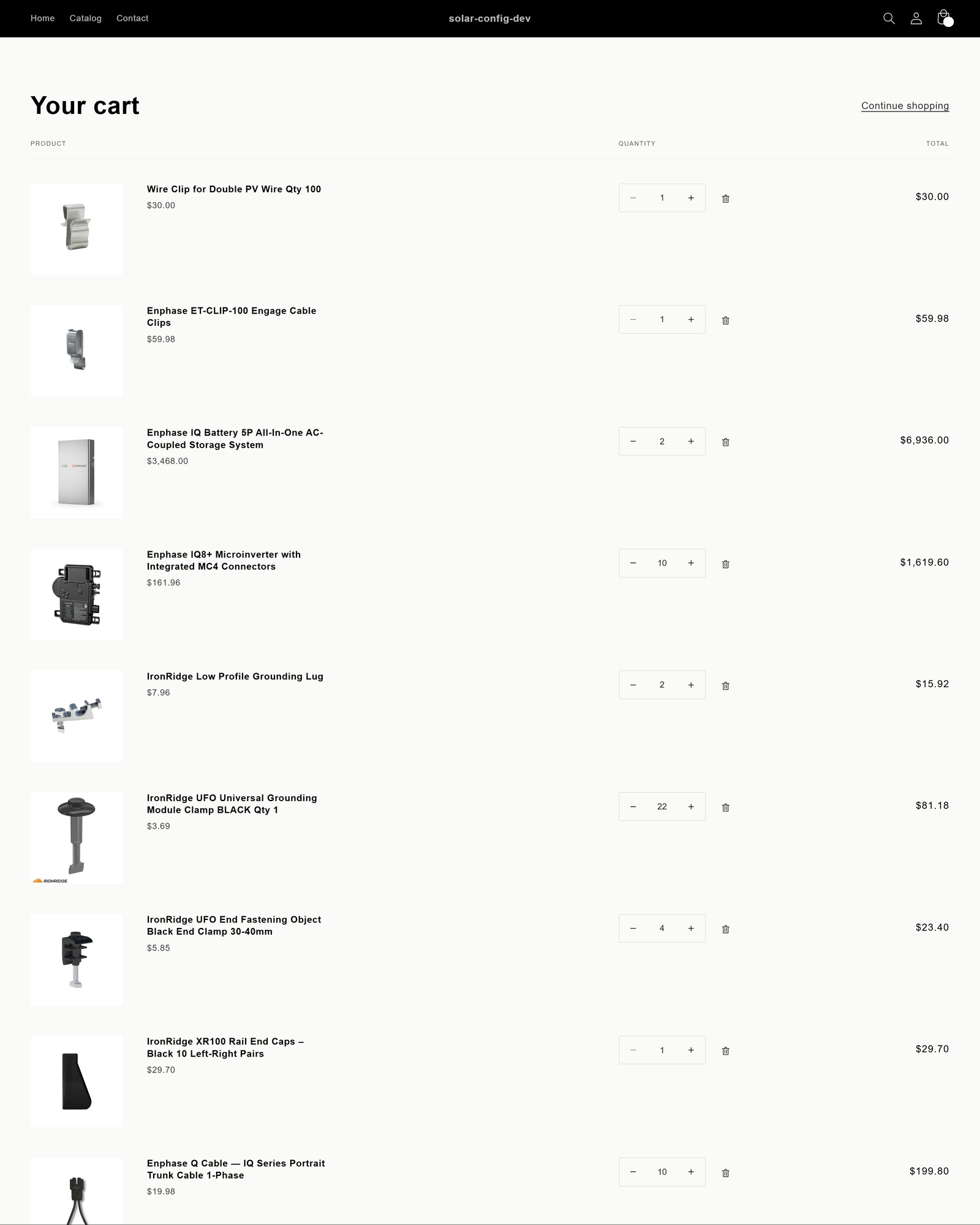
The customer adds the entire configured system to the standard Shopify cart and proceeds through Shopify's native checkout. Line items with Shopify variant IDs become real cart items. Solvera does not process payments; checkout always happens through Shopify.
The live BOM sidebar
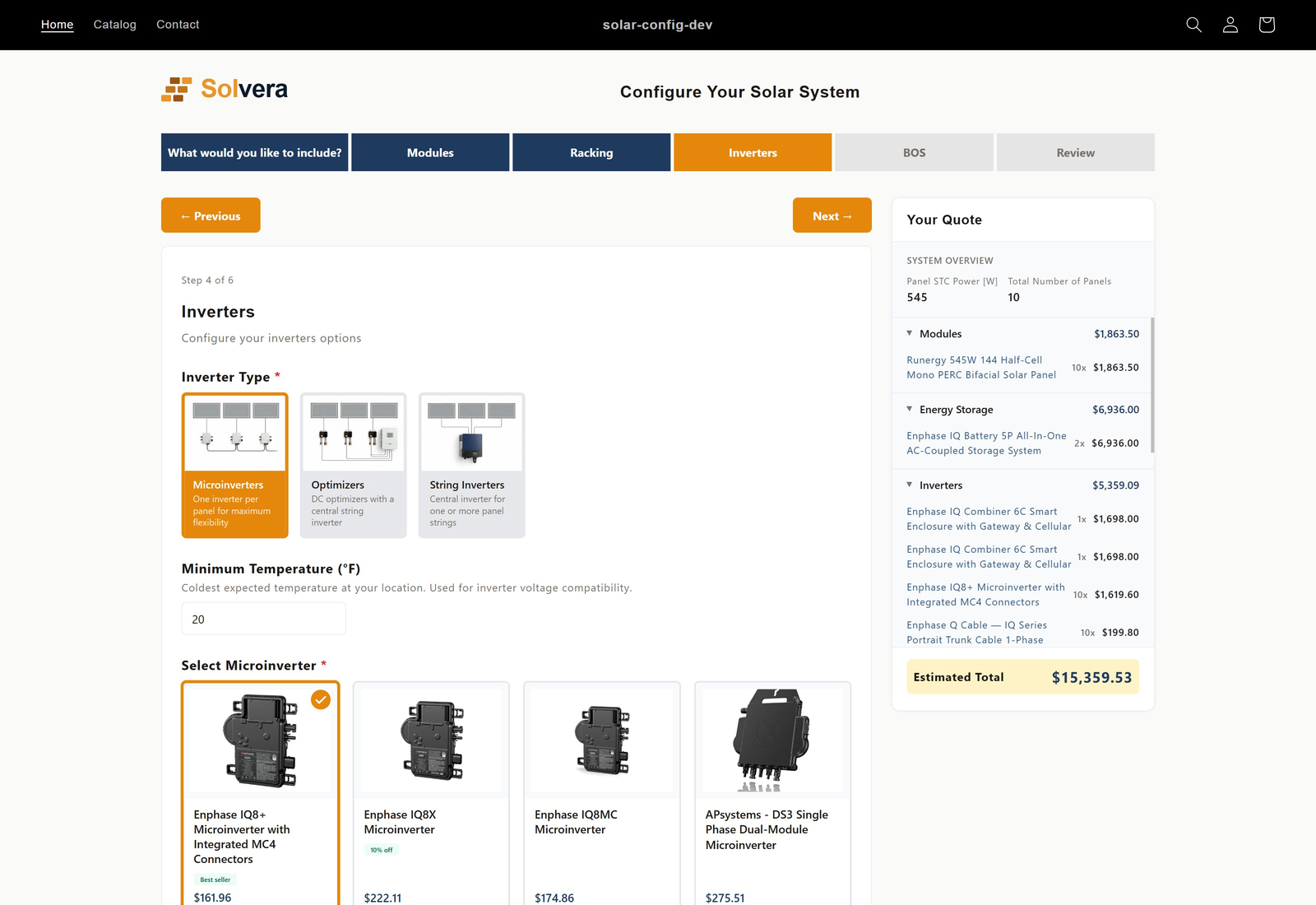
Throughout the wizard, a sidebar shows the bill of materials as it builds:
- Categories reveal progressively as the customer reaches each module step.
- Quantities and subtotals recalculate instantly on every selection.
- Items are grouped by category with collapsible sections.
- You control visibility and display options (unit price, line total, grand total, product links) from the Quote Display page.
Sales Mode Growth+
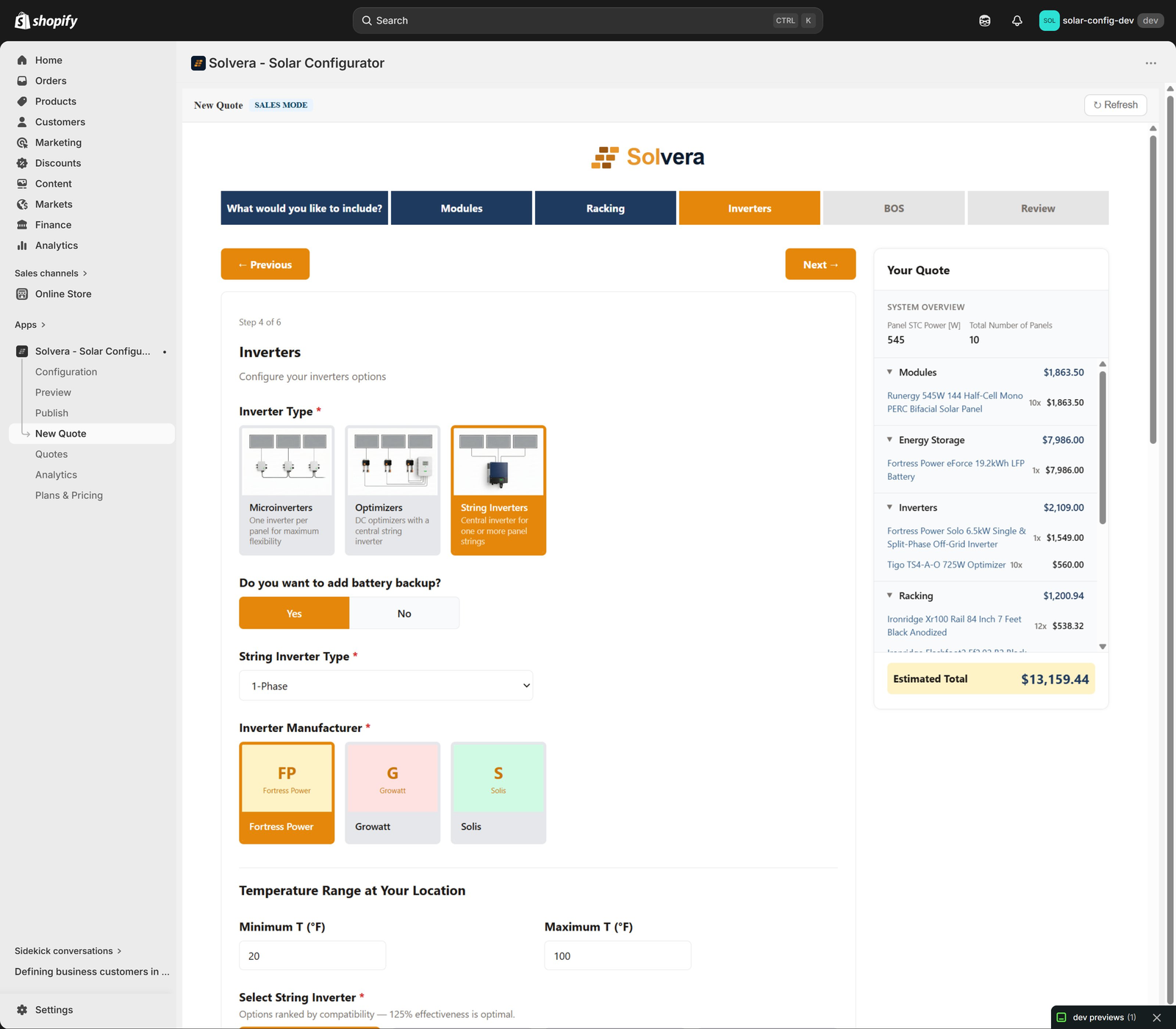
Sales Mode is a separate workspace for your reps to build quotes for customers, for example over the phone or in person. Reach it from the top app navigation: New Quote, Quotes, and Analytics.
New Quote
Reps run the same configurator workflow a customer would, with two important differences:
- Internal-only products are visible, so reps can quote items you do not list publicly.
- The BOM is editable on the final review step.
A "Sales Mode" indicator at the top of the page makes it clear the rep is working in the sales workspace, not the customer-facing storefront.
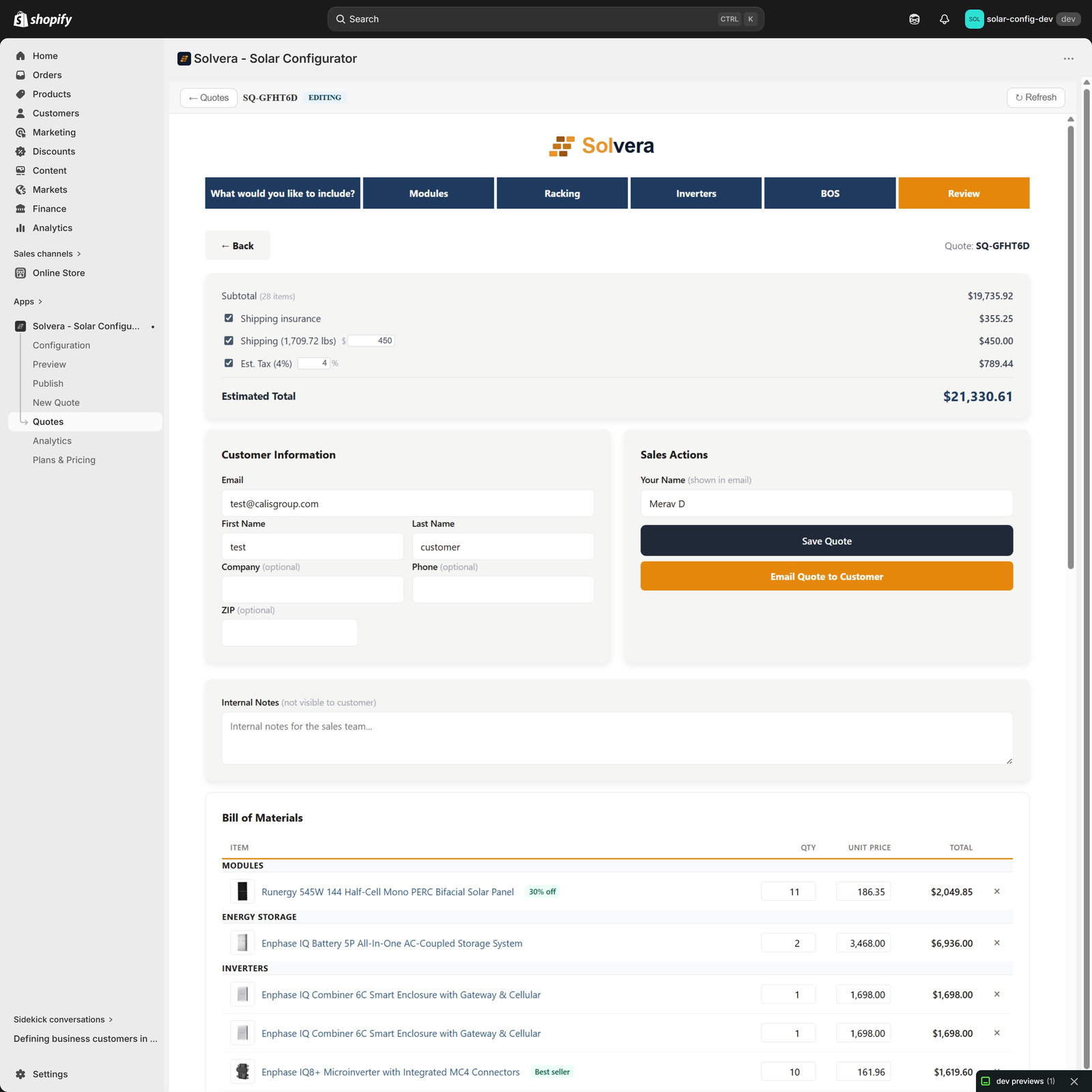
Editable BOM and quote review
On the final review step, reps can:
- Adjust quantities and override unit prices on any line item.
- Delete line items.
- Add custom line items (free-text label and price) for items not in the catalog.
- Add any Shopify product directly through the Shopify product picker.
- Edit the pricing breakdown inline: surcharges can be toggled on or off, the shipping amount can be replaced with an actual freight quote, and the tax rate can be overridden when the configuration allows it.
Changes are protected by an unsaved-changes guard, so a rep does not lose work by navigating away. The page also includes a Customer Information card, a Sales Actions card (with the rep's display name and Save Quote / Email Quote to Customer buttons), and an Internal Notes field that is not visible to the customer.
Save and Send
Reps can save a quote as a draft and send it to the customer using the Sales Rep Outreach email template (which supports merge tags including the rep name and signature). The customer receives the quote and can view it and act on it just like any storefront quote.
Quotes list
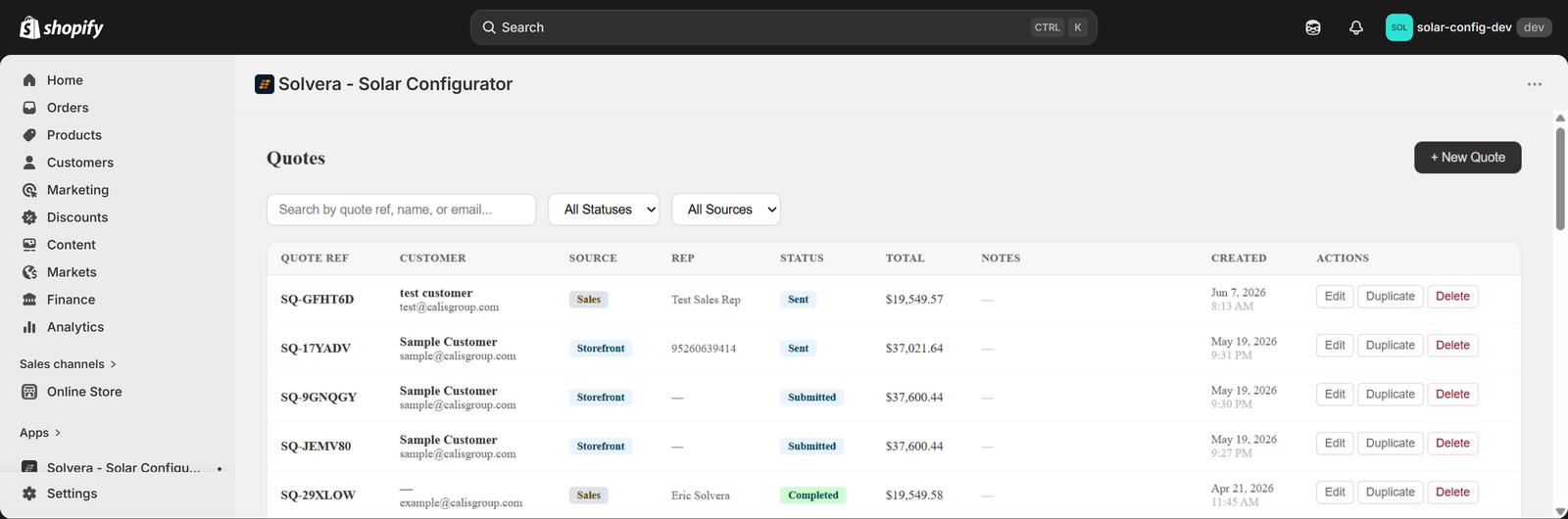
Open Quotes from the top navigation to see all quotes in one place:
- Search by quote reference, customer name, or email.
- Filter by status (Pending, Submitted, Sent, Viewed, Completed) and source (Storefront, Sales).
- Paginate through results.
- Per-row actions: Edit, Duplicate, or Delete.
Editing existing quotes and duplicating quotes are Professional-tier capabilities.
Analytics Professional
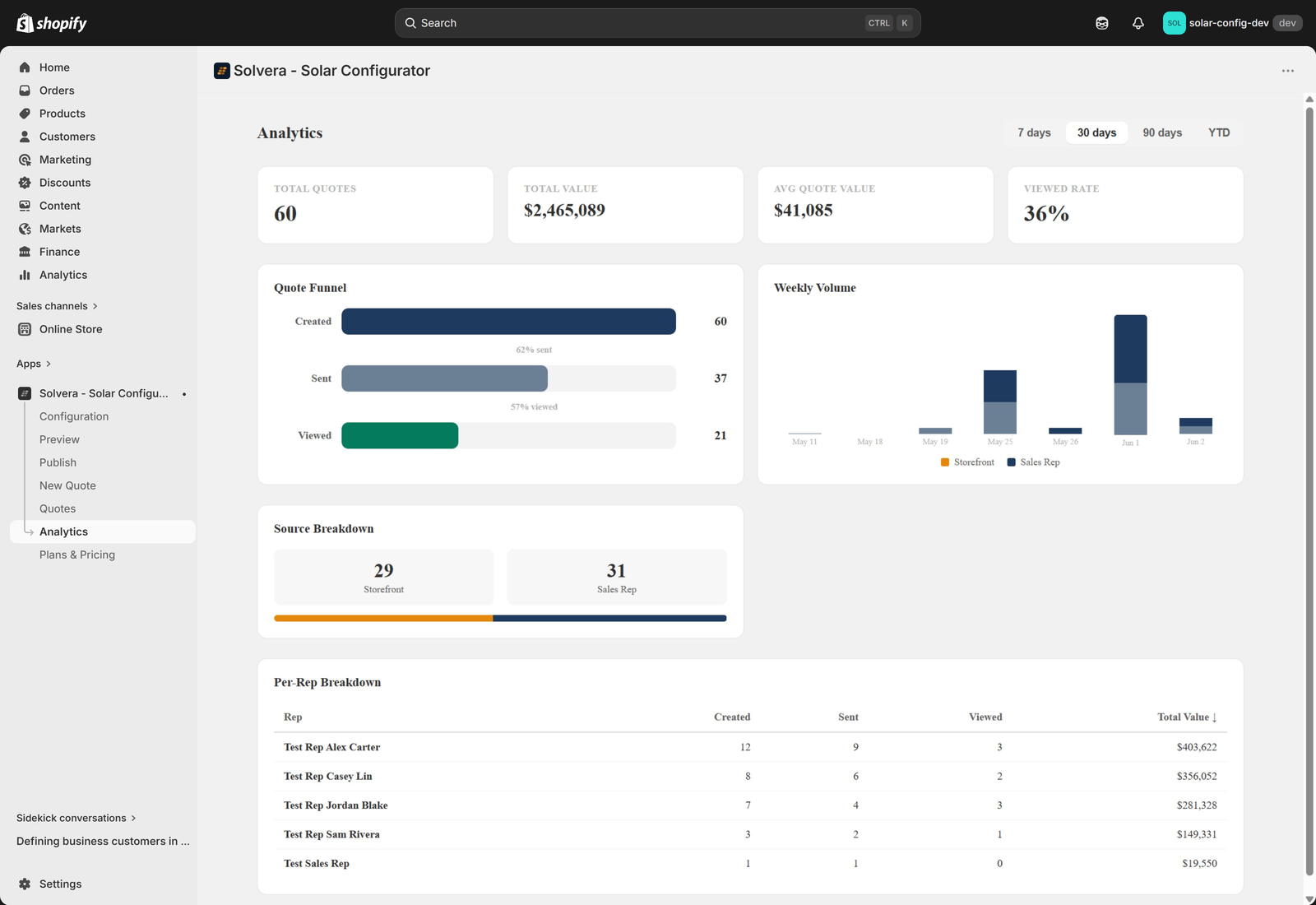
Open Analytics from the top navigation for a dashboard built from your quote activity. Switch between 7 days, 30 days, 90 days, and YTD time windows.
- Top-level metrics: total quotes, total value, average quote value, and viewed rate.
- Quote Funnel: Created → Sent → Viewed with conversion percentages.
- Weekly Volume: a stacked bar chart showing storefront vs sales rep quote volume by week.
- Source Breakdown: total counts and visual split between storefront and sales rep sources.
- Per-Rep Breakdown: a table with each rep's created, sent, viewed counts and total quote value, sortable by any column.
Quote statuses
Quotes move through clear statuses as they progress:
- Pending: a draft quote being built by a rep, not yet submitted.
- Submitted: a customer has submitted a storefront quote (clicked Email my quote or generated a share link).
- Sent: a sales rep has emailed the quote to the customer.
- Viewed: the customer has opened the shareable quote link.
- Completed: the quote has been converted to a cart or marked complete.
Sales reps and the Analytics dashboard both use these statuses to track where each quote is in the pipeline.
Tier summary for quoting
- Starter: customers can configure a system, email a quote to themselves, share a quote link, and add the system to the cart. Email and share are controlled by your Quote Delivery settings; sending email requires an email provider key. Quote pricing display and Sales Mode are not included.
- Growth: adds pricing display in the BOM, quote pricing (tax, shipping, surcharges), and the full Sales Mode workspace with editable quotes.
- Professional: adds editing and duplicating existing quotes from the Quotes list, plus the Analytics dashboard.
See the Plans and Features page for the complete tier matrix.