Publishing and versions
How publishing works
The storefront configurator always reads the last published version of your configuration. This means:
- Customers never see half-finished edits.
- Your changes stay private until you publish.
- Each publish is a complete snapshot of products, formulas, branding, pricing, content, and quote settings.
Preview before you publish
Use Preview (in the sidebar, just above Publish) to test your current unpublished state inside the admin. Preview always reflects the latest edits, with no publish required. Switch between desktop, tablet, and phone, and walk through the full wizard as a customer would. See Customer experience and branding for details on Preview and inline content editing.
The Publish page
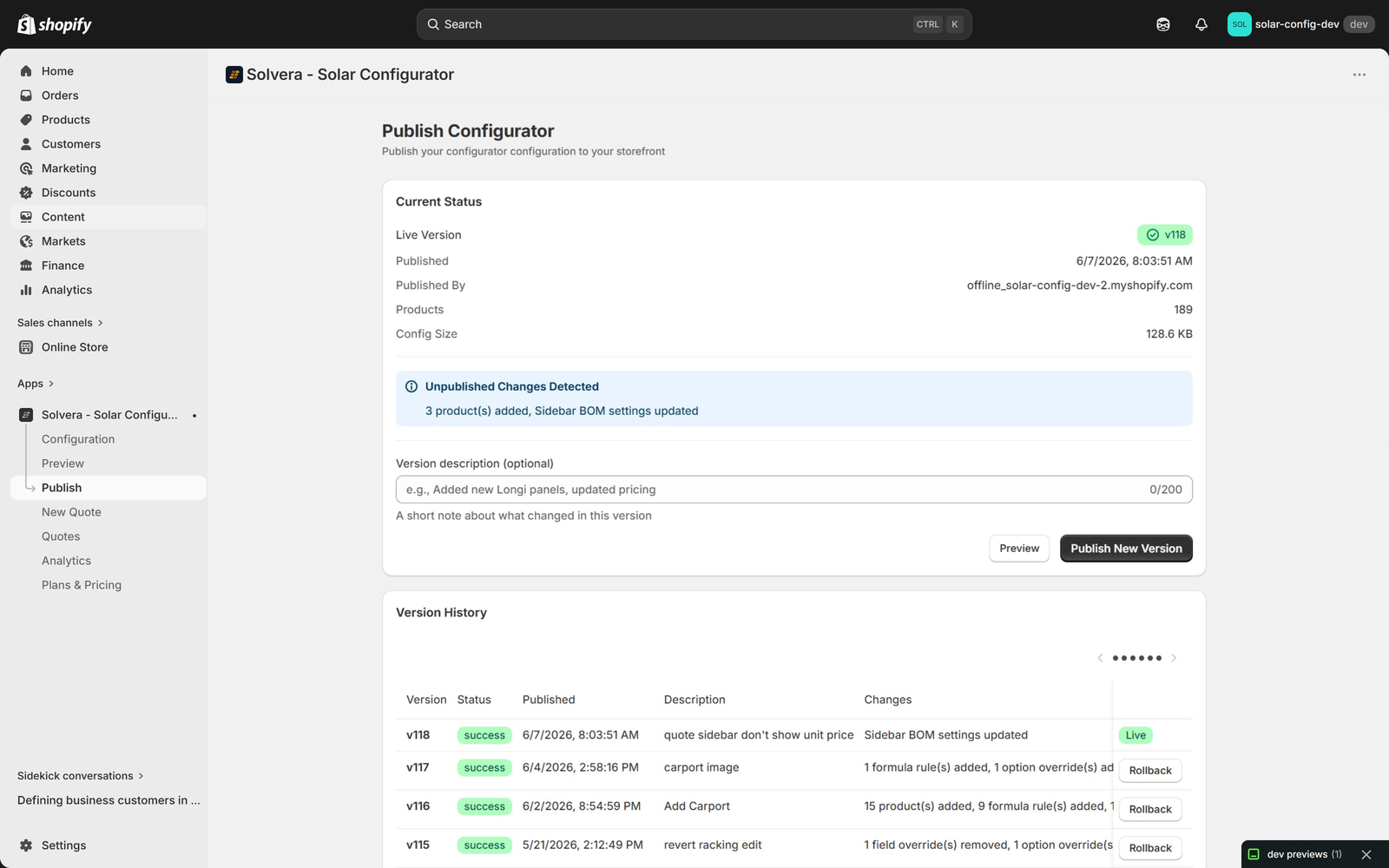
Open Publish from the app's left navigation. The page has two tabs, Publish and Activity. The Publish tab is where you ship a version; it runs from top to bottom through Current Status, the unpublished changes banner, the publish controls, a "changes since" card, and Version History. The Activity tab is the activity log, described further down.
Current Status
At-a-glance information about what is live on your storefront right now:
- Live Version number (with a green checkmark badge).
- Published timestamp.
- Published By: the staff member who clicked Publish (or Rollback) for this version, by the name on their Shopify user profile.
- Products count in the published configuration.
- Config Size (the size of the configuration snapshot).
Unpublished Changes Detected
Whenever your current configuration differs from the last published version, an Unpublished Changes Detected banner appears listing what changed. This tells you that you have edits waiting to go live.
The list is grouped by kind of change, with one heading per group and one line per change, and every line names what it is about: the product, the item type, the question, the rule or the setting. For example:
Modules & categories
  - Flat Roof - Tilt Legs turned off
Products
  - Removed "IronRidge XR100 132in" from Rails
  - "IronRidge XR100 168in Clear" (Rails): Color, Rail Length changed
Quantity formulas & product matching
  - Rails: quantity rule added (Rail Optimization, when Mount Type = Pitched Roof)
Include & show-when rules
  - Show Monitoring Devices only when Inverter Type ≠ Microinverter and Rapid Shutdown ≠ No
Branding
  - Accent color changed from #e5870a to #1e3a5f
The groups always appear in the same order: Modules & categories, Products, Quantity formulas & product matching, Include & show-when rules, Storefront questions & filters, Calculated values, Storefront text & images, Display settings, Quotes & pricing, Branding, and Publish tracking. A group with more than five lines shows the first five and a Show N more button. A product line names the properties that changed but not their old and new values, so a bulk edit stays readable. A very large change set (a catalog-wide import, say) keeps the first hundred lines of a group and ends with "+N more changes"; the lines that matter most, such as a removed product, are listed first so they are never the ones cut.
After some app updates the banner can appear once even though you changed nothing, because the way Solvera fingerprints the configuration was extended. Such a note lands in the Publish tracking group. Publishing once clears it; the other groups show only real differences.
Publishing a new version
- Optionally type a Version description in the input (up to 200 characters). This becomes the row description in version history, so you can find specific versions later by what you changed (for example "Added new Longi panels, updated pricing"). There is no need to add your initials: as the field's help text says, "Your name is recorded automatically".
- Click Preview if you want to spot-check the unpublished state one more time, or click Publish New Version to ship it.
Solvera captures a snapshot of every configuration setting and serves it to the storefront. The new version becomes the live one immediately and appears at the top of the version history, with your name in its By column.
Changes since the live version
Between the publish controls and the Version History sits a one-line card that reads, for example, "4 changes by 2 people since v50 was published" (or "No changes since v50 was published"). It counts every save made in the admin since the live version went live, whoever made it, so you can tell at a glance whether a colleague's work is about to go out with yours. After a rollback it counts from the moment of the rollback, not from the day the restored version was first published.
Click Show to expand the card into the most recent rows (time, who, page, what) and Hide to collapse it; when there are more than fit, a View all in Activity link opens the Activity tab. The count line is available on every plan; the expandable rows need Growth or above. Growth+
Validation
Before publishing, Solvera checks your configuration and surfaces any issues. There are two kinds:
- Errors: something is missing or invalid that would break the storefront (for example a required setting is blank). Errors block publishing until fixed.
- Warnings: something works but might not be what you intend (for example email is enabled but no email provider is configured). Warnings are surfaced so you can address them but do not block publishing.
Clear errors before publishing and review warnings so you ship intentionally.
Version history
Every published version is listed in the Version History table with:
- Version number (v118, v117, and so on, incrementing on each publish).
- Status badge (success, failed).
- Published timestamp with the date and time.
- By: the staff member who published (or rolled back to) the version.
- Description column showing the optional note you typed when publishing (for example "Add Carport", "carport image", "revert racking edit"). Useful for finding specific versions later by what they did.
- Changes column with the same grouped, auto-generated summary as the Unpublished Changes Detected banner, showing what differed from the previous version: products, quantity rules, Include and Show when rules, custom questions, Calculated Values overrides, content edits, settings and branding, each named. The cell shows the first three lines and a Show all N changes button that opens the full list in a dialog titled "Changes in vN". Versions published before this format was introduced keep their original one-line summary.
- A Live badge on the version currently serving the storefront.
Older versions are paginated so the table stays compact even with hundreds of publishes.
Rollback
If a published version causes a problem, click Rollback on any earlier version row. The selected version becomes live immediately. This gives you a safety net for every change.
The Rollback button appears on every non-active version in the history. The currently-live version shows the Live badge instead of a Rollback button (you cannot roll back to the version you are already on). A rollback is recorded like a publish: the restored version's By column and the Current Status card show who rolled back, and the activity log gets a rollback marker.
Activity log Growth+
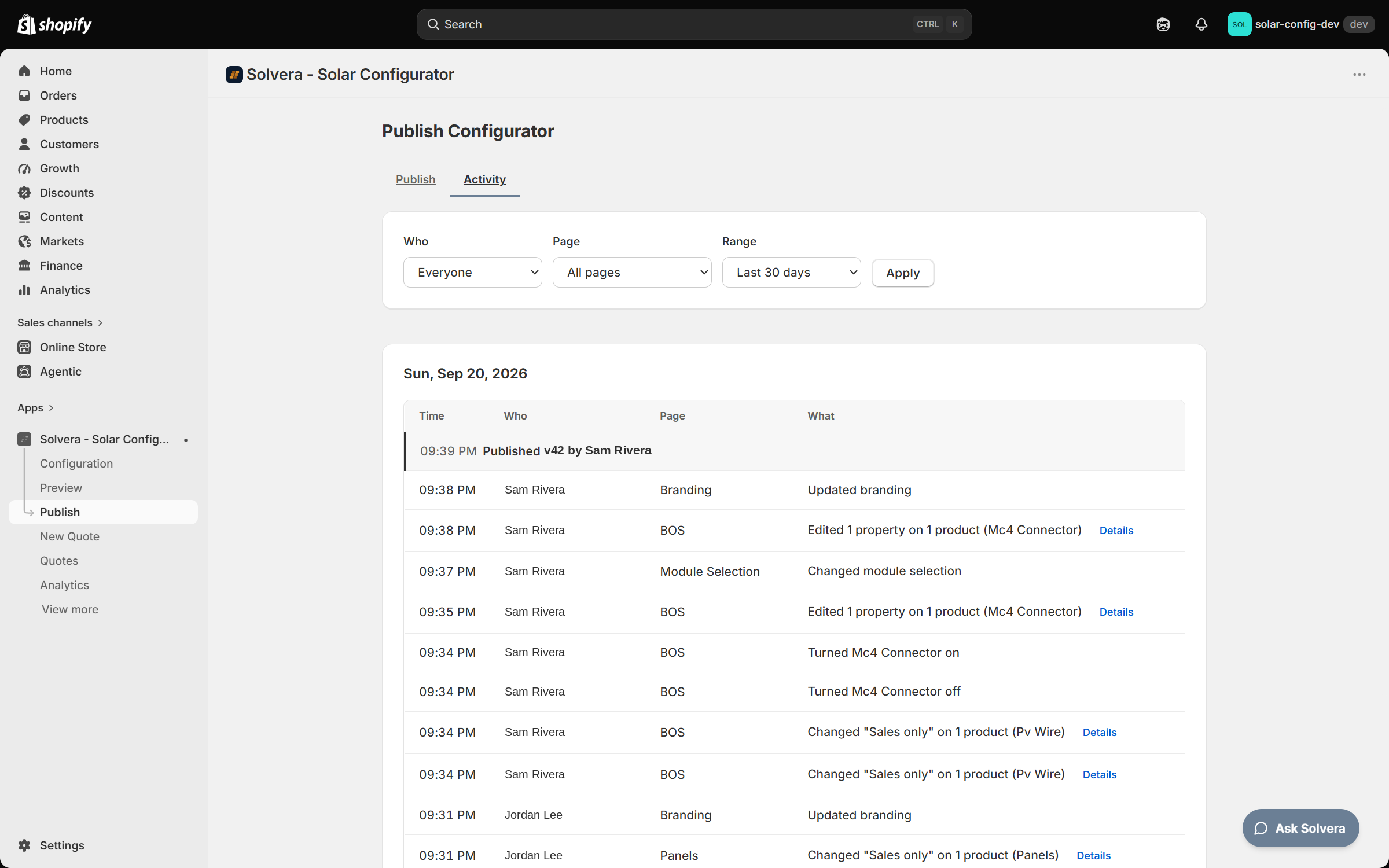
The Activity tab on the Publish page is a log of what changed in the admin, who changed it and when. Every save records one row: a Save on a catalog page's save bar, a settings save (System Overview, Quote Display, Quote Delivery, Quote Pricing, Branding, General Settings, Company Profile, the Storefront Questions page), a change on Module Selection, adding, importing, creating or deleting products and item types, and every publish and rollback. Not logged today: overrides and variables saved on the Calculated Values and Custom Variables pages, a custom storefront question saved from its own modal, and text and image edits made in Preview's Edit Mode; those still show up in the publish summary. Nothing needs to be set up and no Shopify permission is asked of anyone: the name comes from the staff account that was signed in when the change was made.
Each row shows the Time, Who, the Page and What. A save-bar Save is summarized in one sentence, for example "Edited 3 properties on 2 products (Rails)", with a Details toggle that lists the individual edits, such as Rails / IronRidge XR100 - 168in: Rail Length = "168". Publishes and rollbacks are drawn as full-width markers between the rows ("Published v42 by Sam Rivera", with the version description after the number when one was typed; "Rolled back to v40 by ..."), so you can read what happened between two versions; the markers stay visible whichever person or page you filter by.
The filters at the top are Who (Everyone, or one staff member), Page (All pages, or one admin page) and Range (Last 7 days, Last 30 days, Last 90 days, Year to date, or Custom with From and To dates); click Apply. Rows are grouped by day in your store's timezone, fifty per page. When nothing matches, the tab reads "No activity in this period."
How far back you can see depends on your plan: Growth shows the last 7 days, Professional the last 180 days. On Growth the filter row says "Showing the last 7 days. Professional keeps 180 days.", and a custom range that reaches further back is moved forward with a note ("Your plan keeps 7 days of activity, so the start of this range was moved forward."). On Starter the tab shows an upgrade card instead of the log. Activity is recorded on every plan, so when you upgrade the history is already there.
Wrong name? The name shown here, in Version History's By column and under Published By is the one on the person's Shopify user profile (in the Shopify admin, Settings > Users). If it is wrong or oddly formatted, a company suffix or initials for instance, correct it there; Solvera picks up the new name the next time that person publishes, or within a month at the latest.
Recommended workflow
- Make your edits in the admin.
- Open Preview and walk through the configurator end to end.
- Return to Publish and review the Unpublished Changes Detected banner.
- Glance at the "changes since" card: if it counts more people than you expected, expand it to see what a colleague has saved, so nothing goes live by accident.
- Resolve any validation errors and review warnings.
- Add a short Version description (optional but recommended; it pays for itself the first time you need to find a specific version).
- Click Publish New Version.
- Confirm the live storefront looks right.
If anything is off, roll back to the previous version while you investigate.