Quotes and Sales Mode
The customer quote page
When a customer finishes the wizard, they reach a full-page quote that replaces the step layout. It includes:
- A grouped Bill of Materials table with category subtotals (Modules, Energy Storage, Inverters, Racking, BOS).
- Promotional badges next to any flagged line items, and a "Minimum order: N" badge on a panel row that was raised to the product's minimum order quantity.
- The items subtotal in the Add to cart card, or the estimated total once Quote Pricing is configured.
- A pricing breakdown row (subtotal, surcharges, shipping, tax) when pricing is configured.
- Three action cards side by side above the table: Email your quote, Add to cart, and Share this quote. The email and share cards appear based on your Quote Delivery settings.
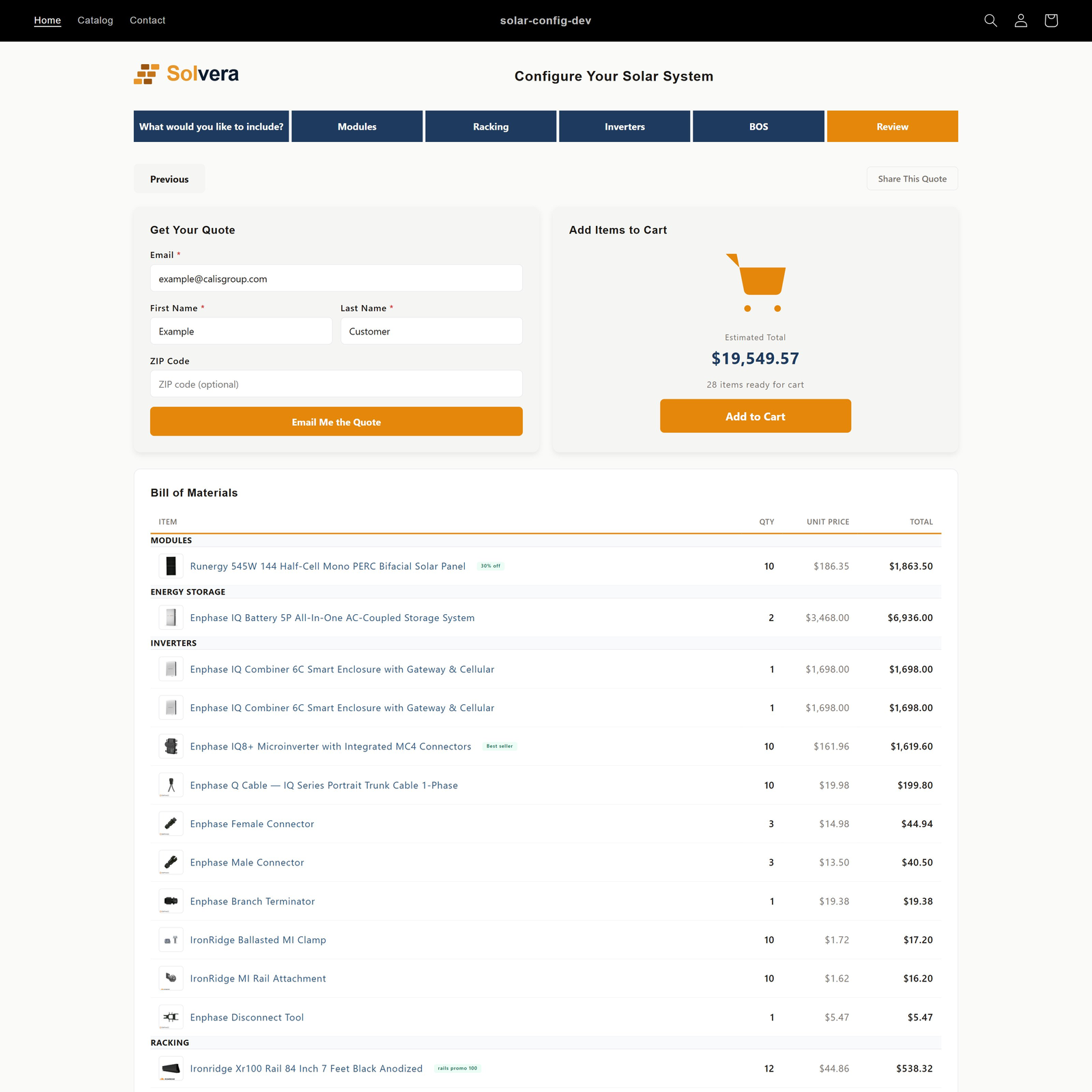
Email your quote
The quote page shows an Email your quote card. Logged-in customers click Email my quote and the quote is sent to the email on their customer account. Logged-out visitors see Log in to email your quote; clicking it saves the quote, shows a saved quote link, and routes through the store's native login or signup. No contact details are entered in the widget; if you turned on the ZIP code option in Quote Delivery, an optional ZIP or postal code field appears in the card. The confirmation email includes the full BOM and a link back to the quote, and uses your company profile, branding, and the templates configured in Quote Delivery. Repeated sends from the same customer or address are throttled with a "Too many requests" message for a few minutes.
Share Quote
The customer generates a shareable link to the quote and can copy it, send it by email, or send it on WhatsApp. Anyone who opens the link sees the same BOM and can take action on it. Links can have an optional expiry configured in Quote Delivery. Using the Share button is recorded against the quote, so you can see which quotes were shared.
What a saved quote link shows later
A shared link, and the "View Your Quote" link in the confirmation email, open the quote as it was saved and then check it against your current catalog, re-pricing only the modules the customer actually chose (a panels-only quote is never padded with racking or inverter lines). While that runs the page reads "Checking current pricing and availability...". If nothing moved, the saved quote stands. If prices or availability changed, a banner reads "This quote was updated since it was saved - the highlighted rows below reflect current pricing and availability.", the changed rows are highlighted with the old price struck through, and the total is marked "Reflects current pricing"; the Email and Share cards send the current figures. If the configuration can no longer be priced at all (a product it relied on is gone from the catalog), the banner reads "This quote was created under a previous catalog. Current pricing for this configuration is no longer available - start a new configuration for an updated quote." and the page shows the saved quote exactly as it was; the Email button is disabled ("This quote is out of date. Start a new configuration for a current quote."), because Solvera never emails prices it could not verify, while Add to cart still offers the saved lines.
Add to Cart
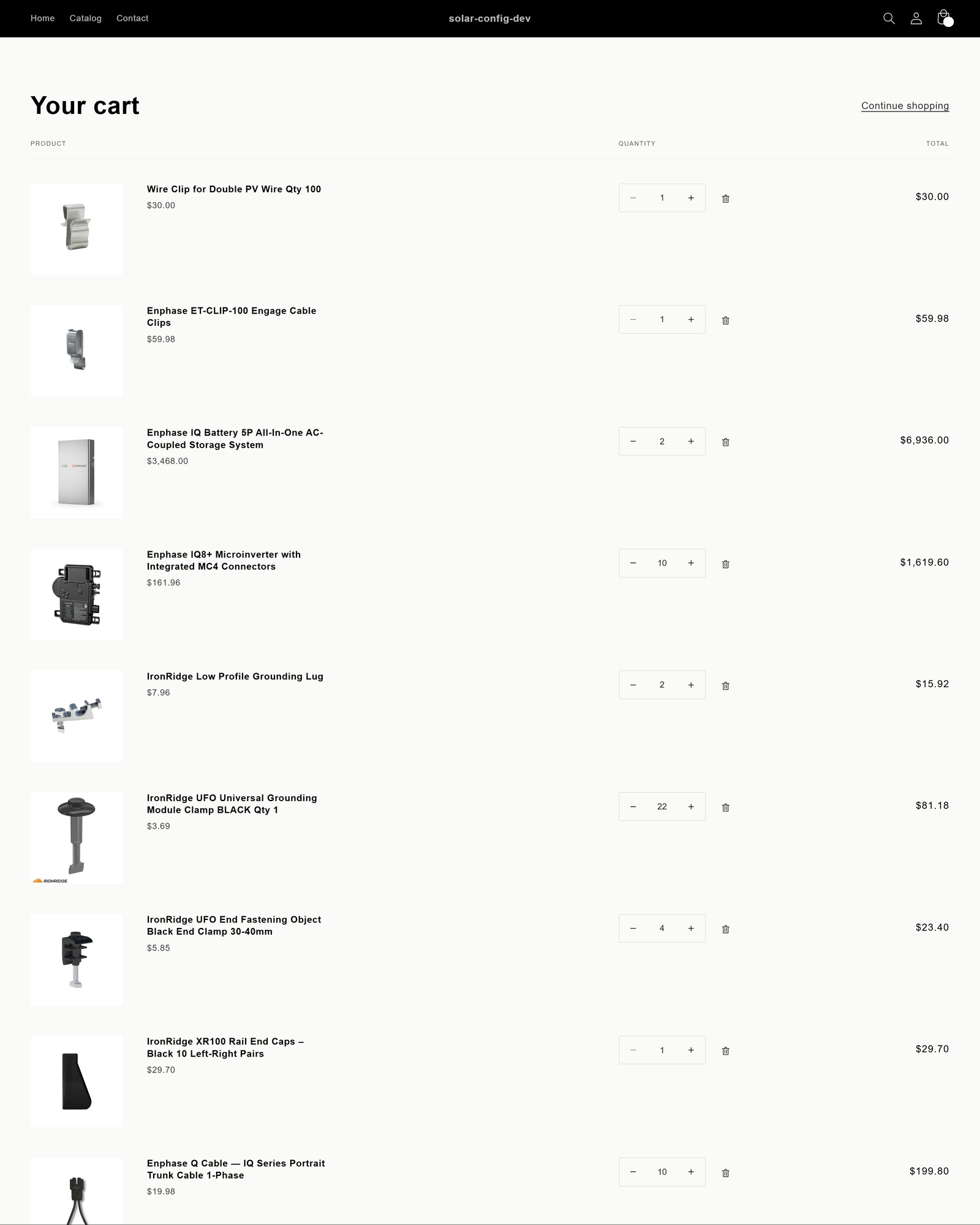
The customer adds the entire configured system to the standard Shopify cart and proceeds through Shopify's native checkout. Line items with Shopify variant IDs become real cart items. If Shopify rejects some lines (for example a sold out product or a quantity above stock), everything else is still added and the card lists the items that could not be added: "3 items could not be added. Everything else is in your cart." Solvera does not process payments; checkout always happens through Shopify.
Adding to cart also records the configuration as a quote, so a customer who adds to cart without emailing or sharing still appears in your reporting.
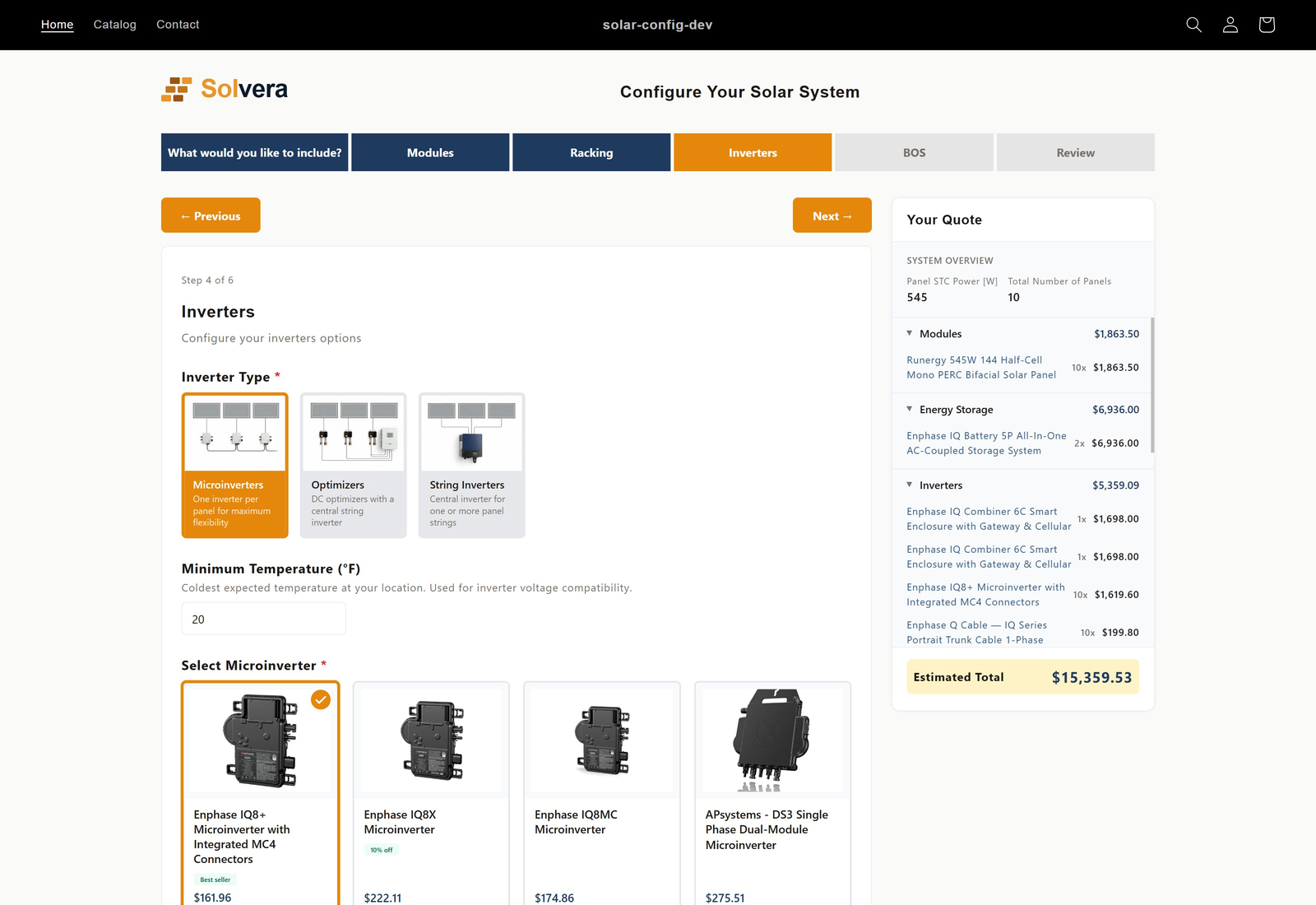
The live BOM sidebar
Throughout the wizard, a sidebar shows the bill of materials as it builds:
- Categories reveal progressively as the customer reaches each module step.
- Quantities and subtotals recalculate instantly on every selection.
- Items are grouped by category with collapsible sections.
- You control visibility and display options (unit price, line total, grand total, product links) from the Quote Display page.
Sales Mode Growth+
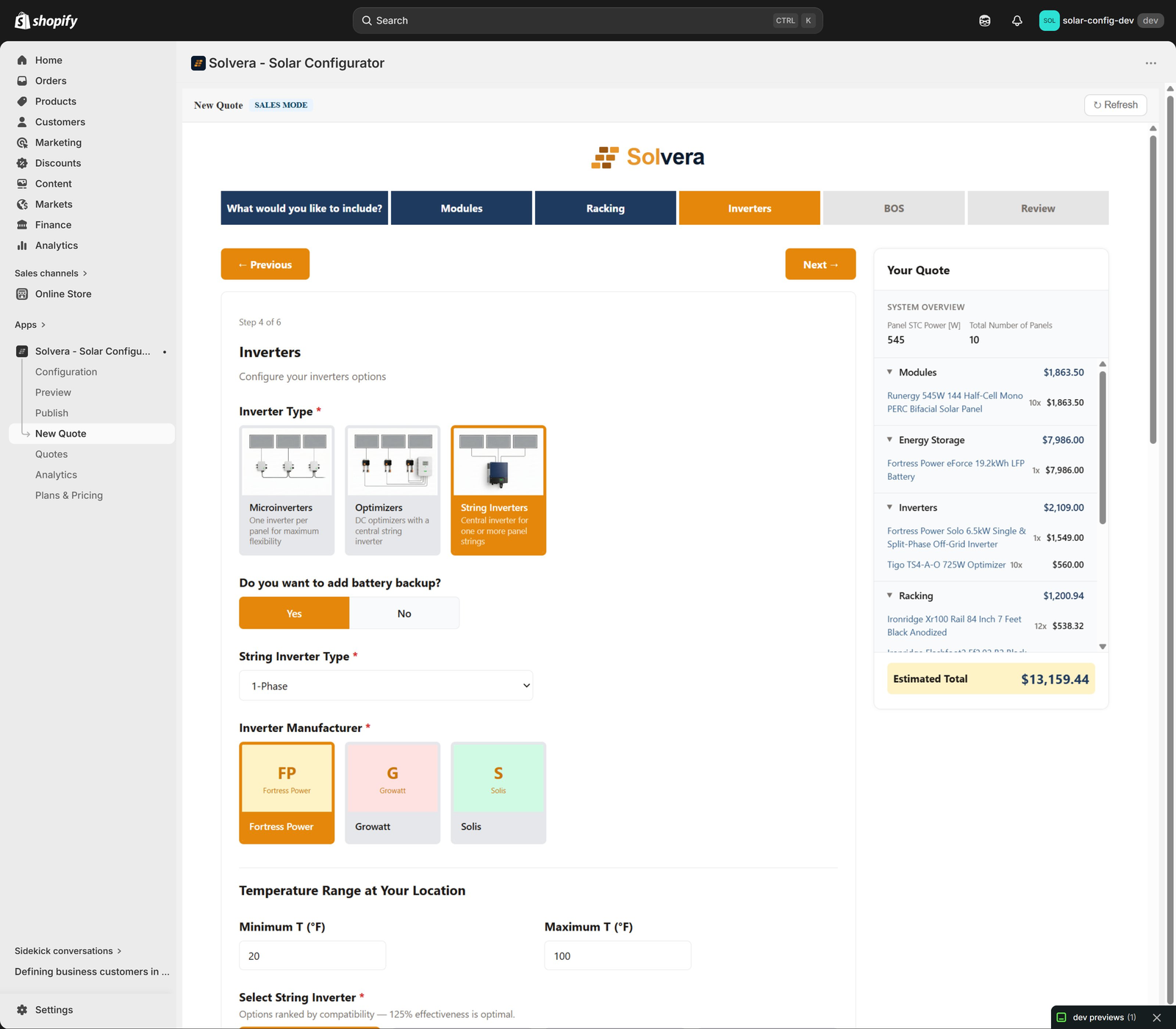
Sales Mode is a separate workspace for your reps to build quotes for customers, for example over the phone or in person. Reach it from the top app navigation: New Quote, Quotes, and Analytics.
New Quote
Reps run the same configurator workflow a customer would, with two important differences:
- Sales only products are visible, in the same position as in your product tables, so reps can quote items you do not list publicly.
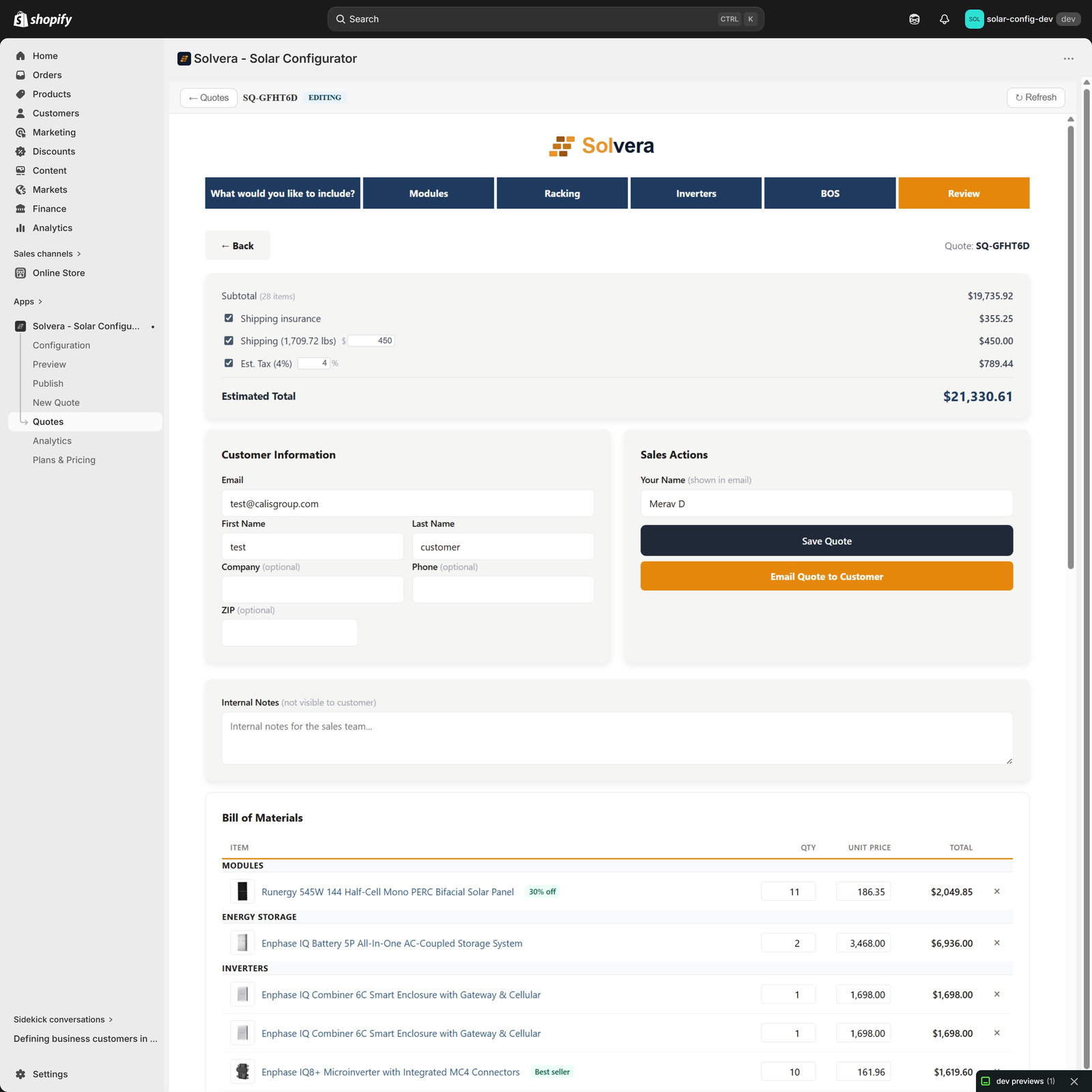
- The BOM is editable on the final review step.
A "Sales Mode" indicator at the top of the page makes it clear the rep is working in the sales workspace, not the customer-facing storefront.
Editable BOM and quote review
On the final review step, reps can:
- Adjust quantities and override unit prices on any line item.
- Delete line items.
- Add custom line items (free-text label and price) for items not in the catalog.
- Add any Shopify product directly through the Shopify product picker.
- Edit the pricing breakdown inline: surcharges can be toggled on or off, the shipping amount can be replaced with an actual freight quote, and the tax rate can be overridden when the configuration allows it.
Changes are protected by an unsaved-changes guard, so a rep does not lose work by navigating away. The page also includes a Customer Information card, a Sales Actions card (with a Your Name field and Save Quote / Email Quote to Customer buttons), and an Internal Notes field that is not visible to the customer. Your Name is prefilled with the signed-in rep's own name from their Shopify user profile, or left empty when that is not known; it is never filled from another rep's quote, because it is the signature the customer sees.
Save and Send
Reps can save a quote as a draft and send it to the customer using the Sales Rep Outreach email template (which supports merge tags including the rep name and signature). The customer receives the quote and can view it and act on it just like any storefront quote.
A quote a rep has saved or sent is a fixed offer. Whether the rep built it from scratch or opened a customer's own quote from the Quotes list and edited it, the customer's link then shows the rep's lines and prices exactly as saved, with a "Quote prepared by" header naming the rep, the terms and any customer notes, and no re-pricing against the current catalog and no Email or Share cards. The customer can still add it to cart. Editing a customer's quote never overwrites the answers the customer gave in the wizard, and the quote keeps counting as a Storefront quote in the Quotes list and in Analytics.
Set the Quote page URL before your reps start sending. The email carries a "View Your Quote" button, and the address behind it is built from the Quote page URL field on Quote Delivery: the page on your storefront where the configurator is installed, with the quote's reference added to the end. A rep sends from inside the Shopify admin, so unlike a customer emailing themselves from your storefront, there is no page address for Solvera to pick up automatically. This setting is the only source. Leave it blank and the emails go out without the button; the Quote Delivery page warns you when Sales Mode is on and the field is empty.
Quotes list
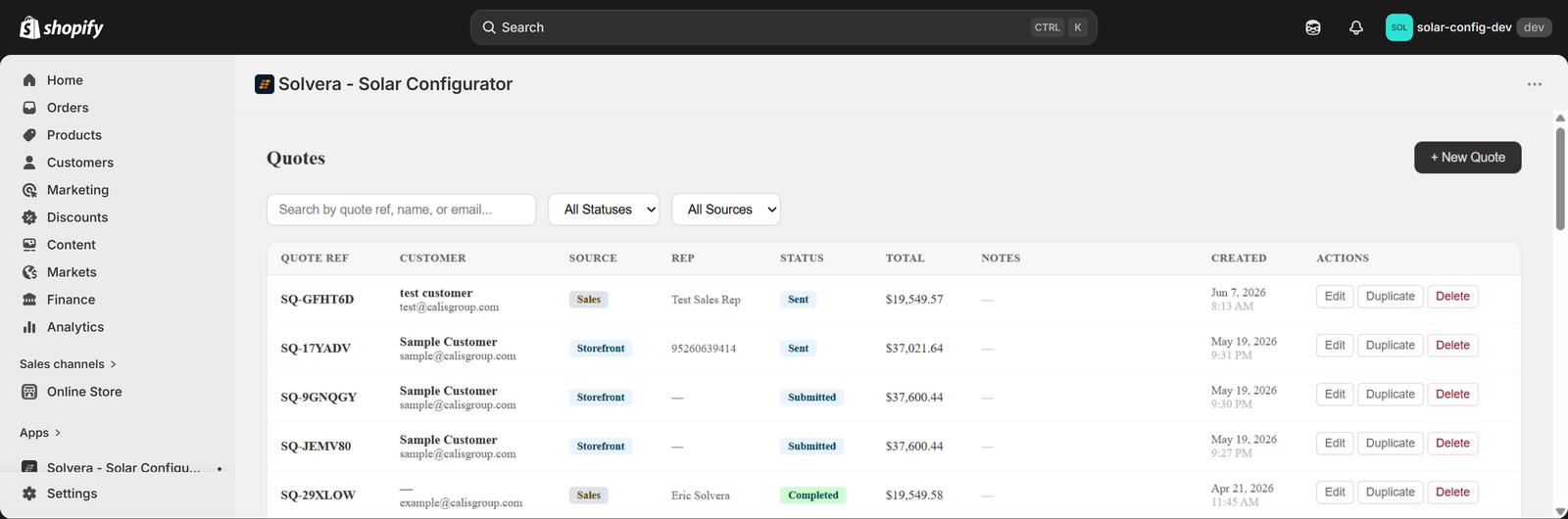
Open Quotes from the top navigation to see all quotes in one place:
- Search by quote reference, customer name, or email.
- Filter by Activity (see below), Status (All, Open, or Expired), and Source (Storefront or Sales).
- Paginate through results.
- Per-row actions: Edit, Duplicate, or Delete.
Editing existing quotes and duplicating quotes are Professional-tier capabilities.
The Activity column replaces a single status word with what has actually happened to each quote. It has four fixed slots, in this order: Emailed (an envelope), Viewed (an eye), Shared (a link), and Added to cart (a cart). A filled slot means it happened; hover or tab to it for the date and time in your store's timezone, for example "Shared Sep 5, 9:07 PM". Empty slots stay in place so the column reads the same on every row. Each is recorded once, the first time it happens.
The Activity filter is a multi-select headed "Show quotes with any of", listing Emailed, Viewed, Shared, Added to cart, and No activity. By default everything except Added to cart is selected, which hides quotes whose only activity is a customer adding to cart, while still showing a quote that was both emailed and added to cart. Tick Added to cart to see them. The trigger shows the current selection and a "custom" badge when it differs from the default.
The Status column shows an Expired badge on quotes whose share link has passed the expiry you set in Quote Delivery, and is otherwise blank. If you have not set a link expiry, no quote can expire and the column stays empty.
The Rep column names the staff member who built a Sales quote, taken from their Shopify user profile, so it is filled in even for quotes where the rep left Your Name empty. If a name looks wrong, correct it on the person's Shopify user profile (Settings > Users in the Shopify admin).
Analytics Professional
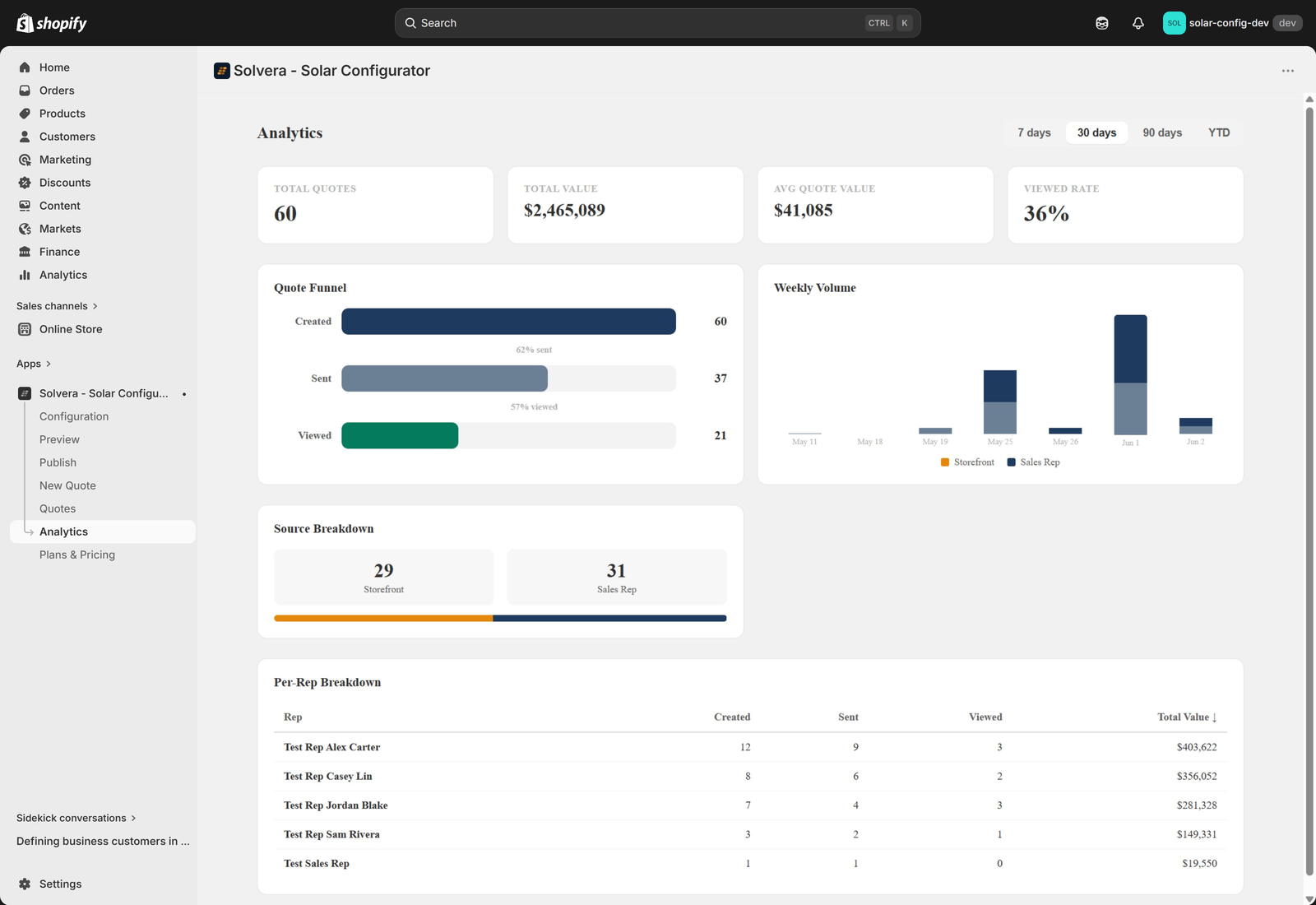
Open Analytics from the top navigation for a dashboard built from your quote activity. Choose 7 days, 30 days, 90 days, or YTD, or set a custom from and to date and click Apply. Presets are whole days in your store's timezone, so a preset and the same range entered by hand agree. A custom range can span up to about two years and cannot start in the future.
- Top-level metrics: Total Quotes, Customers Quoted, Total Value, Avg Quote Value, Emailed, Shared, Viewed Rate, and Added to Cart.
- Quote Funnel: Created → Reached → Viewed with conversion percentages.
- Weekly Volume: a stacked bar chart showing storefront vs sales rep quote volume by week.
- Source Breakdown: total counts and visual split between storefront and sales rep sources.
- Per-Rep Breakdown: a table with each rep's created, reached, viewed counts and total quote value, sortable by any column. Rows are one per staff account, not per typed name: two reps who type the same name stay separate, a rep who spells their name differently on two quotes is one row, and a rep who left Your Name empty is listed by their Shopify profile name rather than lumped into an "Unknown" row.
What each stage means
Every stage label on the dashboard carries a small help icon showing the same definition:
- Created: quotes saved in this period, from the storefront or by a rep.
- Reached: emailed, shared with the share button, or the quote page was opened by the customer. Every viewed quote is also reached.
- Viewed: the customer opened the quote page from the link in the email or a shared link. Opening the email itself doesn't count.
- Emailed: sent by email from the storefront or by a rep. Matches the Emailed slot in the Quotes list. It is a subset of Reached.
- Viewed rate: Viewed divided by Reached.
Viewed counts opens of the quote page itself, not opens of the email. Solvera does not track email opens.
Analytics counts an activity against the period the quote was created in, not when the activity happened. A quote created in July and shared in September counts in July.
Leaving out your own test quotes
Click Filters in the page header to keep a list of email addresses out of every number on this page and on the Home tiles. Enter one address per line, or @yourcompany.com to exclude a whole domain. Excluded quotes still appear in the Quotes list; only the reporting ignores them. Quotes with no email address (a shopper who shared or added to cart while logged out) cannot be excluded this way, so log in when you test.
What Solvera tracks for each quote
Four things can happen to a quote after it is created, and Solvera records the first time each one does. They are independent: a quote can be shared without ever being emailed, or viewed without either.
- Emailed: the quote was emailed, either by the customer from the storefront or by a rep.
- Viewed: the customer opened the quote page, from an emailed link or a shared link.
- Shared: the customer used the Share button.
- Added to cart: the customer added the configured system to the Shopify cart.
These are the four slots in the Quotes list's Activity column, and the Emailed, Shared, and Added to Cart figures on the Analytics dashboard. Analytics summarizes them into the Created, Reached and Viewed stages described above.
Quote statuses
Quotes move through clear statuses as they progress:
- Pending: a draft quote being built by a rep, not yet submitted.
- Submitted: a customer has submitted a storefront quote (clicked Email my quote or generated a share link).
- Sent: a sales rep has emailed the quote to the customer.
- Viewed: the customer has opened the shareable quote link.
- Completed: the quote has been converted to a cart or marked complete.
Statuses remain available through the API and webhooks. In the admin, the Quotes list and Analytics both work from the recorded activity above rather than the status word, so a quote that was shared and opened shows that activity whatever its status says. The Quotes list's Status column is used only for the Expired badge.
Tier summary for quoting
- Starter: customers can configure a system, email a quote to themselves, share a quote link, and add the system to the cart. Email and share are controlled by your Quote Delivery settings; sending email requires an email provider key. Quote pricing display and Sales Mode are not included.
- Growth: adds pricing display in the BOM, quote pricing (tax, shipping, surcharges), and the full Sales Mode workspace with editable quotes.
- Professional: adds editing and duplicating existing quotes from the Quotes list, plus the full Analytics dashboard with custom date ranges and excluded addresses. The Last 30 days summary on the app's Home page is available on every plan.
See the Plans and Features page for the complete tier matrix.