Troubleshooting
The configurator does not appear on my page
- Confirm you added the Solar Configurator block to the page in the theme editor and saved the theme.
- Confirm the block's "Show configurator" setting is on.
- Confirm you have published at least one version from the app's Publish page. The storefront reads the last published version.
- Make sure you are viewing the page where you added the block, on the live storefront, not the admin.
- Check the Add the configurator to your storefront step on the app's Home page. "Detected" means the block was seen on your live theme; "Seen in your theme editor" means the theme was not saved; "Seen on an unpublished theme" means the theme with the block is not the published one.
My products do not show up in the configurator
- Confirm the product is added to the relevant item type table in the app (it is not enough for the product to exist in Shopify).
- Confirm the product's property columns are filled in, especially the selection criteria (manufacturer, profile, color) used for matching.
- Check the coverage indicator on the item type. A red or yellow dot means some combinations are missing.
- Check the item type's Active switch in its row header. An inactive item type contributes nothing, and its products are left out of every quote and picker. See The Active switch.
- Check Module Selection. A module or sub-module is offered only when it and every level above it are checked, and it has at least one Active item type with a product. An unchecked Optimizers, Flat Roof system, Batteries or Monitoring entry removes that option and its questions from the storefront.
- If the product is marked Sales only, it will not show to customers (it only appears in Sales Mode).
- After making changes, publish so the storefront picks them up. Use Preview to test before publishing.
Prices are not showing in the bill of materials
BOM pricing display is a Growth tier and above feature. Growth+ On Starter, the configurator shows the system and quantities but not prices in the sidebar. Upgrade to Growth or Professional to show pricing, or check the Quote Display settings to confirm pricing is enabled.
My changes are not live
The storefront always shows the last published version. After editing in the admin, click Publish and then Publish New Version. When you have unpublished edits, the Publish page shows an Unpublished Changes Detected banner summarizing what changed. Use Preview to see changes before publishing.
If the banner appears right after an app update although you changed nothing, publish once; the fingerprint Solvera uses to detect changes was extended and the summary will show no real differences.
If the banner lists changes you do not recognize, someone else on your team may have saved them. The "changes since" card under the publish controls counts every save since the live version went out and names who made them, and the Publish page's Activity tab has the full log. See Who changed this?.
Who changed this?
Open Publish and switch to the Activity tab. Every save, publish and rollback is listed with the time, the staff member, the page and a one-line summary, and a Details toggle lists the individual edits of a save. Filter by person, page or date range. Growth shows the last 7 days and Professional the last 180; on Starter the tab shows an upgrade card, although the history is still being recorded for when you upgrade. Growth+ The By column in Version History and the Published By line in Current Status answer the same question for publishes. Full details are on Publishing and versions.
If a name is wrong or oddly formatted (a company name after the surname, initials, an old name), it is the name on that person's Shopify user profile. Fix it in the Shopify admin under Settings > Users; Solvera picks up the change the next time that person publishes, or within a month.
Add to Cart added only some items
When Shopify rejects a line (the product is sold out, or the quantity is above what is in stock), Solvera adds everything else and lists the items it could not add under the button. Check the product's inventory and inventory policy in Shopify; the customer can add the remaining items manually once stock is available.
Customers are not receiving quote emails
- Customer email quotes are available on all plans, but they must be turned on under Quote Delivery (the "Customer self-service emails" toggle).
- Email sending requires an email provider to be configured on the server. If it is not, the Quote Delivery page shows a warning banner.
- Share links and Add to Cart work without email.
- A customer who clicks Email my quote many times in a short period sees "Too many requests - please try again in a few minutes." This is a rate limit, not a delivery failure.
The quantities in the bill of materials look wrong
- Every item type has a quantity formula on its Quantity tab. Check that the formula and any conditional rules match how you actually count that item.
- Use per manufacturer overrides for suppliers that package or count differently, instead of changing the global default.
- If a manufacturer does not sell an item type, mark it as not applicable (an exclusion) so it stops appearing.
- The Calculated Values page has a test calculator you can use to check a formula with sample inputs.
- A string inverter quote with far too many strings, string fuses, combiners or connectors almost always means the string inverter's Max Input Voltage property is missing or wrong (a value under 150 V is a battery-side figure or a typo). The Inverters page flags such rows in a banner above the String Inverters table. See String sizing.
Fallback items
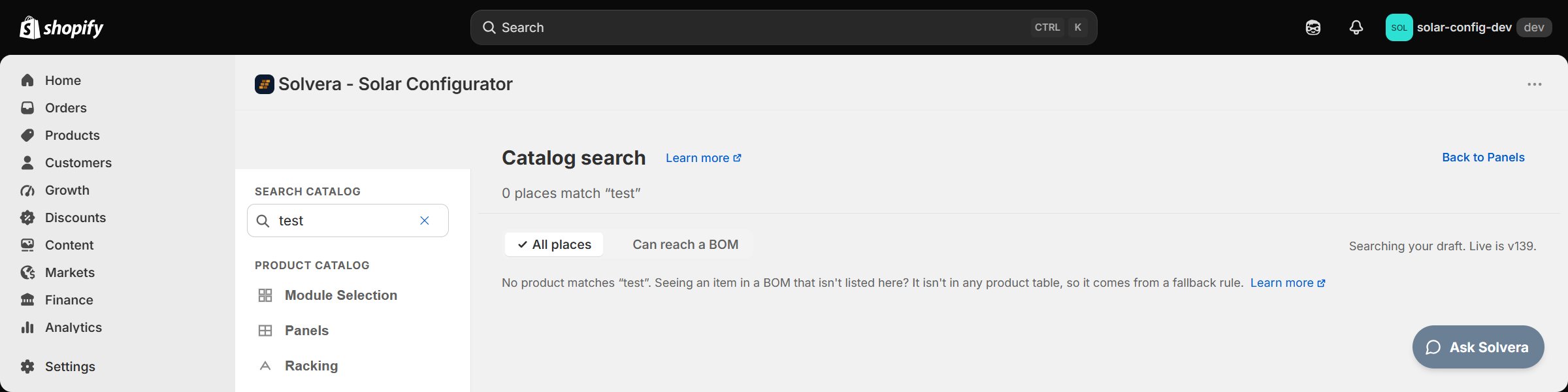
When a line in a bill of materials is not one Catalog search can find, it is coming from somewhere other than a product-table row. These are the places a quote line can come from:
In Preview, Explain BOM marks such a line Fallback and names the reason on the line itself, so you can check a specific quote rather than working through this list.
- Rails: when no rail product of the needed length exists, the rail calculation still lists a rail of that length, titled "Rail 14ft" for a 14-foot piece, so the quote stays complete and the lengths add up. There is no product behind that line, so what the customer sees depends on your Unmatched items setting on Quote Display: either a "Price on request" line or nothing at all. Add the missing length to the Rails table.
- Tilt legs: when no quantity rule produces a line, a default of 2 tilt legs per panel is used.
- Monitoring devices: when the item type has no quantity rule configured, 1 unit is used. See Monitoring devices.
- An item the customer picks: when the item type has no quantity rule, the product the customer chose is quoted once.
- MC4 connectors: when no MC4 pair product matches the design, male and female connectors are quoted separately instead. When you do stock pair products but none matches the criteria, the first pair product is used.
- PV wire gauge: the wire gauge is worked out from the panel's short circuit current. When no PV wire product carries the gauge that calculation asks for, the gauge is ignored and the wire is matched on your other criteria, so the customer still gets wire. Add a product in the missing gauge.
- Accessories: a product's accessories, set on that product's row, appear as their own lines under the parent. They are not rows in a product table. To change them, open the parent product's row.
- Sales Mode: lines a sales rep added by hand or from the Shopify store are not in any table.
- "First product is used": when an item type has no match criteria, the first row in its table is used for every design. That row is in the table, but it may not be the one you expected. Reorder the table or add match criteria. Catalog search marks such a row "No criteria, first product is used", and Explain BOM in Preview shows the same warning on the quote line.
- A row whose title is blank can still be found in Catalog search by its variant ID.
Units are in the wrong system
Open Configuration in the app's left navigation, then General Settings under Settings, and choose Imperial or Metric. This updates unit labels and dropdown values everywhere, including engineering values like pipe sizes.
Quotes and sales
What is a quote reference?
Each quote gets a unique reference like SQ-XXXXXX that the customer sees and that you can search by in the Quotes list and the API.
Can a sales rep build a quote for a customer?
Yes, with Sales Mode (Growth and above). Growth+ Use New Quote in the top navigation. Reps can see Sales only products, edit the bill of materials, add custom line items, pull in any Shopify product, and send the quote with a sales specific email template.
Quote emails have no "View Your Quote" button
The button is left out when Quote page URL on Quote Delivery is empty, because Solvera will not guess an address. Fill it in with the address of the storefront page where your configurator is installed, for example https://your-store.com/pages/solar-design-quote, copied straight from your browser's address bar. Do not enter a link to the app in your Shopify admin, and do not try to add ?quote= yourself; Solvera adds the quote reference to the end of the address for you. Check the Shareable link in quote email toggle is on as well.
The "View Your Quote" link opens my home page instead of the quote
The link is built from Quote page URL on Quote Delivery, so it opens whatever page you entered there. If that is your home page, or a page with no configurator on it, there is nothing on the page to read the quote reference and the customer just sees the page as normal. Set the field to the page your customers actually design on. If you filled it in with the Use this button next to "Detected on your storefront", check the address it suggested: that is the first page your configurator was ever seen on, which may not be the page you want.
A quote is missing from the Quotes list
By default the list hides quotes whose only activity is a customer adding the system to the cart, because those have no contact details and no request attached to them. Open the Activity filter and tick Added to cart to see them. Check the other filters too: Status defaults to All, but a saved link with ?status= or ?activity= in it applies whatever it carries.
The Status column is empty on every quote
That column shows only an Expired badge. A quote can expire only if you set a link expiry in Quote Delivery; with no expiry set, nothing ever expires and the column stays blank. What happened to each quote is in the Activity column instead.
Analytics shows a different number from the Quotes list
Analytics counts each quote against the period it was created in, not when it was emailed or viewed, and it leaves out any addresses on the excluded list in its Filters panel. The Quotes list applies neither. The Emailed figure means the same thing in both places.
Plans and features
Why is a feature locked?
Some features are part of higher plans. Locked features show an upgrade card or inline lock that links to Plans & Pricing. This is expected. See the pricing page for the full matrix.
If I downgrade, do I lose my data?
No. Data you created on a higher plan (for example custom modules) is preserved and simply hidden until you upgrade again.
How do I change plans?
Open Plans & Pricing in the app and click Manage plan on Shopify. Plans, trials, upgrades, downgrades, and cancellation are handled on Shopify's plan page and appear on your Shopify invoice. Email solvera@calisgroup.com if you need a plan that is not listed.
Testing and data access
How do I test without setting up a full catalog?
You only need a handful of products to exercise the full flow, and you do not have to enter them by hand. See Try it with a sample catalog.
What data does the app access and why?
- Product catalog (read): to display products with live images, prices, and availability.
- Files (read and write): to upload your logo and content images.
- Themes (read and write): to serve the storefront configurator assets.
No payment data is handled by the app. Checkout is always native Shopify.
Getting help
Start with Ask Solvera in the bottom-right corner of any admin page, or the Help and docs page in the main navigation; it answers from this documentation and links to the relevant guide. If that does not solve it, email solvera@calisgroup.com with your shop domain and a description of the issue. Screenshots help us resolve things faster.